
Details
This article will guide the uses to split the ViDiEL Read tool result of multiple line into separate cells of Spreadsheet.
Please follow below steps:
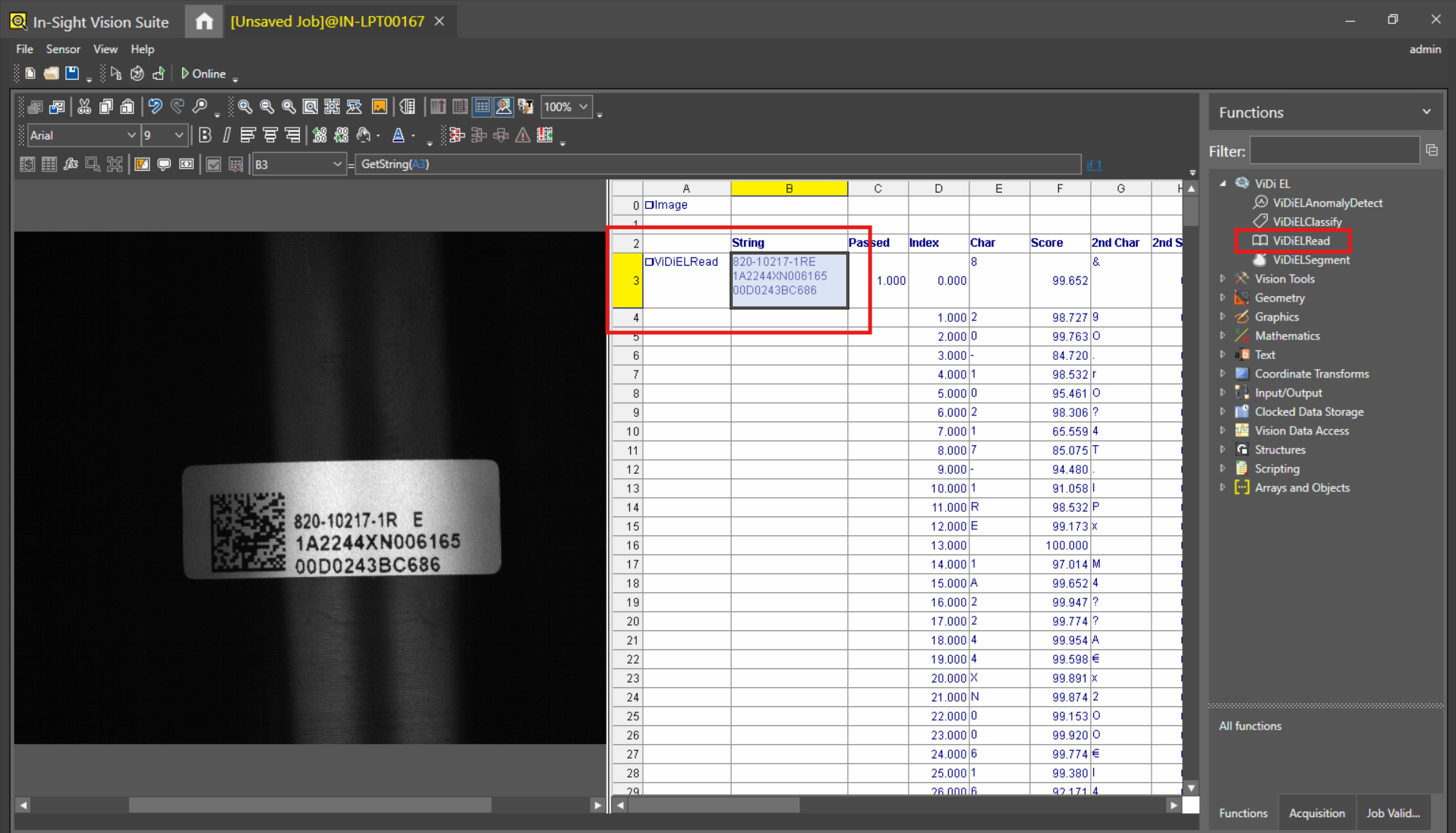
Step 1: Apply the ViDiEL Read tool and get the result.
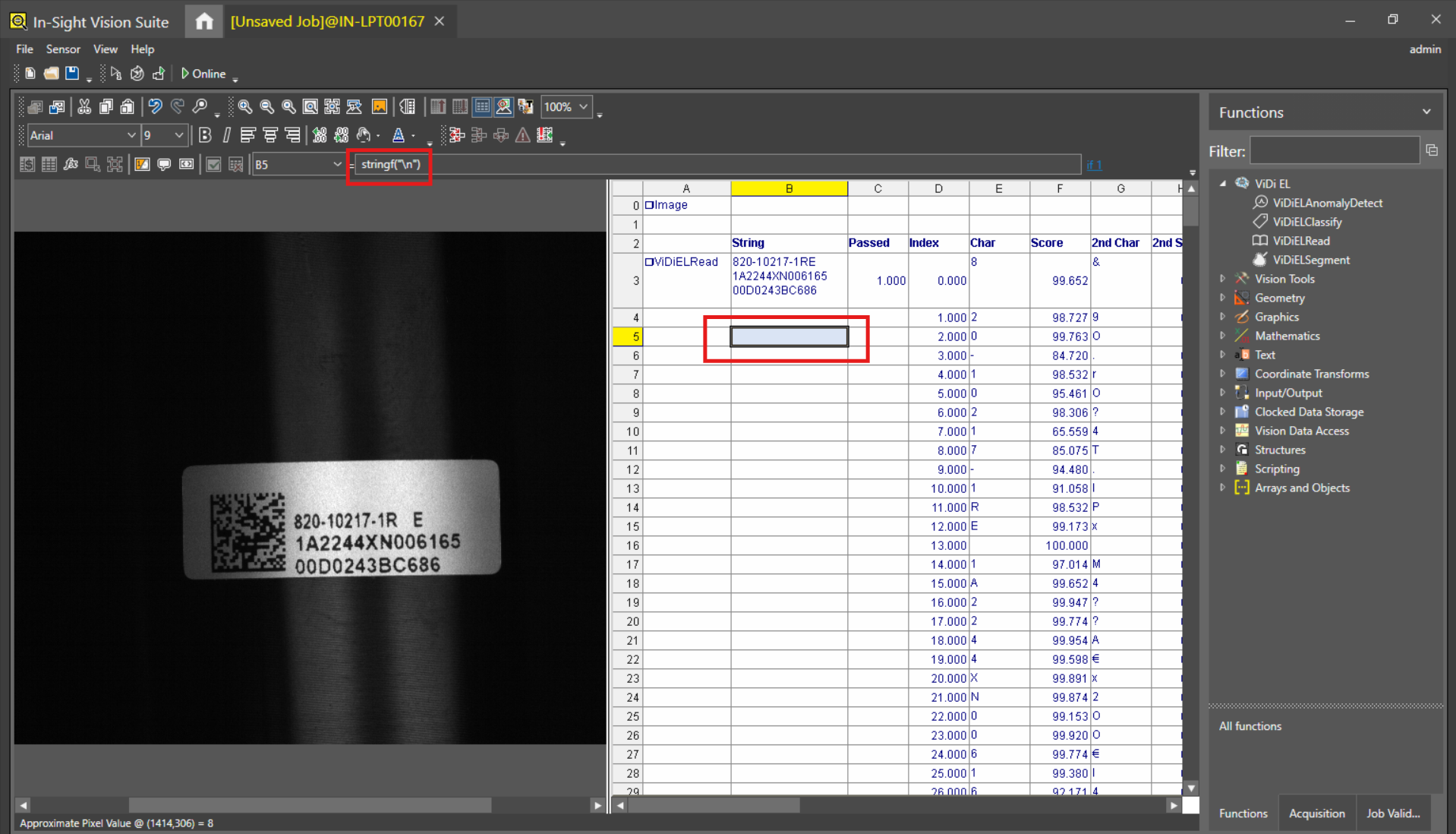
Step 2: Use the stringf("\n") function into an empty cell (here cell B5)
string("\n") will insert a new line into the text.
Step 3: Use the Token() function into an empty cell where users need to get the result of ViDiEL Read tool in separate cells. )
Token() function returns the text located at the specified Instance index (occurrence) of a delimited string.
Please use the function below to get the results in separate cells.
Token($B$3, $B$5,0) into cell B6 - Line 1 from ViDiEL Read Tool Result.
Token($B$3, $B$5,1) into cell B7 - Line 2 from ViDiEL Read Tool Result.
Token($B$3, $B$5,2) into cell B8 - Line 3 from ViDiEL Read Tool Result.
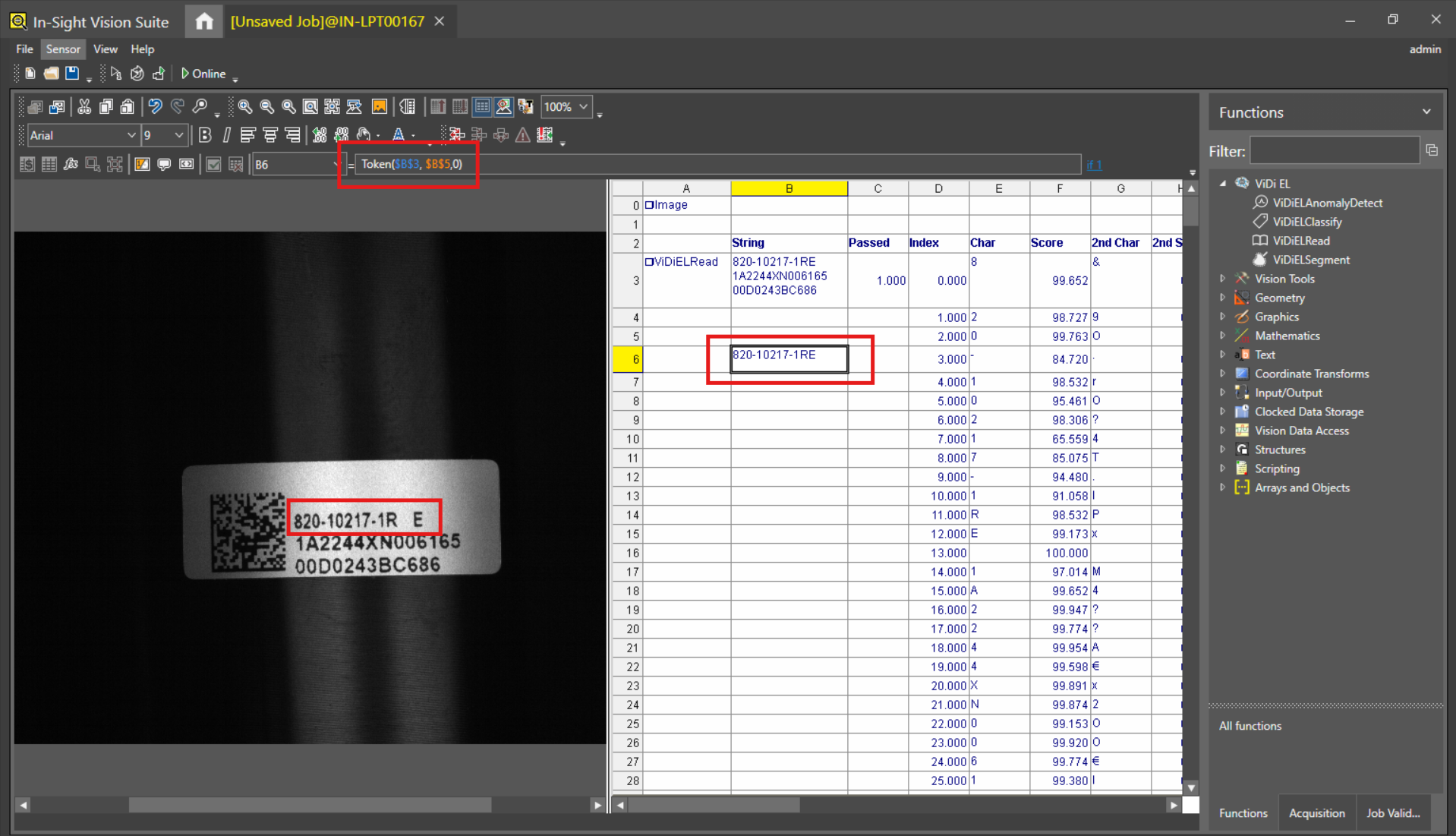
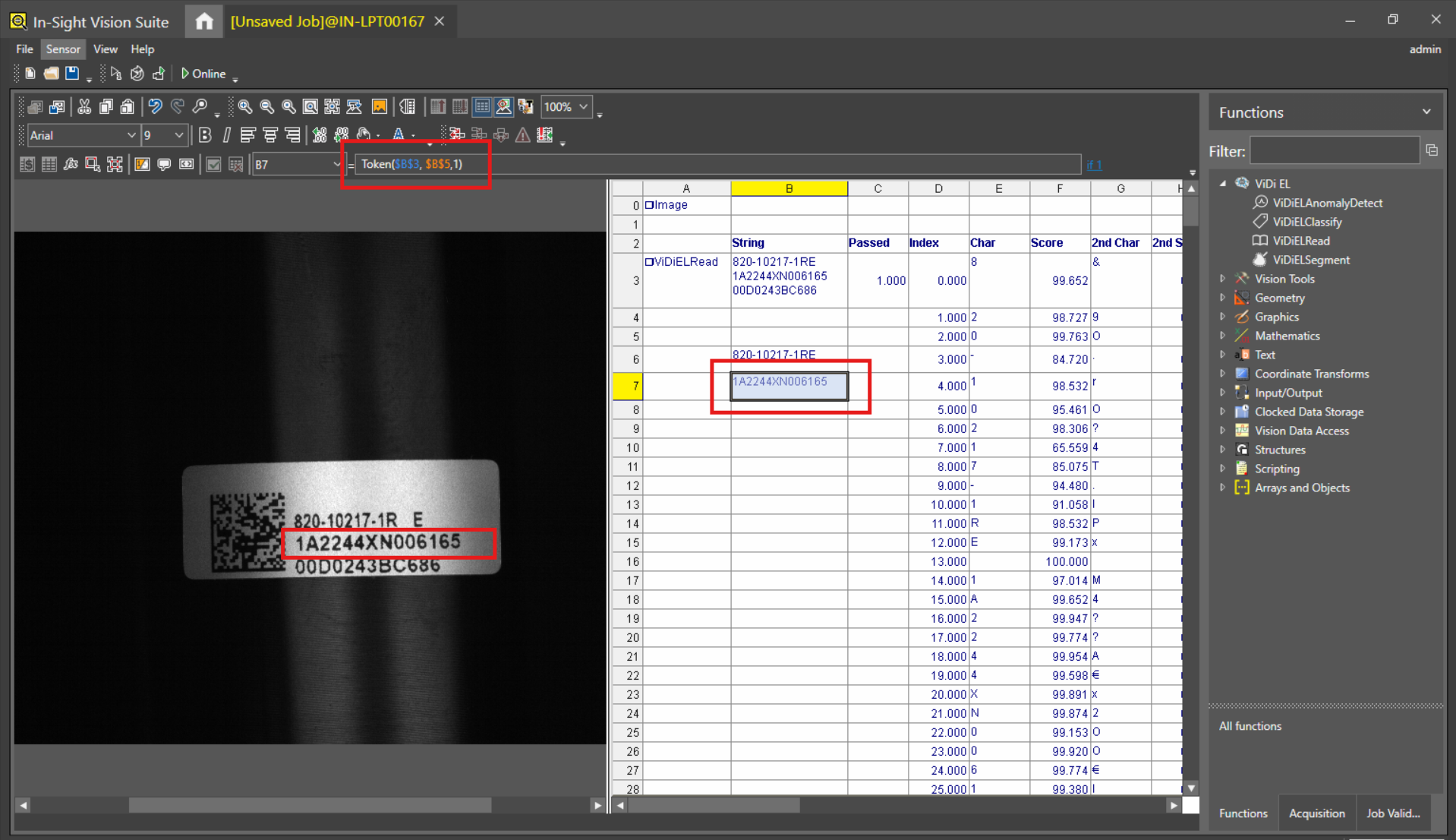
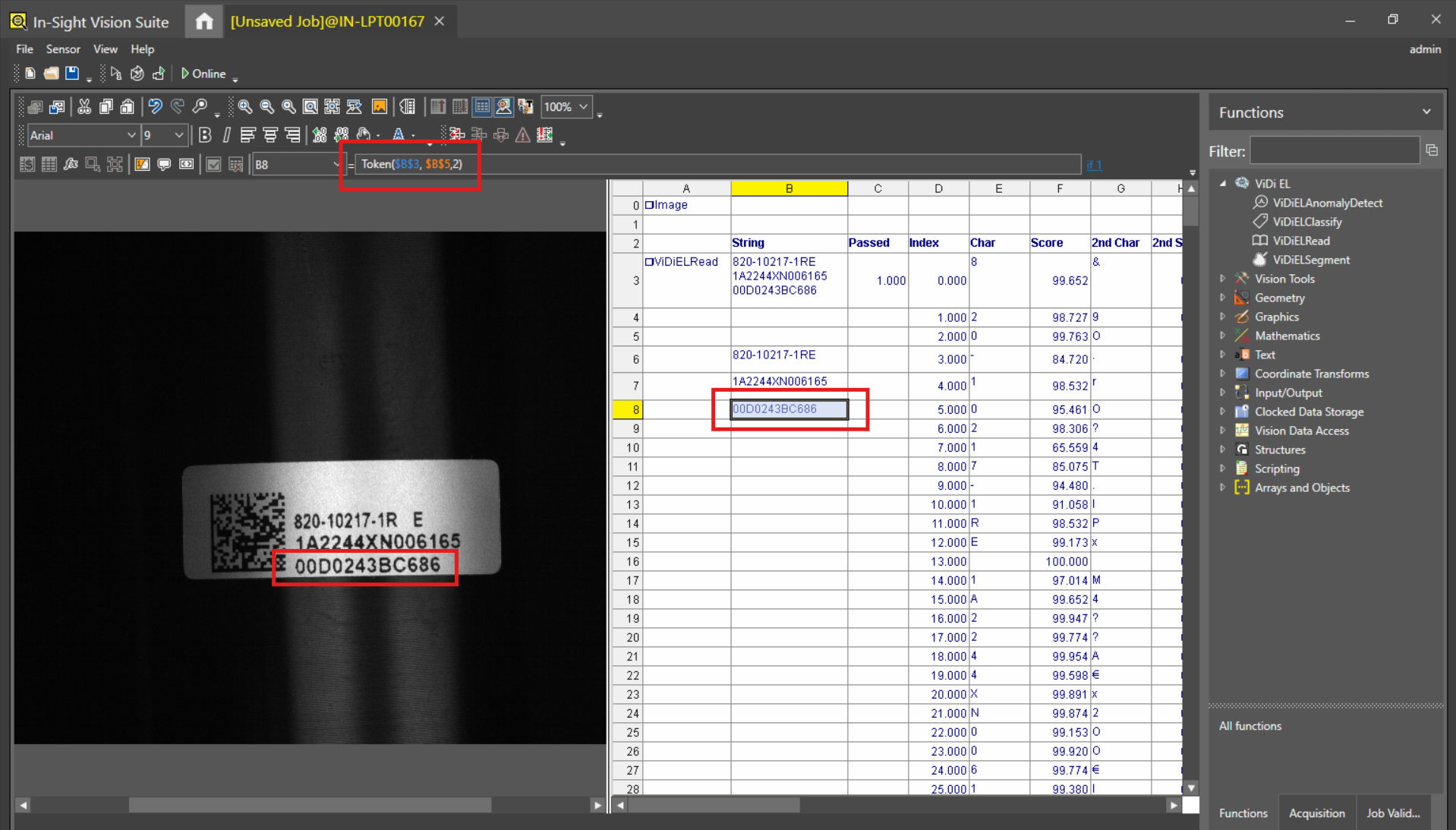
Now, Result of ViDiEL Read Tool (cell B3) of multiple lines has separate results in cells B6, B7 and B8.