Details
For rotating or moving objects, we sometimes need to capture multiple images from different poses, stitch them into a complete image, and then we can follow up with other vision tasks such as inspection, code reading or OCR. The stitch function in ISVS spreadsheet supports this task.
Here is an example shows how to do it
- First, we assume that the intervals between neighboring images are identical. Therefore, we can find the interval between neighboring images using the first two images.
Find the same feature on the first two images through pattern matching. In this example job, the object in the input image is a bottle. The purpose of this example is to stitch together multiple images into one image, then use FindPatMaxRedLine to locate this feature in both images and record them.
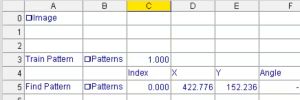
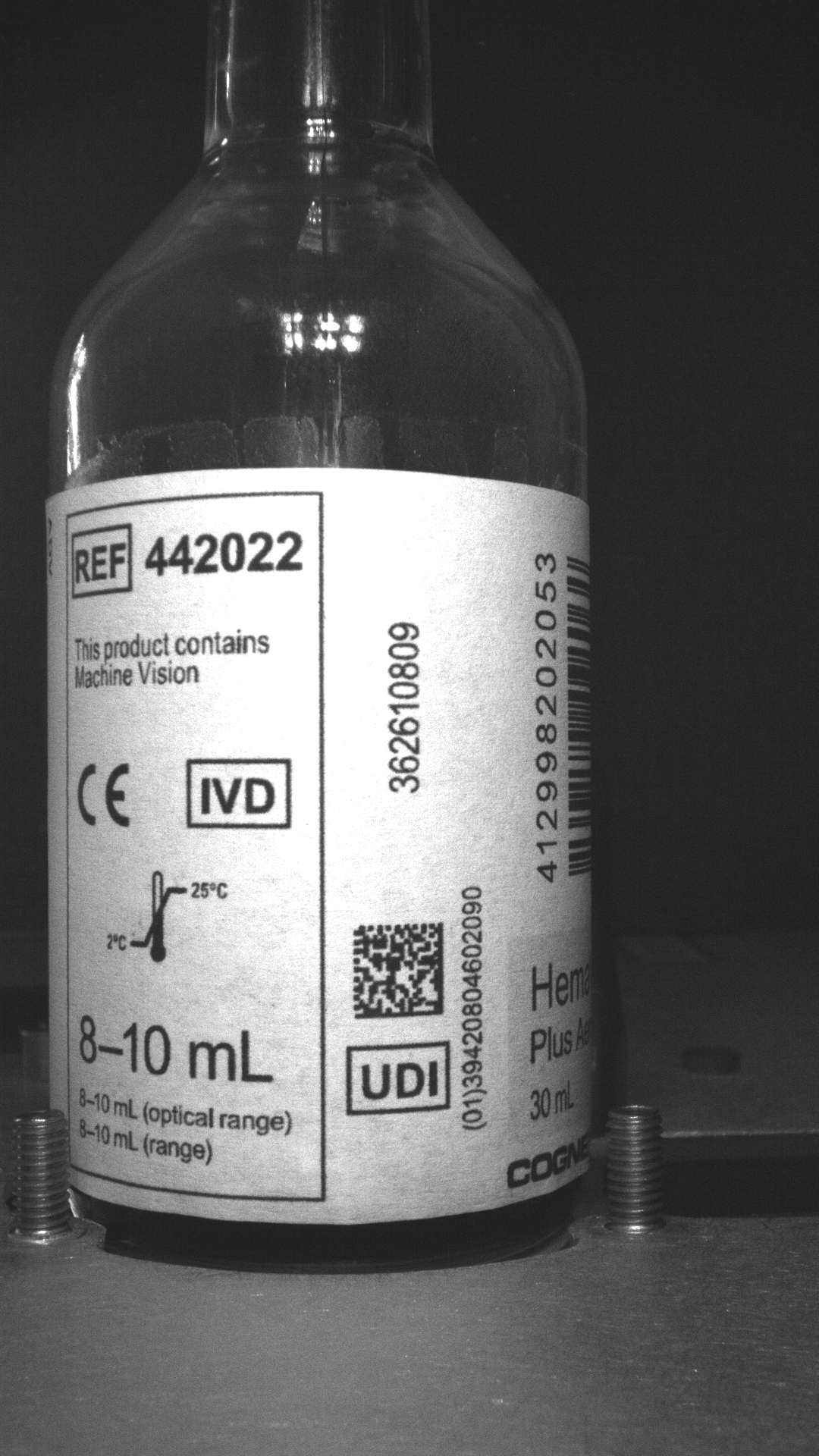
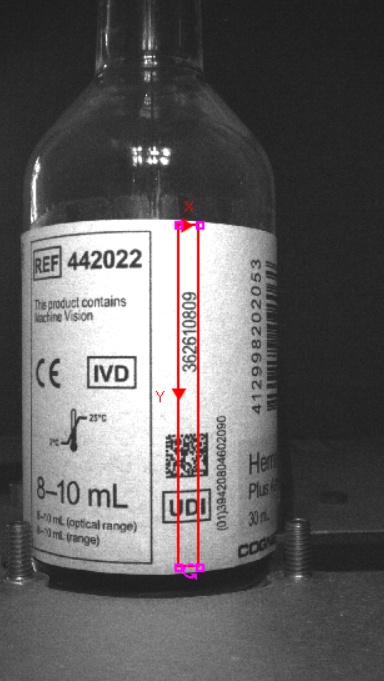
- Calculate the pixel shift between neighboring images based on these coordinates and record it as Pixel shift:
Use Latch function to save the pattern match result X and Y
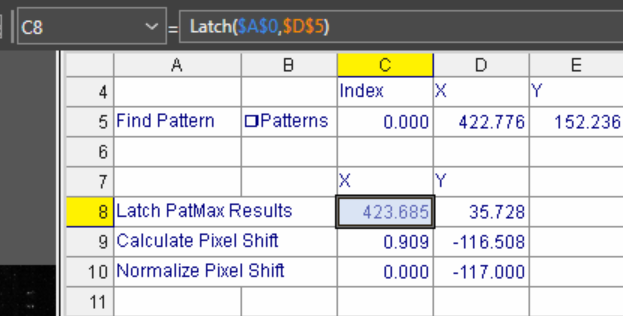
Calculate Pixel Shift
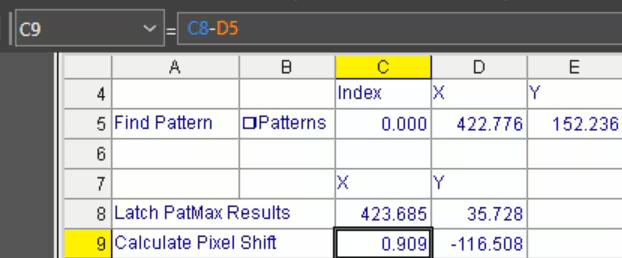
Pixel shiftX = patternX1 - patternX2
Pixel shiftY = patternY1 - patternY2
In this case: Pixel Shift = Latch PatMax Results - Find Pattern Results
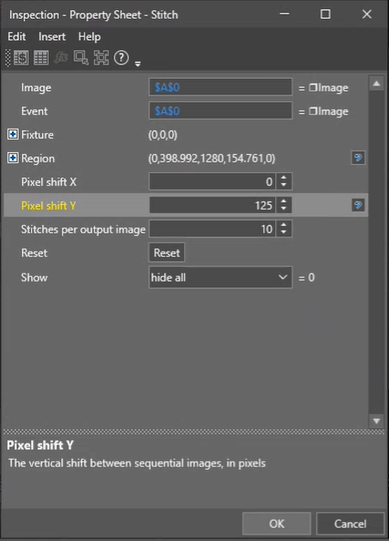
Setup Stitch parameters
Pixel shift X and Y can be set to the shift value calculated in Step3
Stitches per output image: Specifies the number of images that compose the output image, here we set as 17
Reset: Clears the input image. Note: When doing a continuous stitch job, it is not necessary to reset the initial input image.
Starting from the first image, process 17 images in sequence, and you will obtain the stitched image.
Note: This example we assume the same shift between neighboring images, so only train the pattern in image1 then find pattern in image2.
In another case, if the shift between images is different or if more accurate stitching is required, we need to train the pattern on each image and then find pattern in the next image to calculate every pixel shift.