
Details
Issue:
In-Sight Vision Suite - Emulator (dongle) under In-Sight Vision Suite is not starting
Cause:
In-Sight Vision Suite - Blocked ports/Firewall issues/License issues/Security packages
Resolution:
Blocked Ports
Some blocked ports can prevent the emulator from initializing correctly. Known blocked ports that can interfere with Emulator startup are :
- TCP 21 (for FTP)
- TCP 7890 (for Spreadsheet TCP Client)
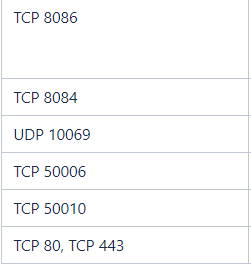
Restricted Access
In-Sight Vision Suite may need to start or make changes to Windows services to start up the Emulator correctly. Always make sure this software is started as “Administrator”.
Dongle and Security Software Troubleshooting
- Ensure that the computer time is accurate.
- Verify the licenses are available and not in use:
- Open CodeMeter Control Center.
- Open WebAdmin.

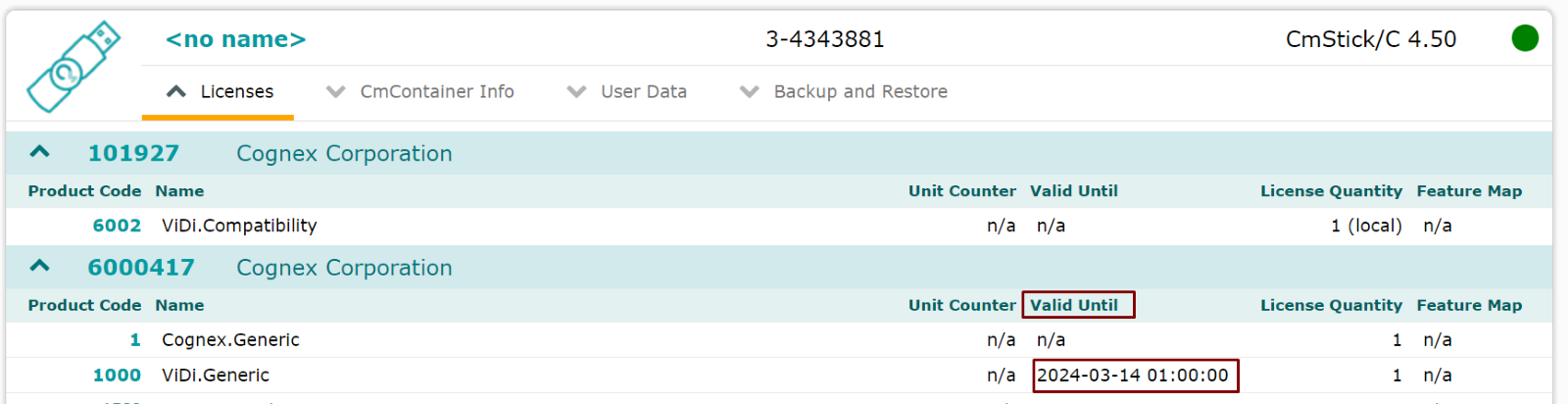
- Ensure all licenses are not expired.
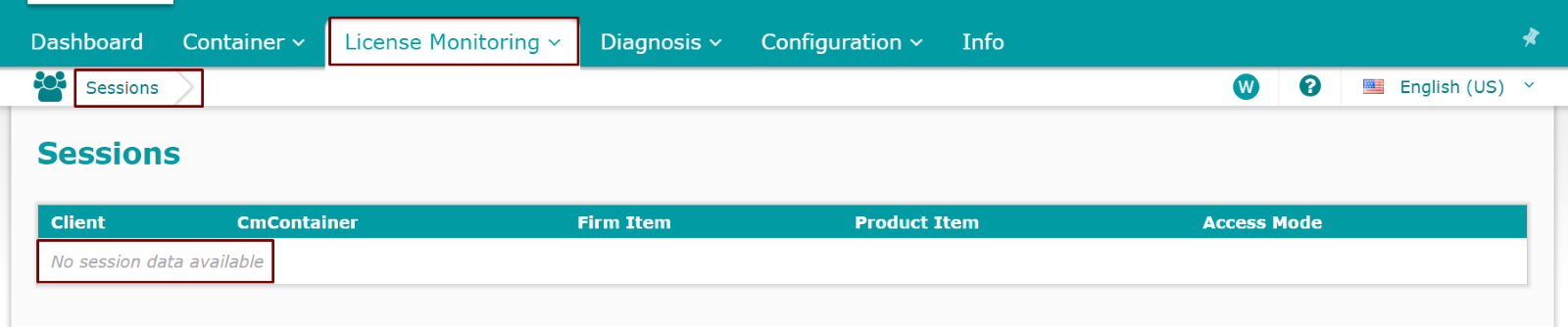
- Under “License Monitoring > Sessions”, ensure there are no open sessions after a reboot.
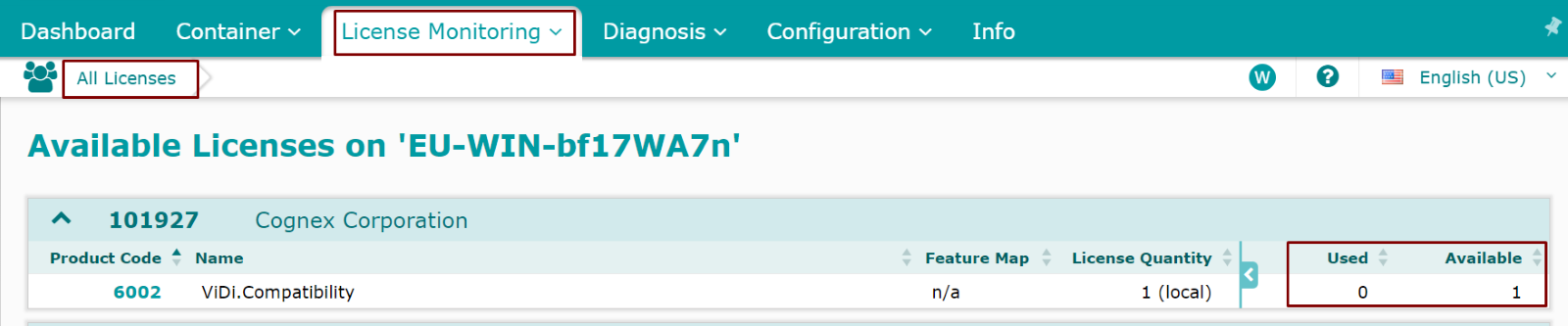
- Under “License Monitoring > All Licenses”, ensure all licenses have 0 used and 1 available.
Sometimes Firmware and Time Certificates need to be updated on your dongle. To update them :
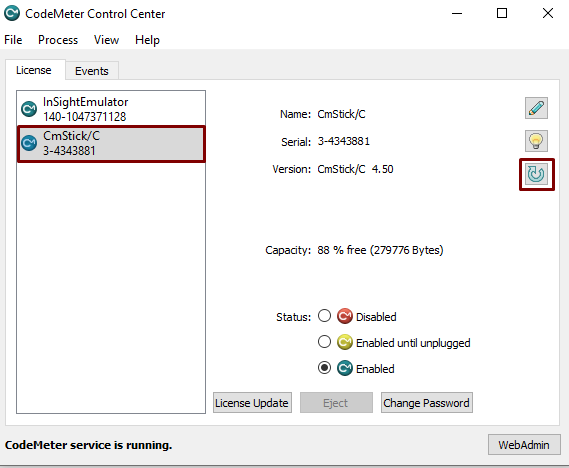
- Open CodeMeter.
- Select your dongle.
- Click the circular arrow icon on the right side of the window and go through the prompts to update the firmware.
- After update is completed, click the “Process -> Update Time Certificates” toolbar menu to update them.
- Restart any emulator you are running.
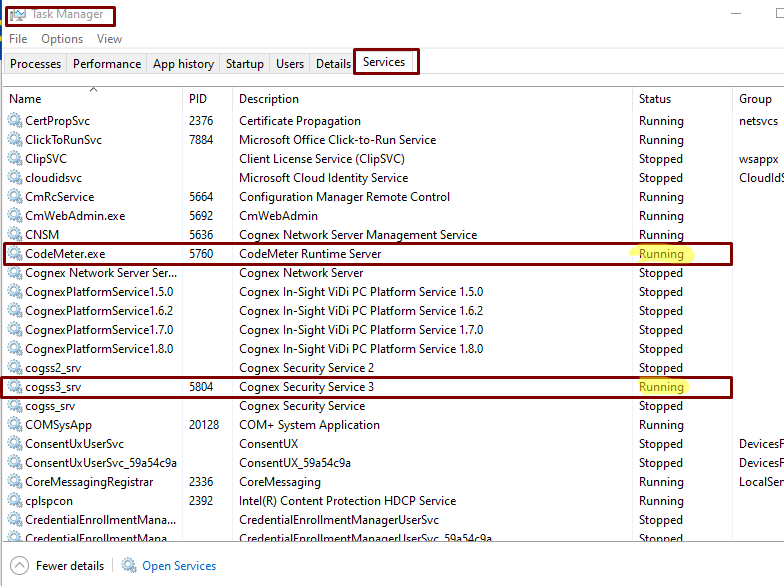
- Confirm cogss3_srv and CodeMeter services are running on your machine by:
- Open Task Manager
- Go to the Services Tab
- Find cogss3_srv (Cognex Security Service 3) in the list and confirm it’s running. If it’s not running, start it.
- Do the same for CodeMeter.exe (CodeMeter Runtime Server).
- If you restarted any services, restart any emulator you are running.
Add cogss3_srv to Anti-Virus whitelists. The service is installed into C:\Windows\SysWOW63 and the services files are:
- Cogss3_msg.dll
- Cogss3_srv.exe
- Cogremind.exe
- Cogss3_install.exe
Ensure no security packages are interfering with the emulator. The only solution is for your IT department to add exceptions for our emulator on your specific computer. Here is a list of currently known packages that interfere with the startup process:
- VMware CarbonBlack Endpoint
- ZScaler
- WithSecure Elements
- Sophos Endpoint
- Rapid7 InSightVM
- FortiClient Fabric Agent
- Trellix EndPoint Security
If all else fails, please prepare the following for a Technical Support case (ts.global@cognex.com) :
Generate a .RaC file.
Include the supportinfo file from the emulator as well.
See Also:
In-Sight ViDi Documentation - In-Sight® ViDi Help - Open Network Ports and Enabled Ports and Services - Documentation | Cognex