
Question
How can I set up match string validation for my DataMan 8700 reader?
Answer
This is how you can set up match string validation for your DataMan 8700 reader.
- Connect your DataMan 8700 reader to DataMan Setup Tool.
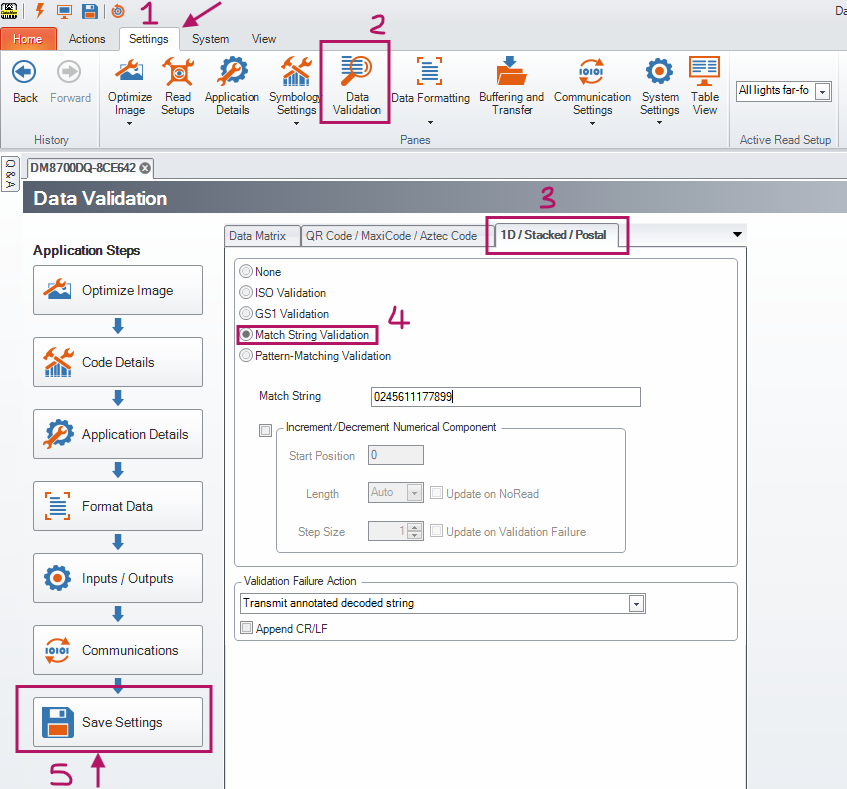
- From the top menu bar, navigate to Settings > Data Validation. Select the code type that is to be read (Data Matrix, QR Code, ID). Enable Match String Validation for that code type.
Click on Save Settings at the bottom left to apply these changes to the reader.
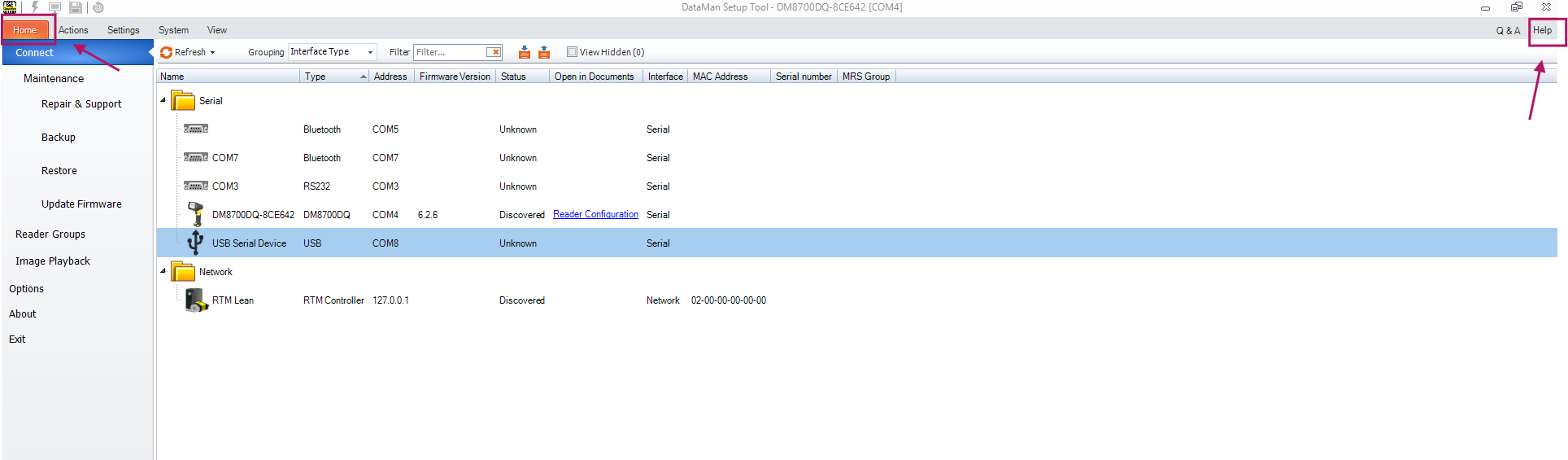
Open the Reader Configuration Codes guide. It can be found in the documentation listed under the Help tab in Setup Tool. Here is a direct link: Reader Configuration Codes.
The codes we need are on page 35 (according to version 25.2.0.8 of the documentation). In case of documentation changes, you can also use the look up function and type “match” to find the code needed.
Note: Even though the DataMan 8700 is not explicitly listed under the code, it still works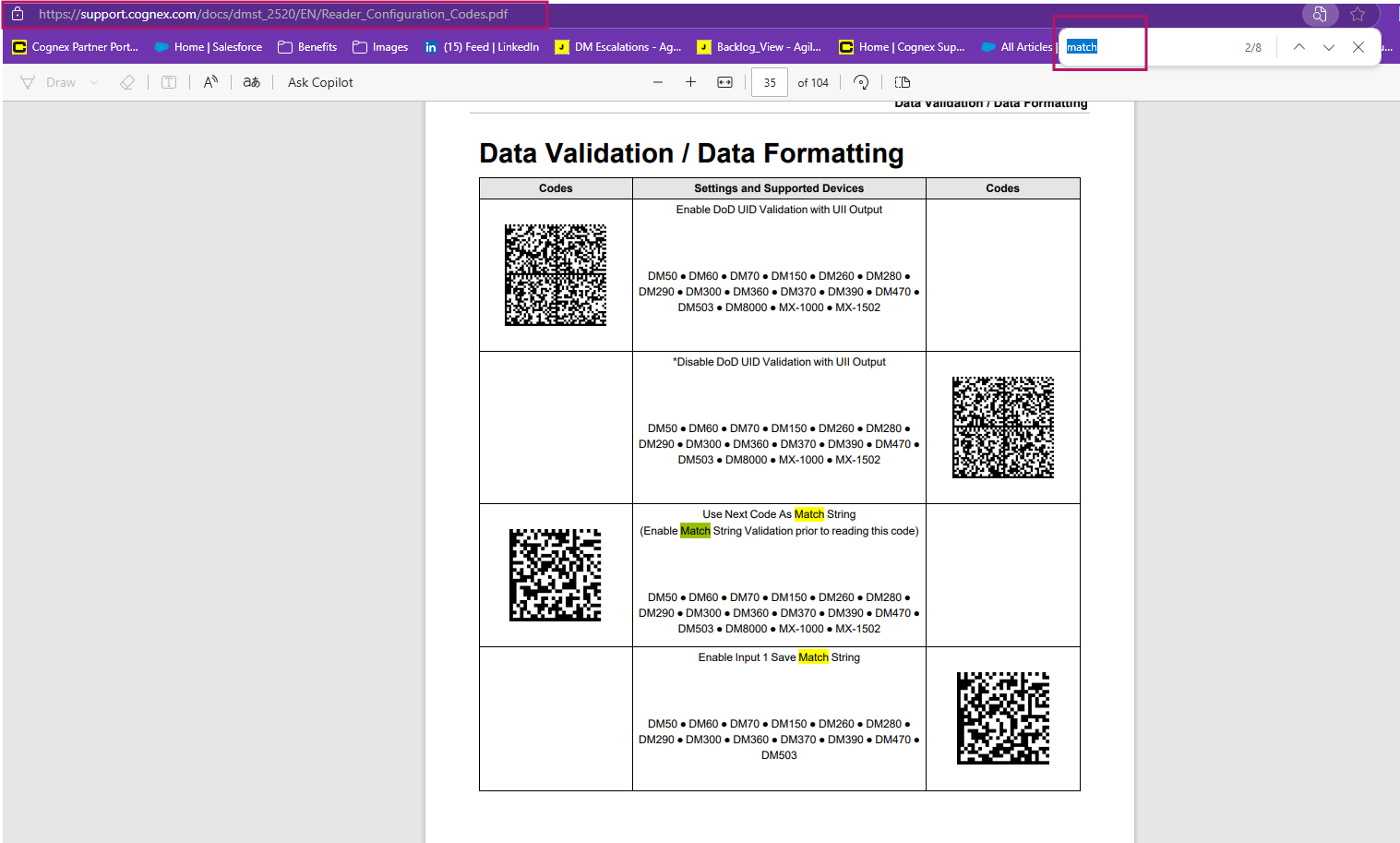
Scan this code with your DataMan 8700 and Save Settings to apply the changes to your reader.
Best Practice: Print this code out and have it near the operator’s workstation.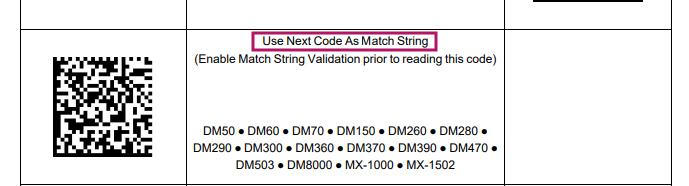
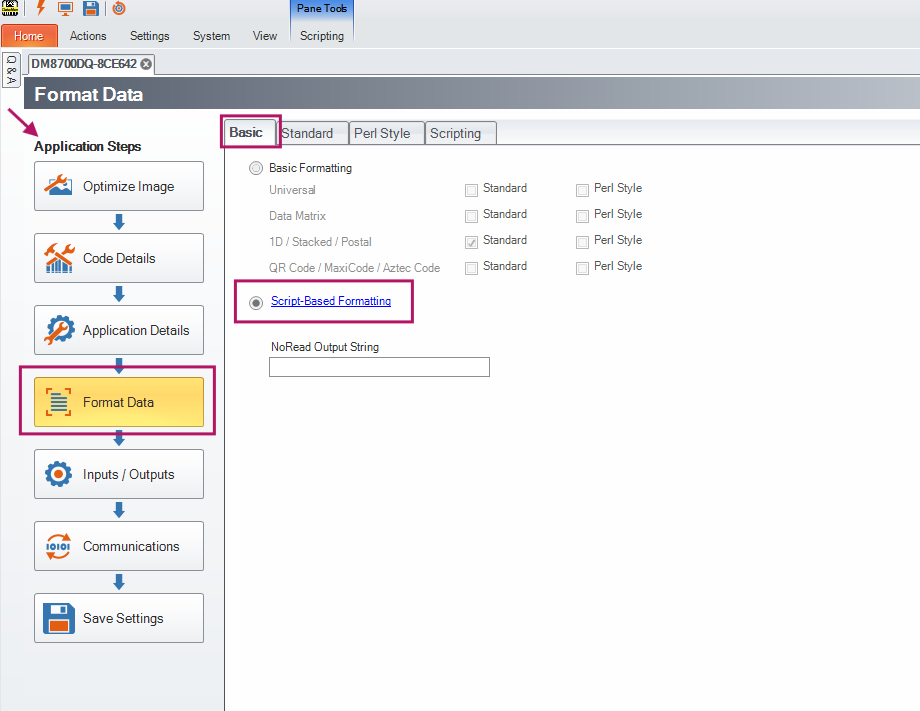
SCRIPTING- In DataMan Setup Tool, navigate to Format Data under Application Steps on the left-hand-side.
Under Basic, select Script-Based Formatting.
Open the Scripting tab at the top of the window. This is where you can input your script.
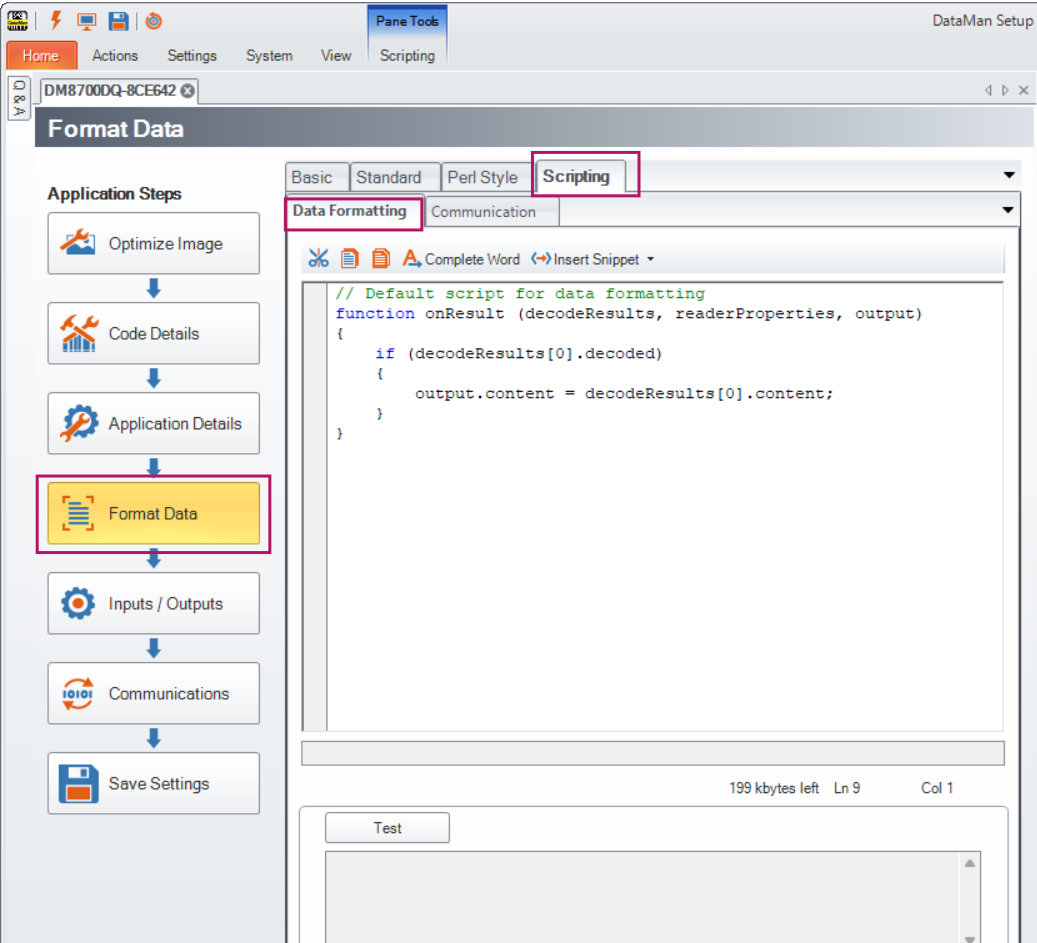
- Using the script below we can achieve the following function:
Good “Match” Validation – output barcode (data string) result, beeps positively, ring light flashes green, vibrates, & displays “Good Match” on OLED
Bad “Match” Validation – output nothing, beeps negatively, ring light flashes red, does not vibrate, & displays “Bad Match” on OLED - You can also customize the script to the your desired effect. Below is a script that has blocks for what to do when the validation succeeds and fails:
function onResult (decodeResults, readerProperties, output)
{
if (decodeResults[0].decoded)
{
var dataToPLC = "";
var dataToOLED = "";
switch(decodeResults[0].validation.state)
{
//---------------------------------------------------------------------------------------------
case 1: //Validation Failure -> Customize user feedback and data output for a failure here
dataToPLC = "";
dataToOLED = "Bad Match";
break;
//---------------------------------------------------------------------------------------------
case 2: //Validation Success -> Customize user feedback and data output for a success here
dataToPLC = decodeResults[0].content;
dataToOLED = "Good Match";
break;
//---------------------------------------------------------------------------------------------
case 0: //Validation Not Tried -> Not expected to occur for normal use cases
validationMessage = "Script Error: Validation Not Tried";
break;
default: //Error case, should never happen
validationMessage = "Script Error: Validation Not Recognized";
}
//Send Validation Message
output.content = dataToPLC;
output.OLED = dataToOLED;