
To enroll in a live training course:
Log on to Cognex.com. If you do not have a login, go to the 'Creating an account on Cognex.com' section of this page to see how to create one.
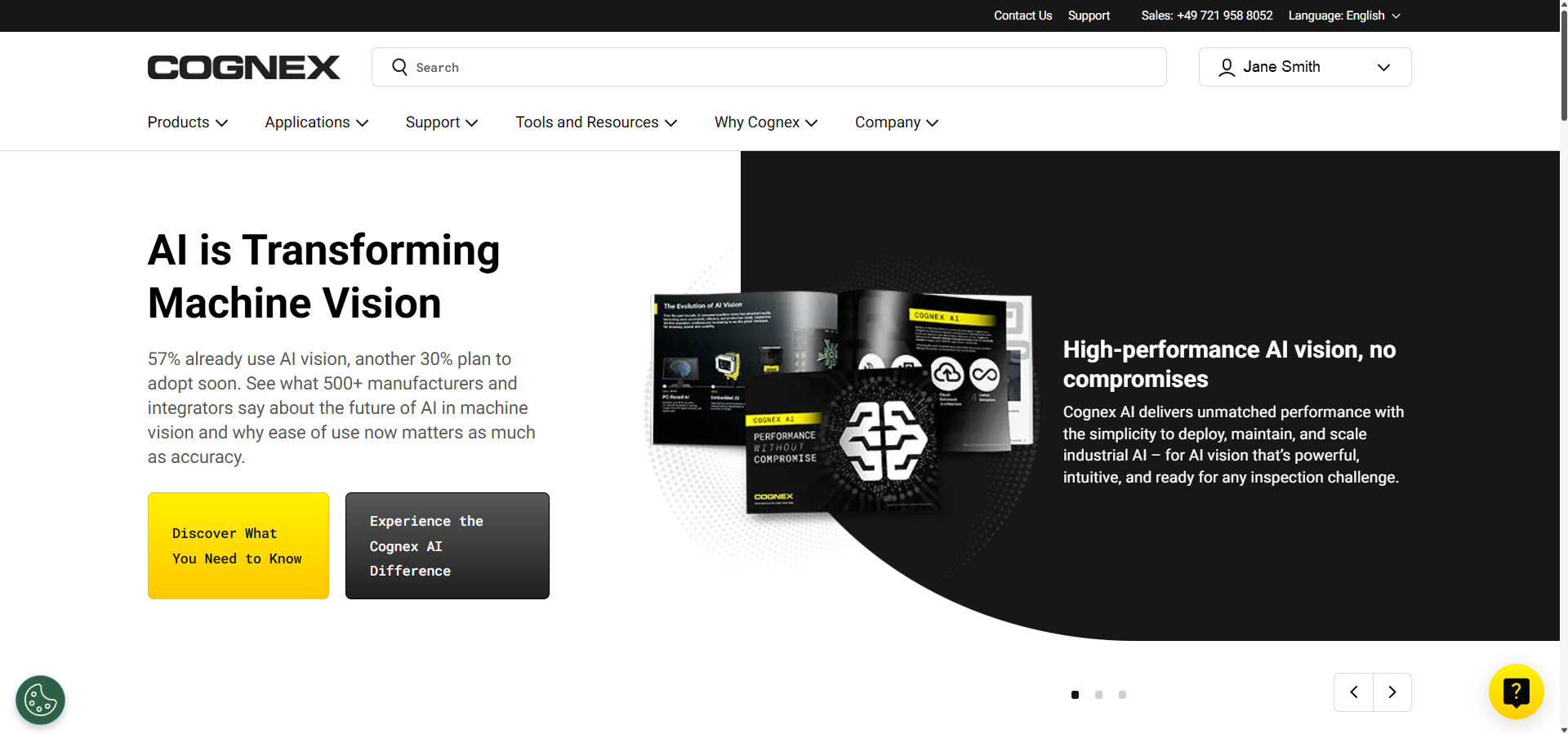
Navigate to the Tools and Resources tab and select Training.
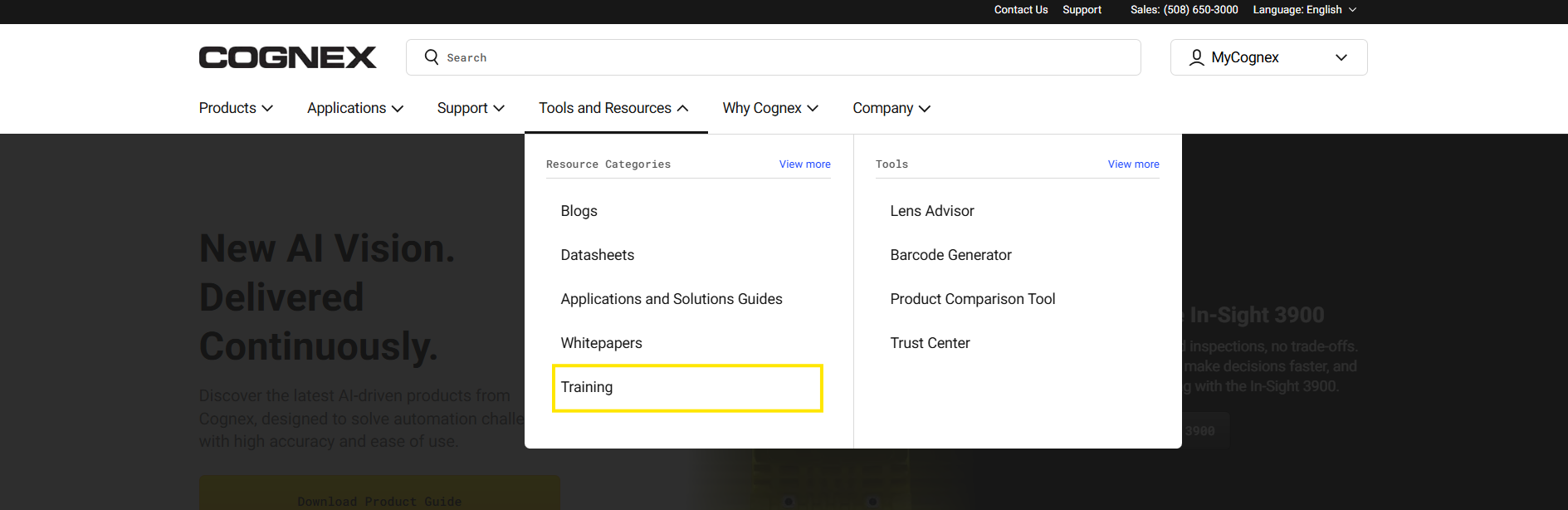
Use the filter and select the course you want to attend.
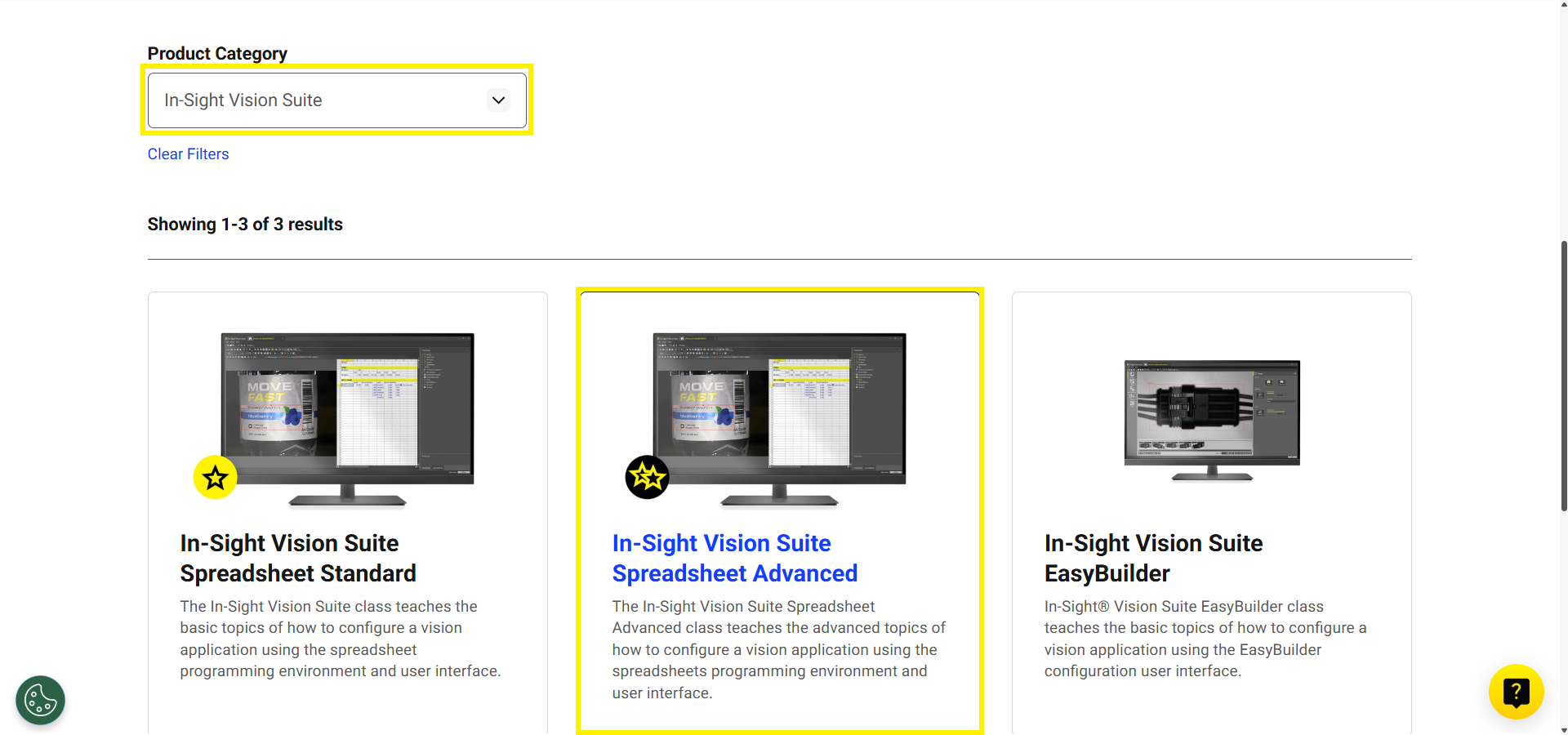
Scroll down the page to see details, prices, and recommended prerequisites. Click on the Schedule button to select the course.
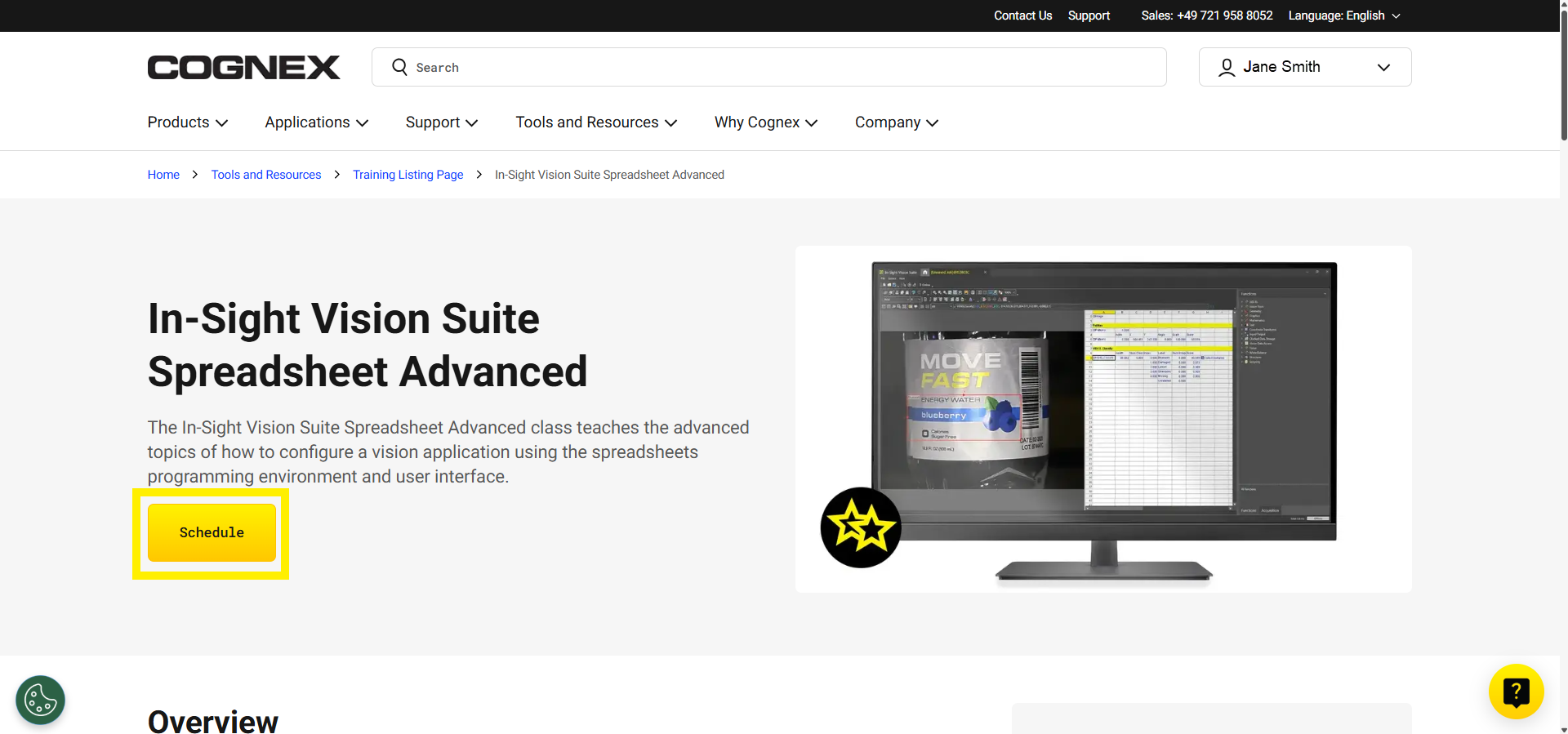
A new page will open, showing available courses. View course details by clicking on the Details button and then continue to the next step by clicking on the Enroll button.
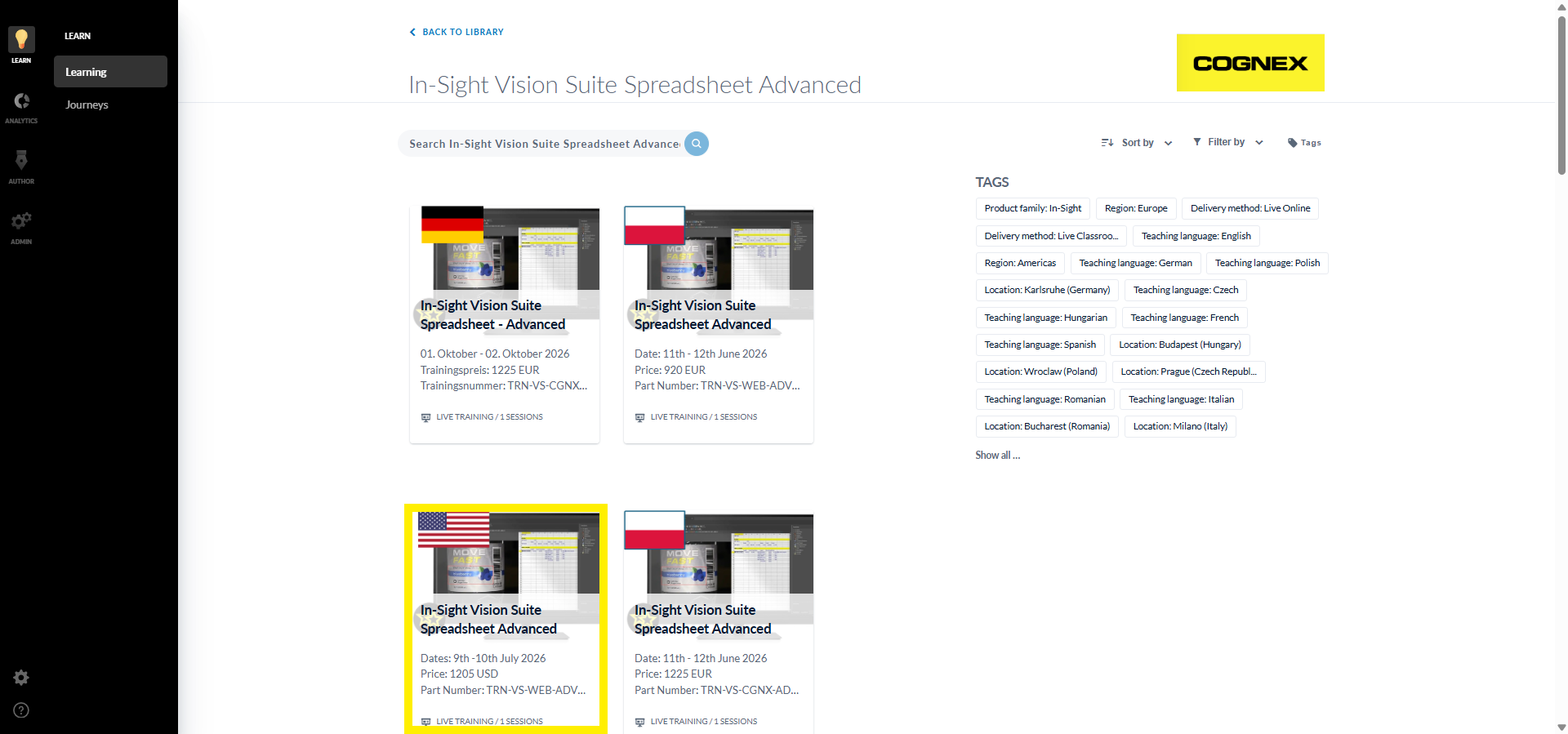
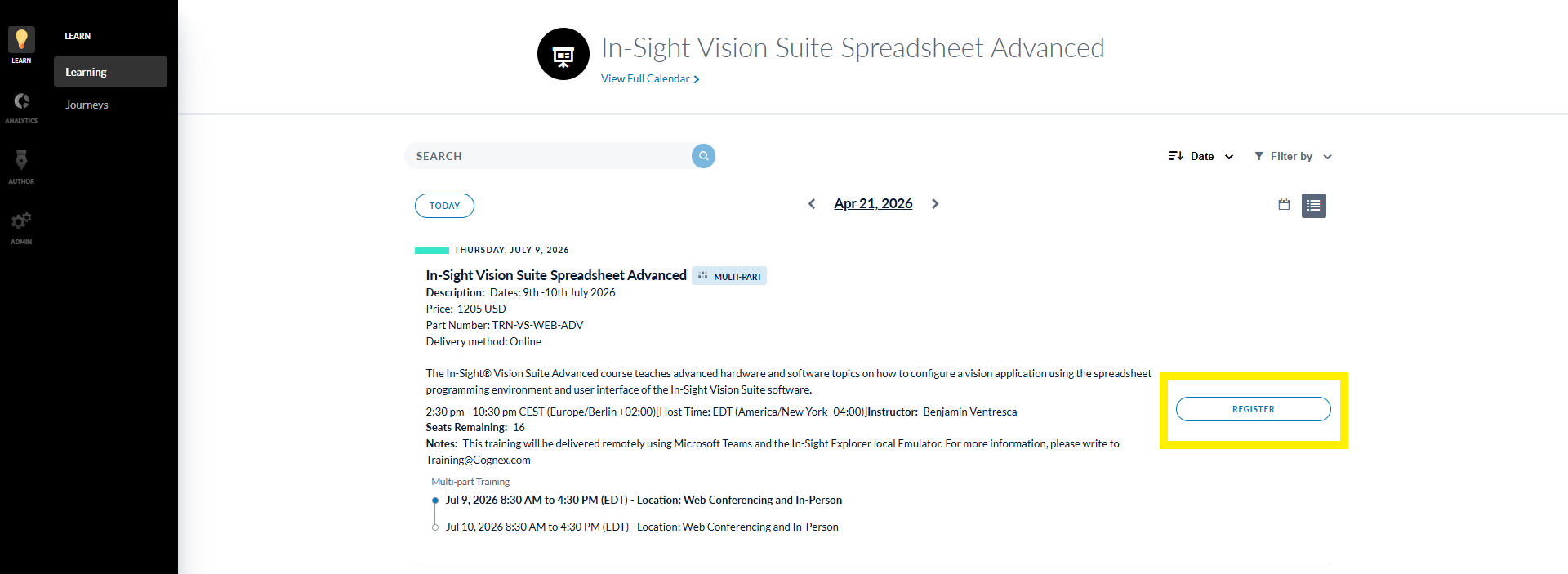
Click on the Register button. Your details (from your Cognex.com account) have now been added to the course list.
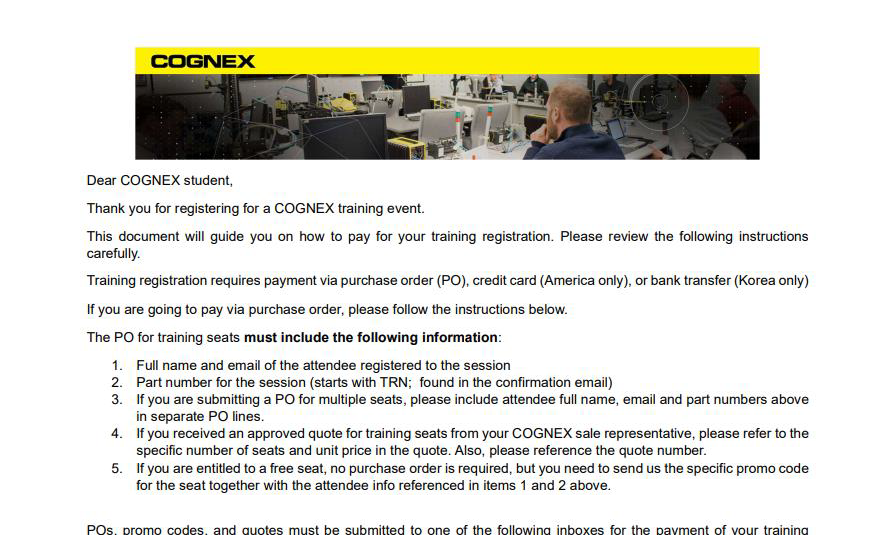
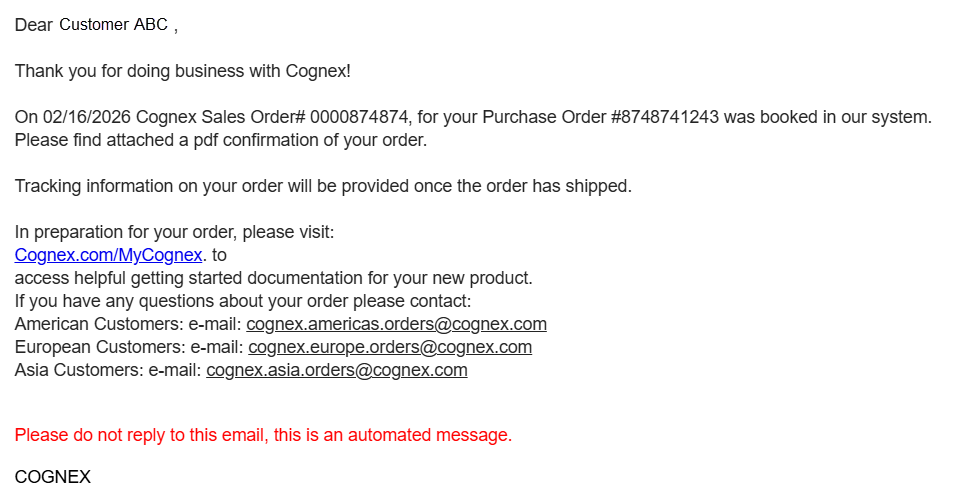
You will receive an automated email confirming your registration and location of the course (if it is an In-person training). Download the payment instructions PDF attached to the email. This will explain where and how to send the Purchase Order (PO). If you do not see the email in your inbox, please check your junk and spam mail.
- The email will also include training material and recommendations for accommodation/parking near the training location.
- Please follow the instructions in the email and send your PO before the course.
• If we have not received a PO 10 days before the course is due to start, you will receive a reminder notice.
• If we have not received a PO 5 days before the start of the course, you will receive a notification that your registration has been cancelled. If you want to attend the course, you can send the PO immediately and you will be reregistered. When we have received a PO, you will receive an automated email confirming we have processed your registration.
- If you have registered for a virtual live course, you will receive an email from your trainer one week before the start of the course, confirming the date and time and linking any software you need to download.
• If you have sent the PO for a virtual live course, you will receive an email 30 minutes before the course starts with logon details for the training. - After attending the training (in-Person or virtual), you will be invoiced for the course.
To enroll in an On-Demand training course:
Many of our courses are also available in On-Demand format if you prefer to learn at your own pace outside the classroom.
Follow steps 1-5 from Enroll in a live training course above to register for the course. When you have clicked on Enroll, the On-Demand Registration completion page will open. Click on the Payment Instructions link.
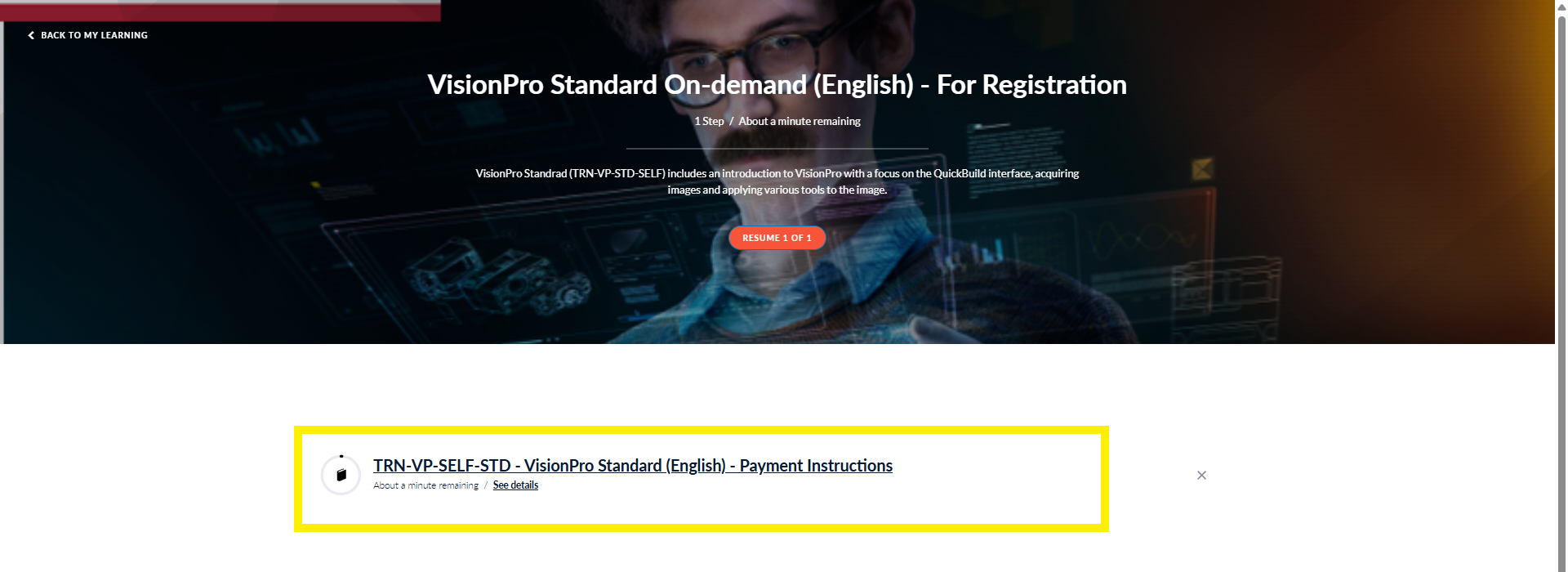
Download the Payment Instructions template.
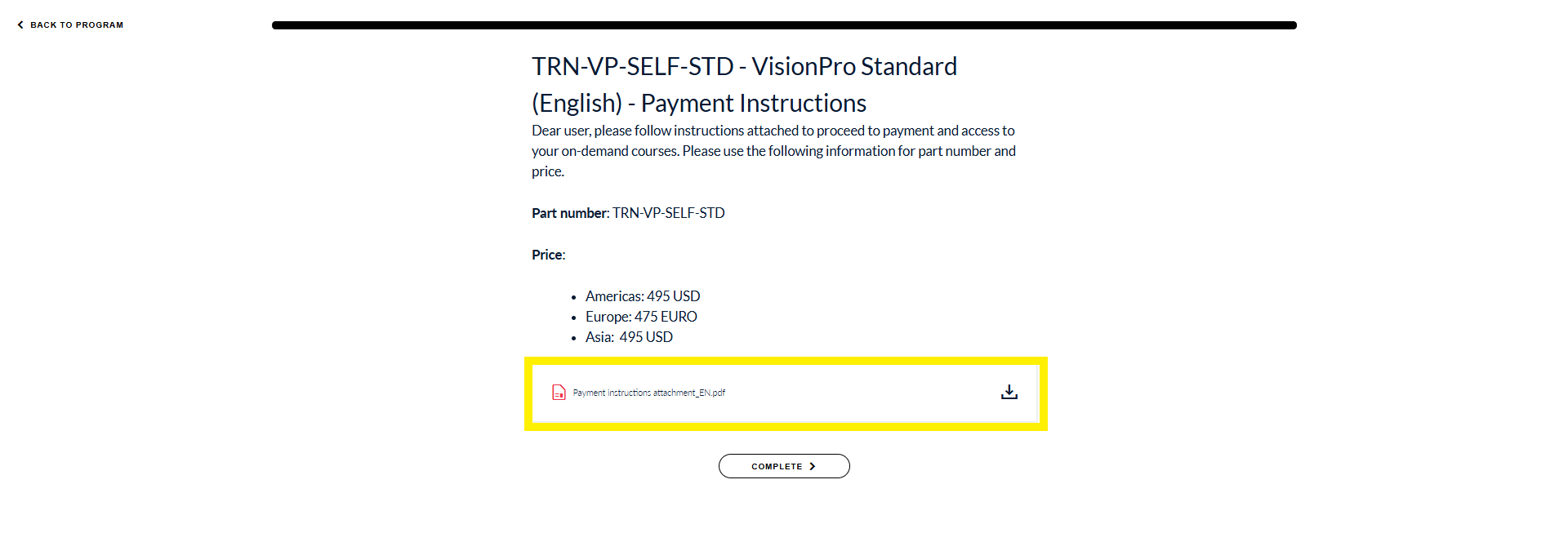
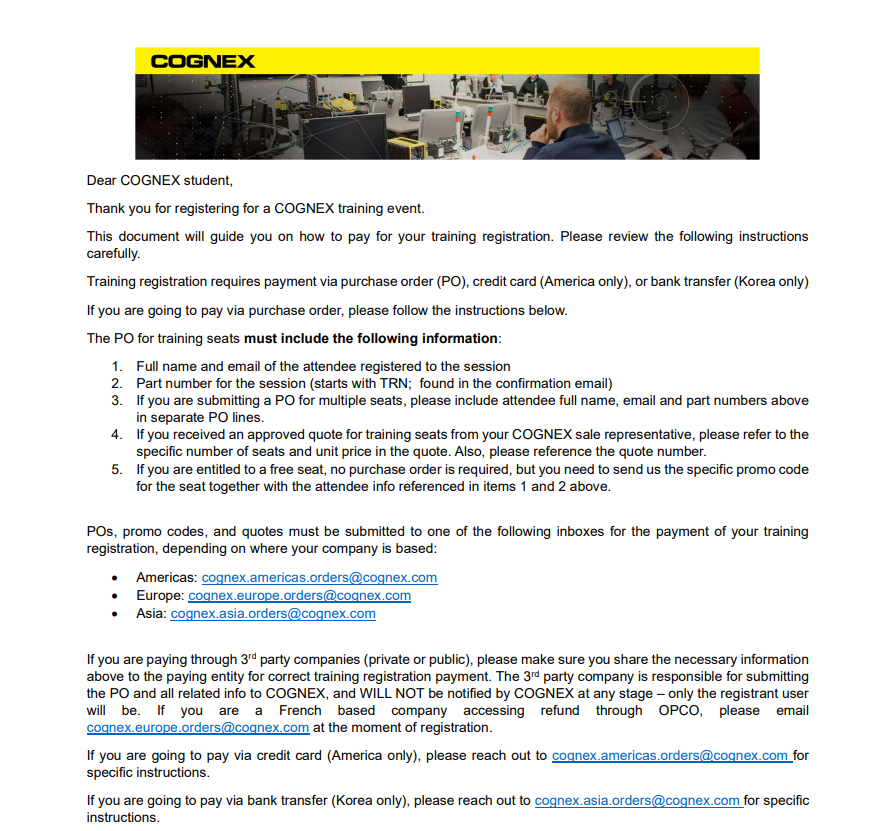
Follow the instructions on the downloaded file to send a PO.
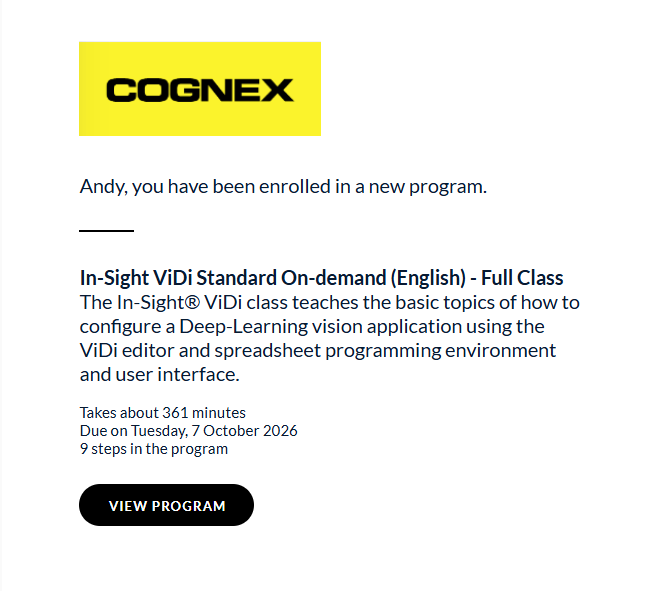
When we have received a PO for the course, you will receive an automated email confirming your registration has been processed.
You will then receive an automated email from Bridge, with a direct link to the course material.
FAQ's
Q: I can't register on Bridge; how can I register for a training?
A: Go to Cognex.com and create an account (see last page) with a company email (or log on with your existing account). When you have logged on, go to Tools and Resources, then select Training. You will then be able to access the training platform to see the training schedule and you can book your seat.
Q: A class I want to attend is showing as ‘full’, how can I get on the waitlist?
A: If a waitlist is available for your session, you will see a "Join Waitlist" button. Click on it to join the waitlist.
Q: I clicked on the "Join Waitlist" button, when will I get access to the training?
A: If seats become available in the session, learners on the waitlist will be automatically registered to the session and will then receive a confirmation email.
Q: I registered on an On-Demand training, but I can’t see the class content, is there an issue?
A: The On-Demand training programs shown in the training library, are links that contain payment instructions for the course. Download the linked PDF and follow the instructions. After your PO is processed by our Order Administration team, the Training team will grant you access to the contents.
Q: I registered on a course but have not received a confirmation email.
A: Go to your Learning Dashboard (training.cognex.com), if you are asked for login details, enter the email address and password for your Cognex.com account. If you have correctly registered for the course, you will see the session there.
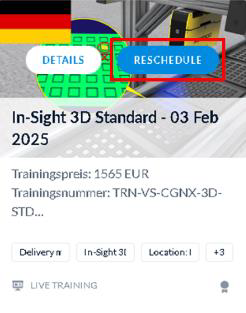
Click on the Reschedule button.
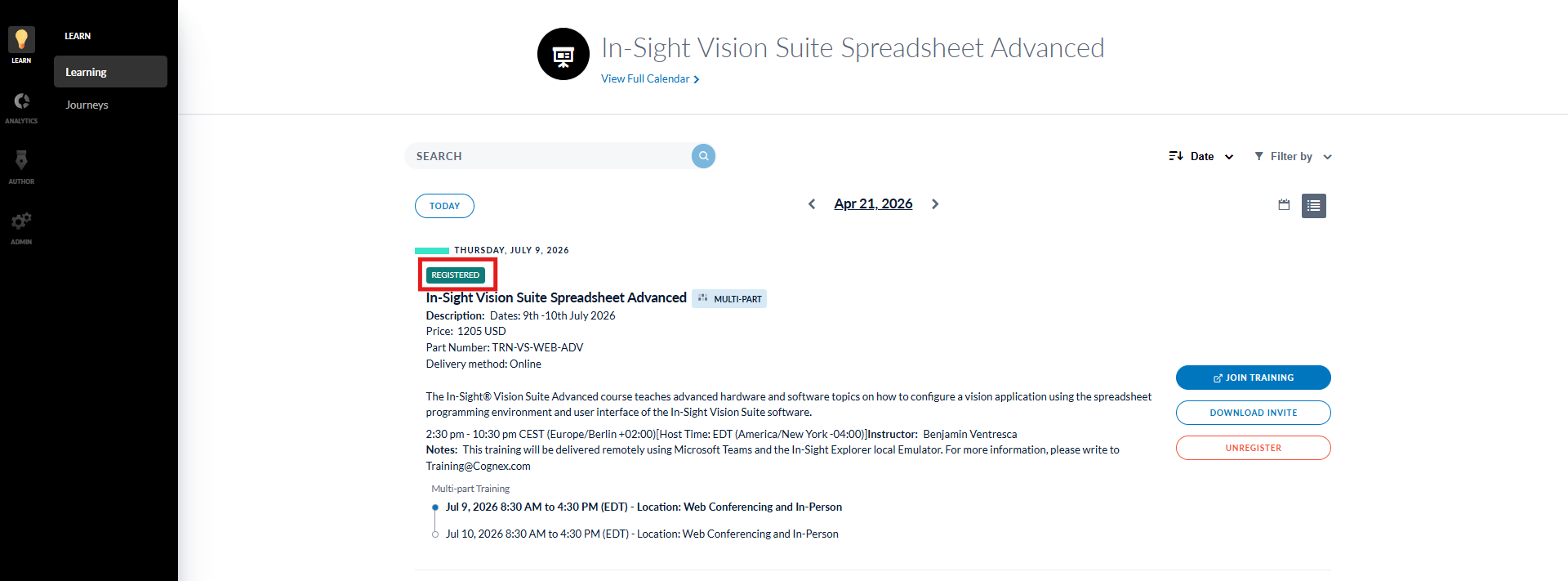
If you can see the “Registered” tag in the top left corner, you are registered for the training. Please check your Spam or Junk folder for the email.
- If you have not received the email within 24 hours, please contact us directly at training.europe@cognex.com.
Q: How can I cancel my registration?
A: Go to the course in your Learning Dashboard.
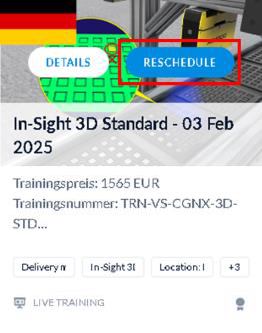
Click on the "Reschedule" button.
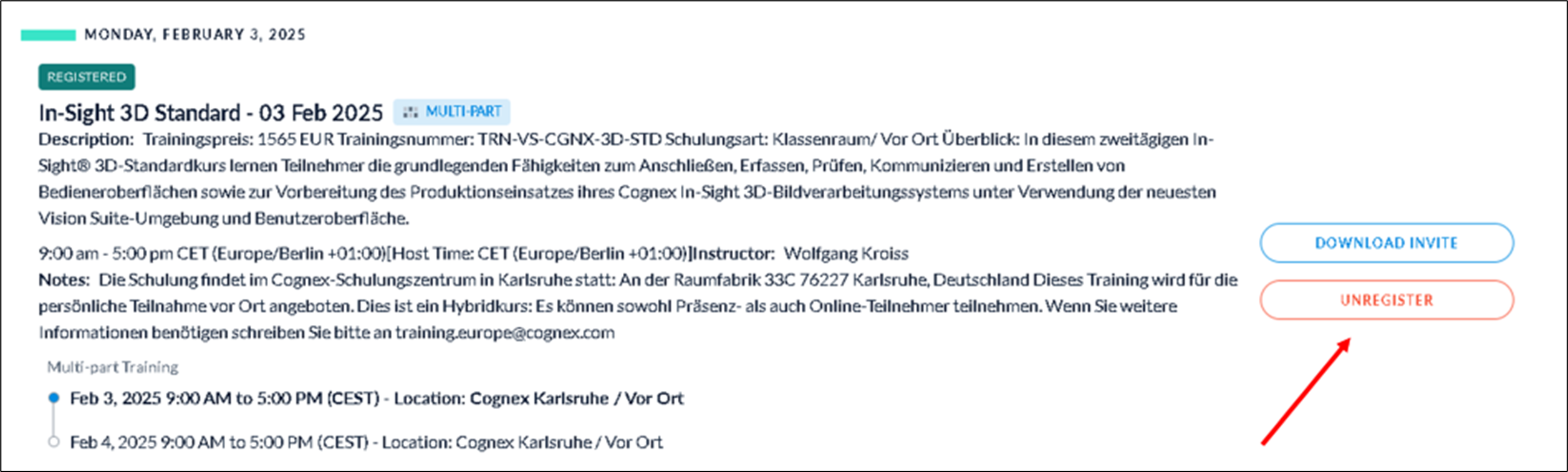
Click on the "Unregister" button on your session. That’s it!
Q: Can I book training for my Colleague/Employee?
A: No, the person on the course must book through their own Cognex account.
Q: I cannot participate in a course I registered on; can I transfer my seat to another person ?
A: Sorry, this is not possible. The other person must register and you must cancel your seat.
Q: How do I request a custom training event for my company?
A: Please contact training.europe@cognex.com and your sales representative.
Q: How do I download my certificate after I have completed a course?
A: Go to https://training.cognex.com (log in with your Cognex.com details if necessary).

Scroll down the page to your Completed courses. Select ‘Details’ on the course you want to find the certificate for.
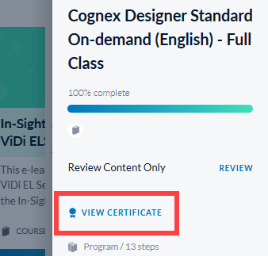
On the right of the page, click on the View Certificate option.
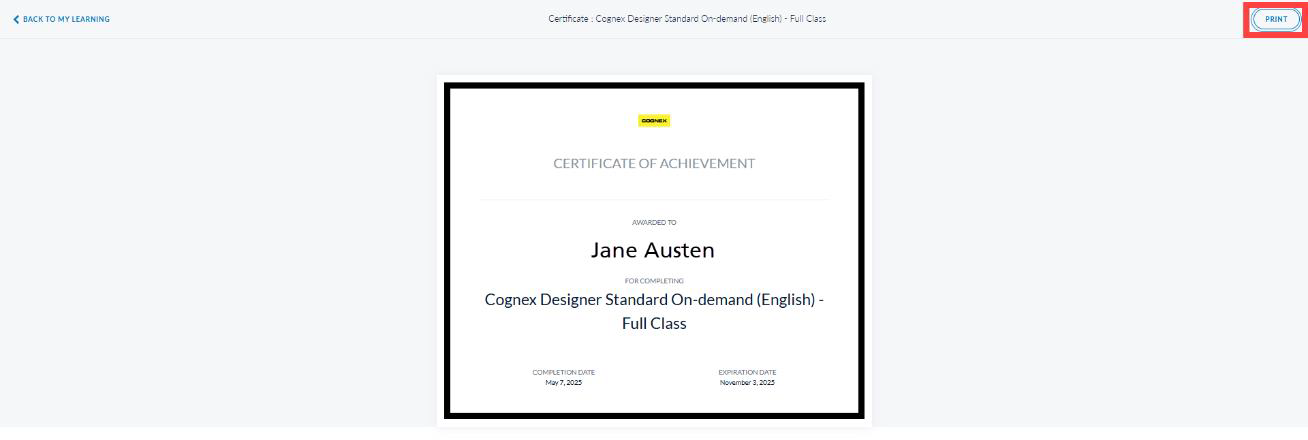
- Click on the Print button at the top of the page to save the certifcate as a .pdf or print it.
Q: When will my training be invoiced?
A: For live (virtual or in-person courses), the training is invoiced after your class – unless you specifically ask us to invoice it earlier. For on-demand courses, your training will be invoiced when you have sent us the purchase order.
If you have other questions that are not answered here, please contact us via email at training.europe@cognex.com. For the fastest response to new requests, please provide as much information as possible.
Creating an account on Cognex.com
Go to Cognex.com click on the arrow beside My Cognex in the top right of the window.
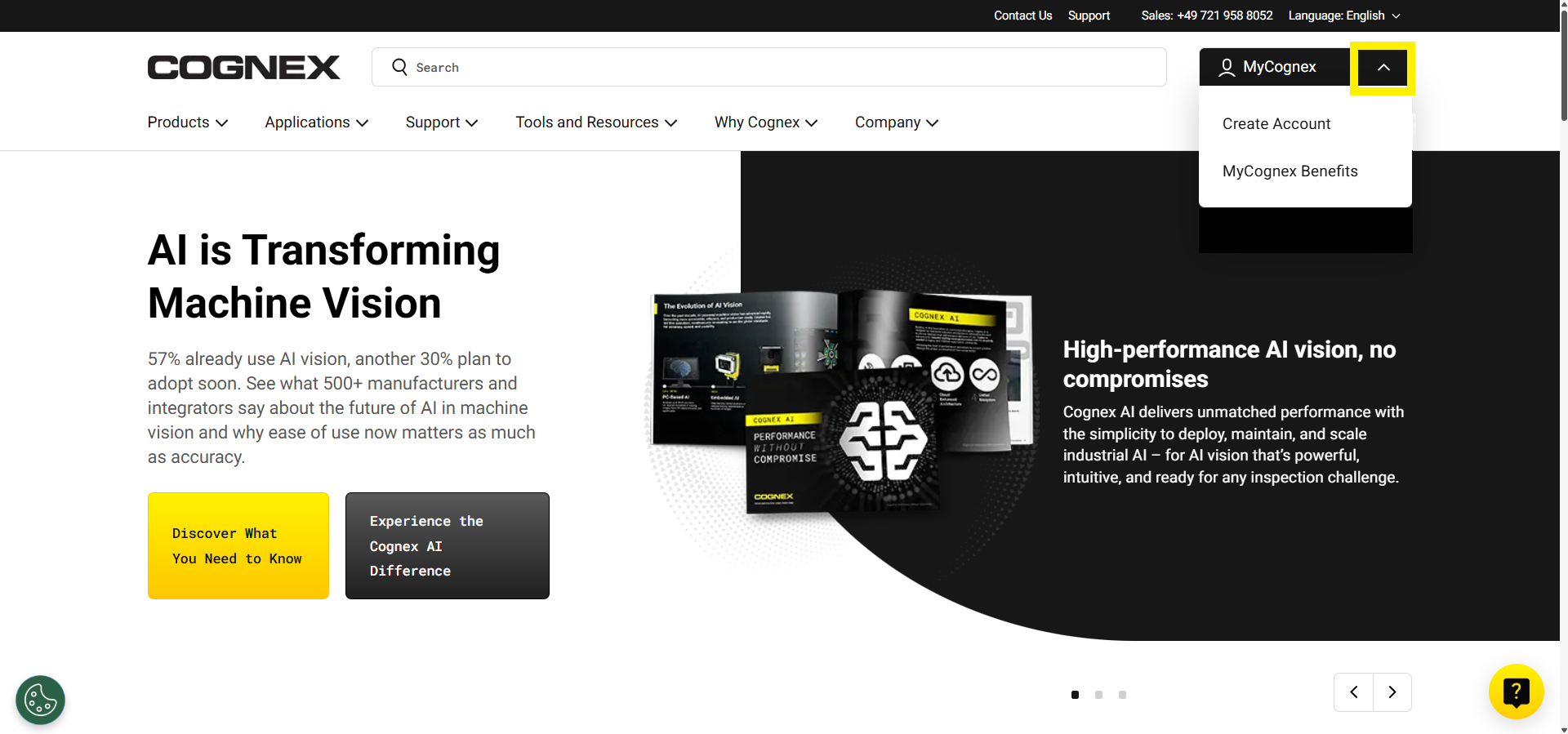
Click on the Create Account option and then enter your details into the sign-in form. Click on Continue to go to the next step.
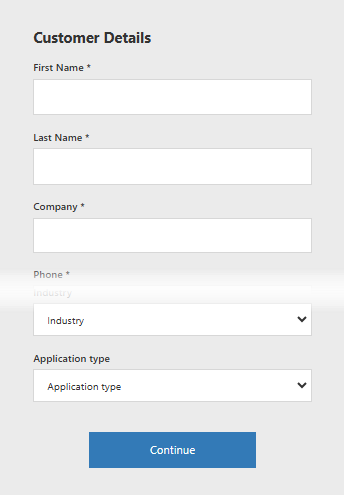
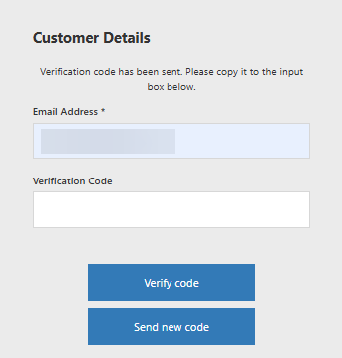
Add your email address and then click on the Send Verification Code button. You will receive an email with a verification code that you can then copy into the code field. Click on Verify Code when you have entered the code it the field.
Create a password then click on Create.
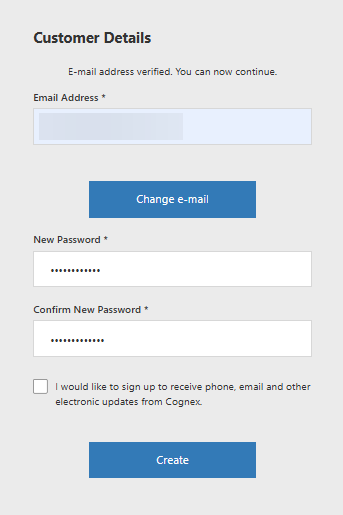
- Your account is now ready to use!