Question
I want to have my In-Sight transfer data back and forth to a Beckhoff PLC using OPC UA communications, how can I do this?
Answer
For this example, we will be using the following hardware:
PLC: CX9020
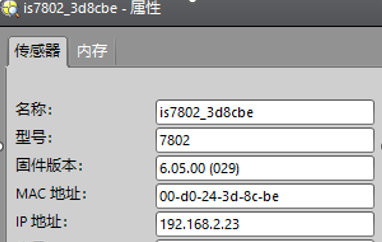
Camera: In-Sight 7802
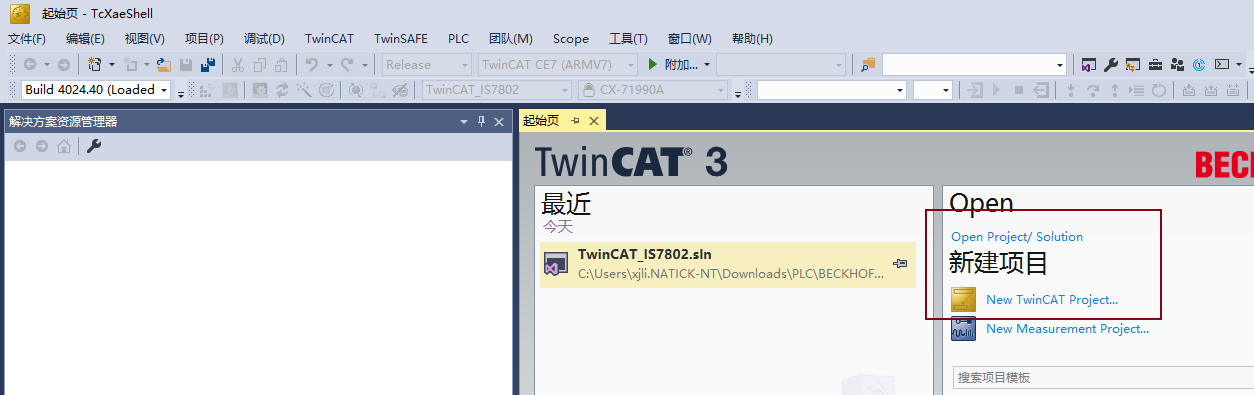
Create a Project.
Double click on the TwinCAT software.

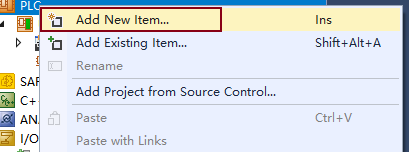
Create a new TwinCAT Project and add new items under PLC.
Choose to create a standard PLC project.

- Search PLC and then to add device.
Double click on “SYSTEM”, then go to “Choose → Search[Ethernet] → Broadcast Search”.
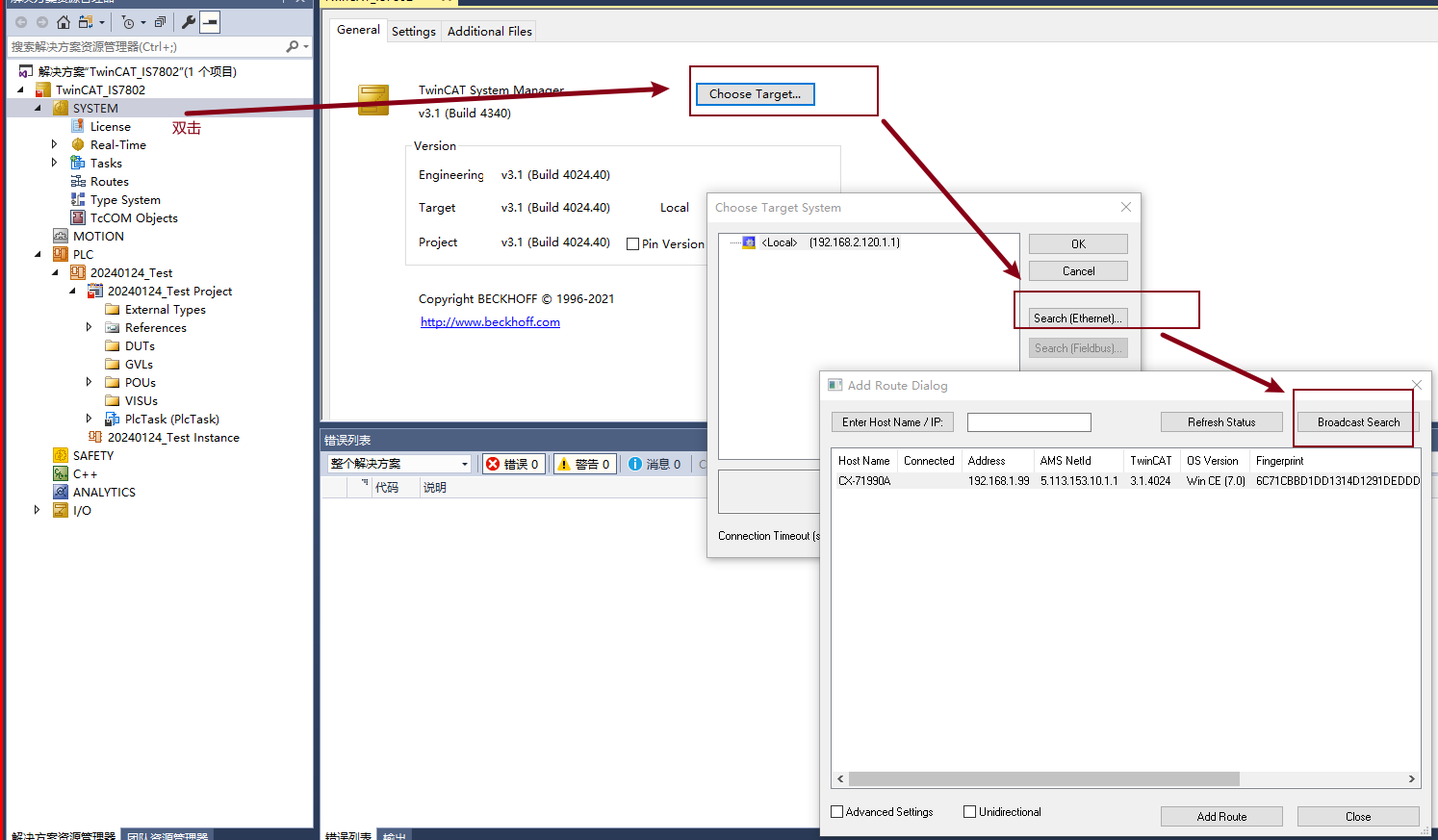
Click “OK” button.
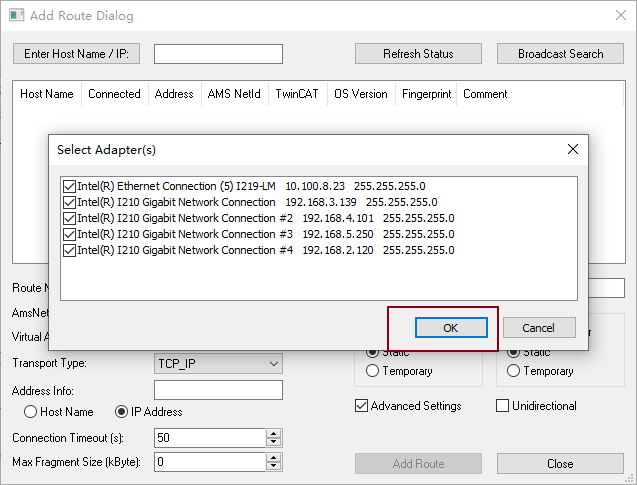
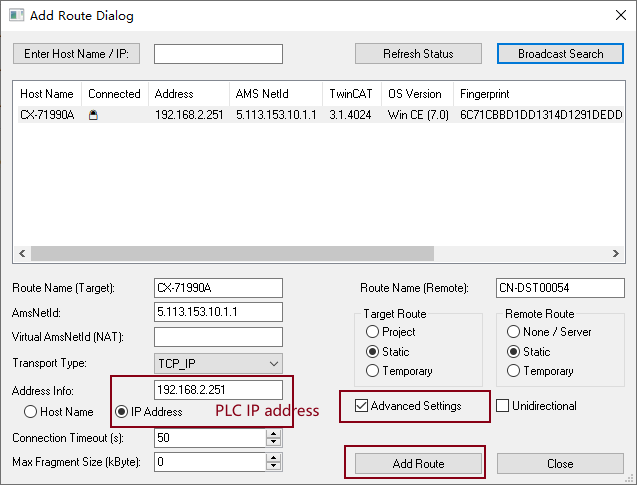
Click “Add Route” button.
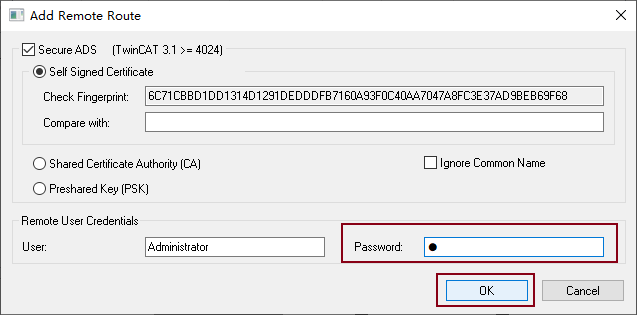
Put Password and then Click “OK” button.
Click “Close“ button.
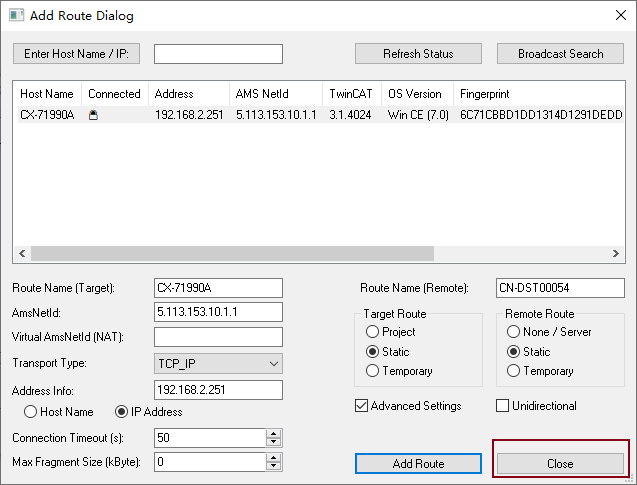
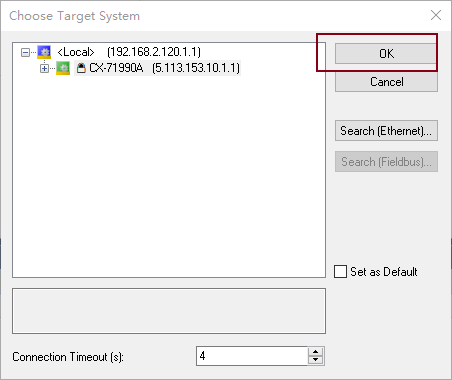
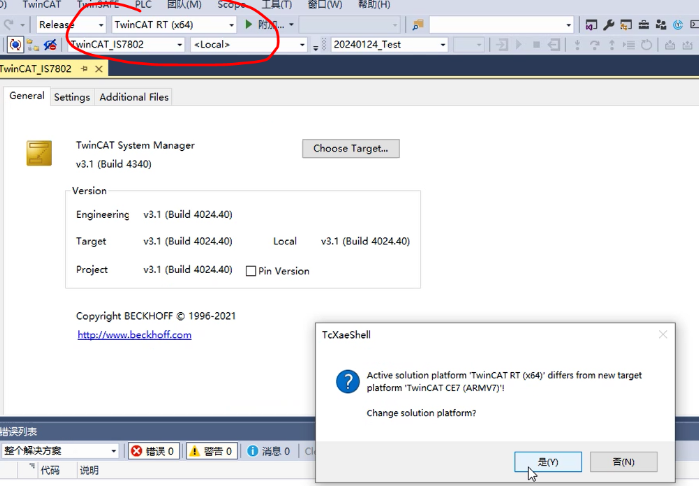
If the following error message popped up, please click ”OK” button.
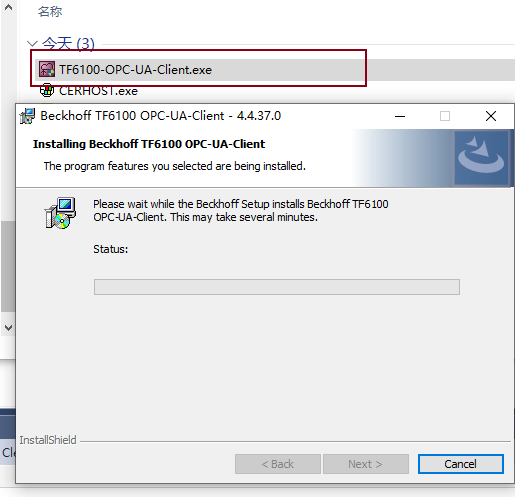
Install OPC UA Client Driver.
Beckhoff PLC acts as Client, In-Sight camera acts as Server. When communicating to CX9020 with OPC UA, the Driver is needed.
Set settings on In-Sight camera.
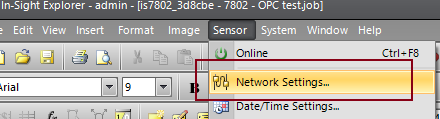
Go to “Sensor -> Network Settings…”
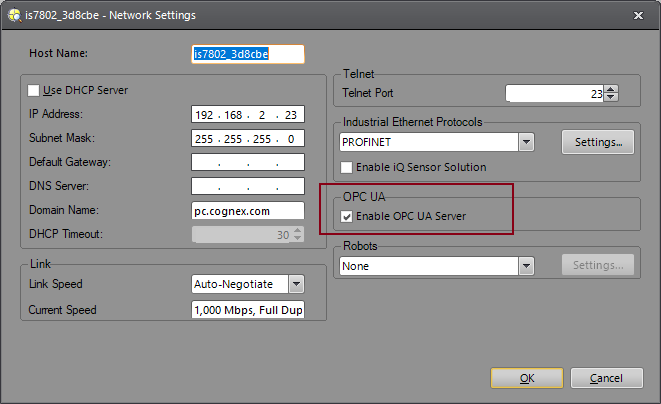
Enable OPC UA Server.
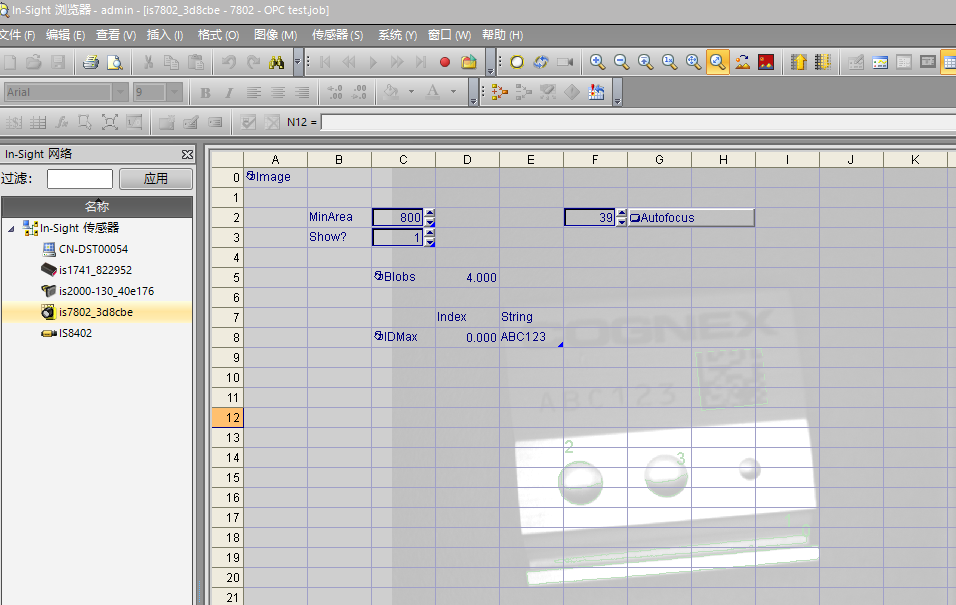
Create a job.
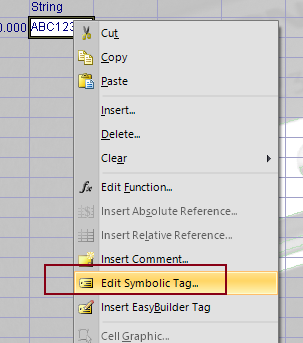
Set OPC Tag through right clicking on the cell and go into “Edit Symbolic Tag..,"
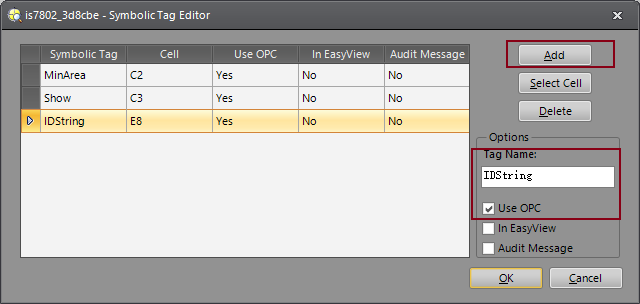
Add Tags, give them names and check on “Use OPC”.
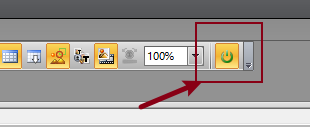
Change In-Sight Camera to Online mode.
Set OPC Settings on PLC.
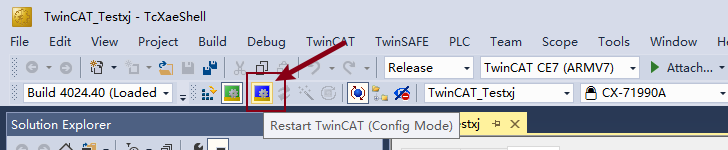
Change to Config Mode.
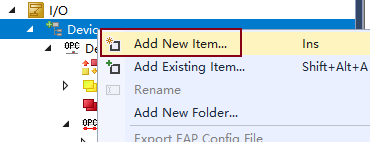
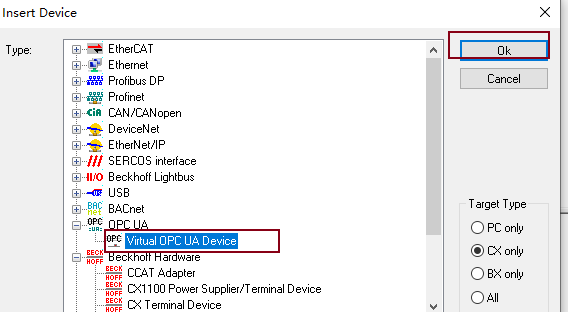
Right clicking on Device and choose “Add new items” on Solution Explorer panel.
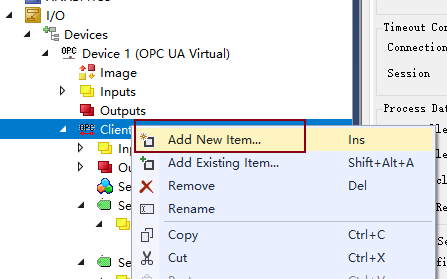
Right clicking on “Client” and choose “Add new items”.
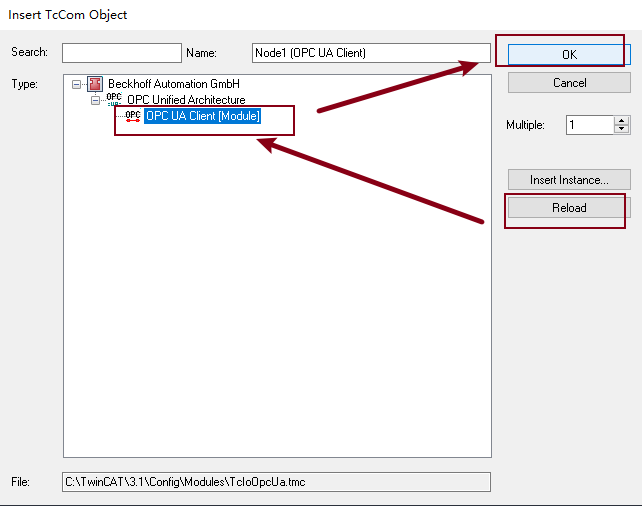
Click “Reload” button. Choose “OPC UA Client” and then click “OK” button.
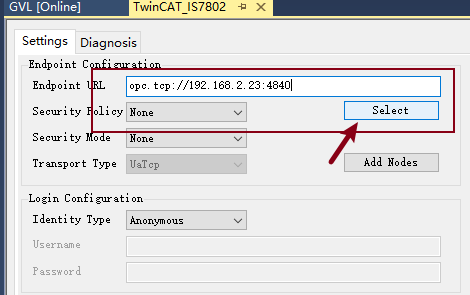
Set IP address and port of In-Sight camera as follows then click “Select” button.
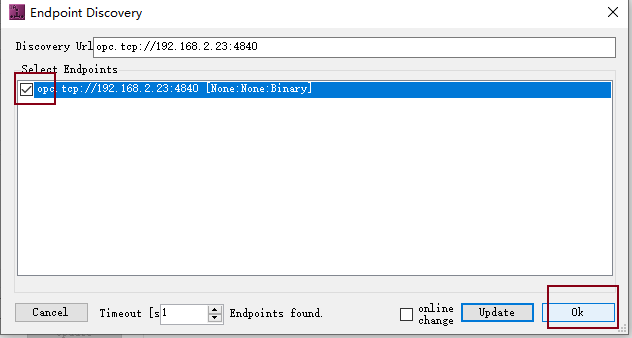
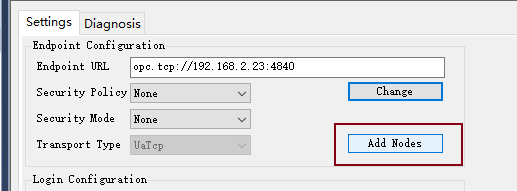
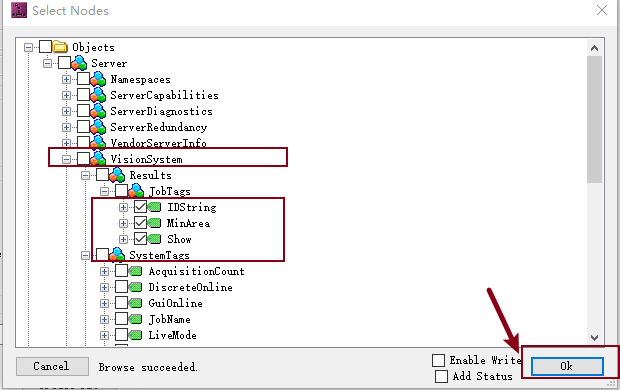
Click “Add Notes” button check all of Tags you need.
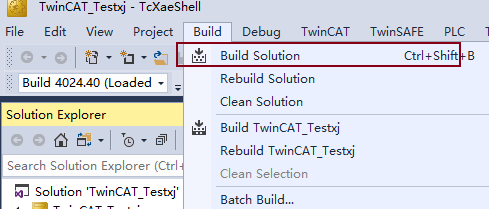
Build Solution.
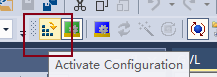
Active Configuration.
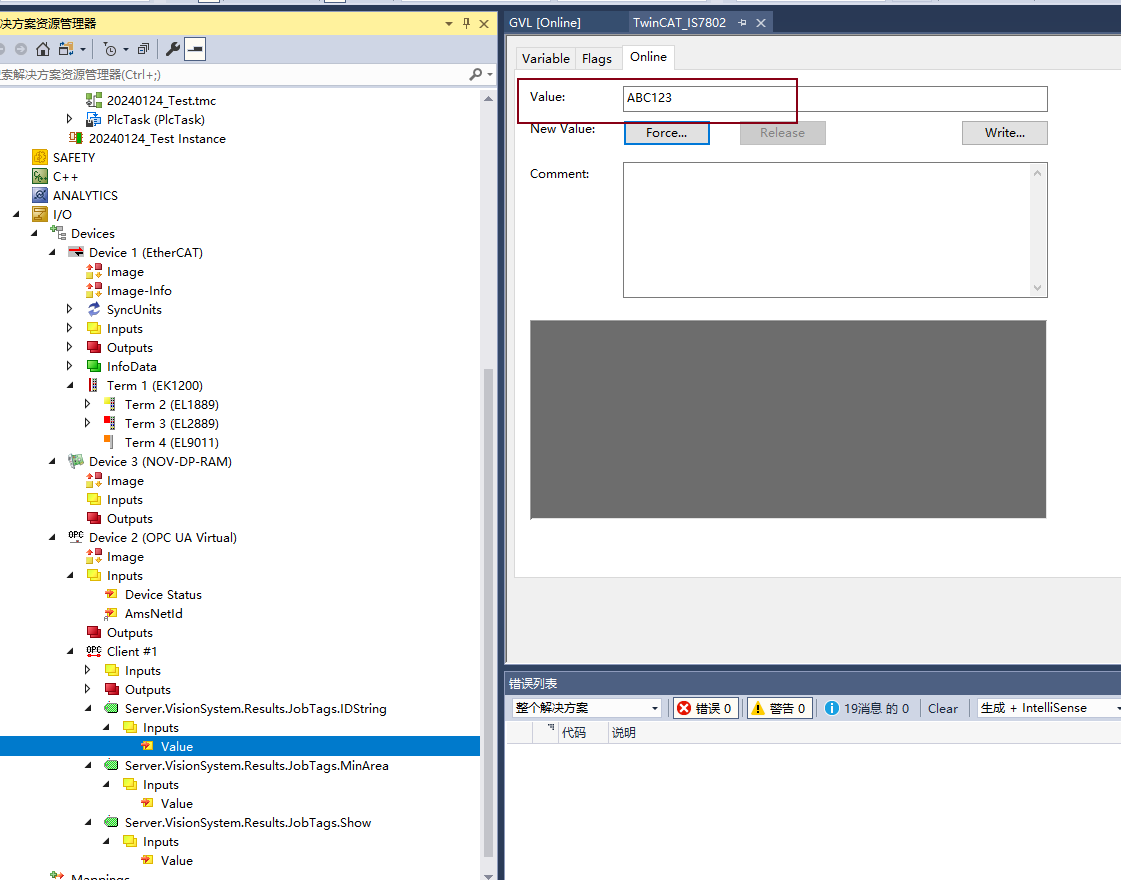
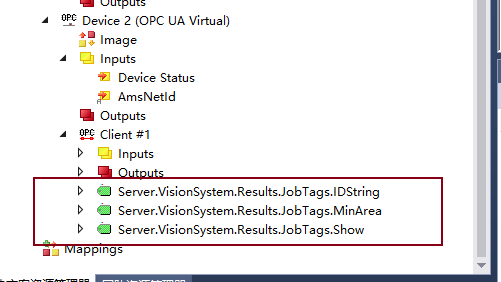
Check the tags you added.
Click “Login” button to login PLC.

Check the values of the Tags.