
Question
What are the various ways I can utilize a GPU in my ViDi application?
Answer
GPU Modes:
The possible GPU Modes of operation are:
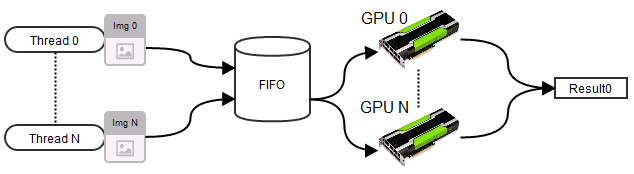
SingleDevicePerTool (default setting) – A single GPU is used for the analysis of the tool. When using multiple GPUs, the processing time of a single image remains the same, but multiple images can be processed concurrently, on different devices:
MultipleDevicesPerTool – This mode is for use with the Red Analyze tool, allowing its image analysis to be split among multiple GPUs. This mode is best suited to applications analyzing larger images using a smaller feature size and/or higher sampling density. This mode may be slower then the SingleDevicePerTool mode, when the MultipleDevicesPerTool mode is used with small images, a large feature size, and a low sampling density.
- NoGPUSupport – Specifies that a GPU will not be used.
Multi GPUs:
Using multiple GPUs in a single system will not reduce ViDi tool training or processing time. What multiple GPUs can do is to:
- Increase system throughput when your application uses multiple threads to concurrently process images.
- Increase training productivity, by allowing you to train multiple tools at the same time.
There is one circumstance under which multiple GPUs can be used to reduce tool processing time. If you configure your system in a MultipleDevicesPerTool mode, then all installed GPUs are treated as a single GPU during processing. This means that only one tool can be processed at a time for the entire server.
In the specific case of a Red Analyze tool, the use of MultipleDevicesPerTool mode may speed up the tool, especially a tool with a high image-to-feature size ratio. However, this potential speed up comes at the expense of latency across all clients.
System Configuration for Multi-GPU Systems:
- When configuring a hot system for multiple GPUs, keep the following in mind:
- The chassis may need to provide up to 2KW of power.
- Quadro and Tesla cards provide better cooling configuration for multiple-card installations.
- Make sure that the PCIe configuration has 16 PCIe lanes available for each GPU.
- Do not enable SLI.
What About Training Time:
Reducing tool training time does not affect your performance at run time, but it can improve the productivity of your development team.
ViDi training uses a mixture of CPU and GPU resources. When considering training specifically, there are three phases:
- Computing image statistics,
- Building the model,
- Processing the image set with the newly trained model.
The model building phase of training usually takes the longest, and it is an iterative process. Each iteration requires that the tool generate training data from all of the training images. If the images are in a non-BMP format, they need to be converted to BMP for each iteration.
- Tool training is always single-threaded and single GPU. You cannot make training faster using multiple GPUs
- Using multiple GPUs can improve your productivity because you can train multiple tools concurrently
See Also:
GPU Modes with a ViDi Server - Cognex VisionPro ViDi Help - GPU Modes with a ViDi Server - Documentation | Cognex
Initialization through the C API - Cognex VisionPro ViDi Help - Initialization Through the C API - Documentation | Cognex
Initialization through the .NET API - Cognex VisionPro ViDi Help - Initialization Through the .NET API - Documentation | Cognex
GPU Mode Command Line Initialization - Cognex VisionPro ViDi Help - GPU Mode Command Line Initialization - Documentation | Cognex