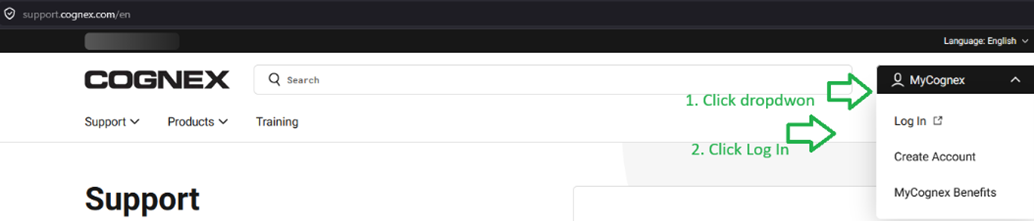
1. Log In into MyCognex, if not already
URL https://support.cognex.com/
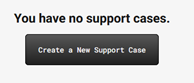
2. Once Logged In, scroll down, locate the Create a New Support Case button and click on it
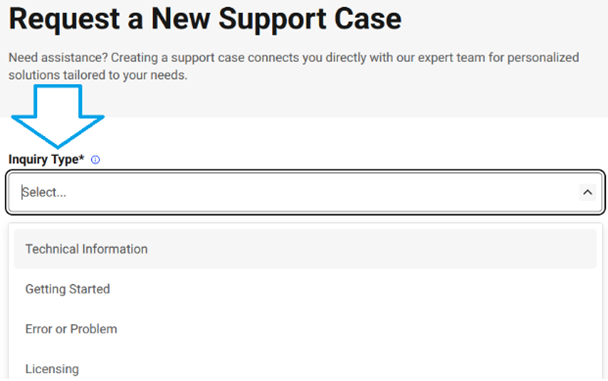
3. Within the page Request a New Support Case, select Inquiry Type
4. For Product Category, select OneVison

5. For Subject, please always include OneVision,
for example:
“Error opening an existing job in OneVision”

6. Fill out the next fields, and attach any supporting files
7. Click the Submit button (located below Add attachments)
A confirmation email for the creation of the case would be automatically replied to your inbox and would be available in My Support Cases as well.
To create a support file for a specific project:
Click ‘Create Support File’ within the project settings
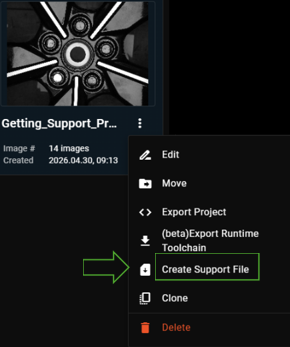
Please attached the generated .zip file in the case

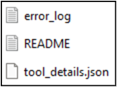
Each zip file contains the files below: