Details
Starting with In-Sight Vision Suite 24.3.0, looping is now supported in the Spreadsheet environment. Two of the main use cases for looping are using a single tool or set of tools a defined number of times. These methods can be grouped into two main categories – static and dynamic Fixturing.
- Static Fixturing is when a predefined set of fixture points or areas are specified to run the tools on
- Dynamic is when the inspection areas are determined from the results of another tool or set of tools.
Here is an example of the dynamic fixuring. In this example, I have used a blob tool to locate each of the features and then runs the classify tool on each region.
Add Detect Blob
First, I will add a blob tool to define each major feature in Cell A4.
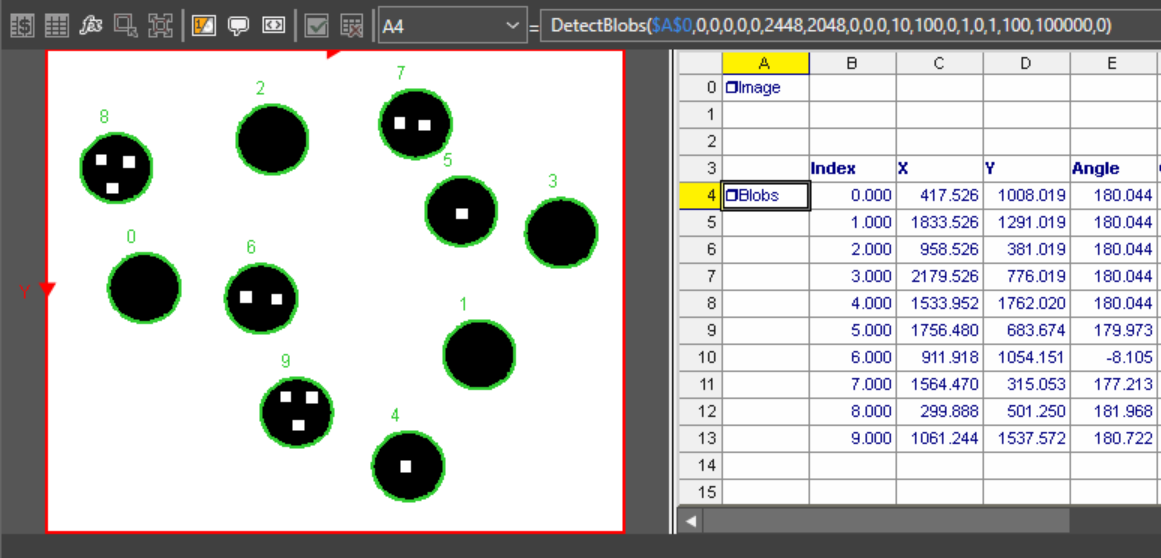
Set up parameters for control loop
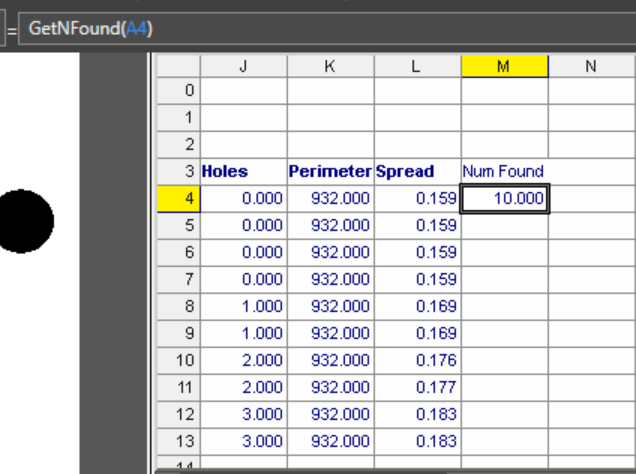
I add GetNFound function in Cell M4 to control the loop iteration, this function can get the number of Blob results.
Manual Selection allows you to review or modify a single index position. When this is set to -1, the loop runs automatically. When set to any higher number, only the specified indexed regions values are considered.
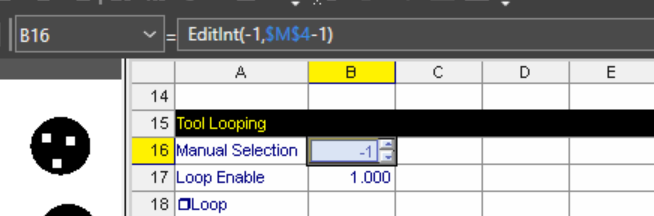
The Loop Enable cell controls whether the Loop (or Repeat) function executes.
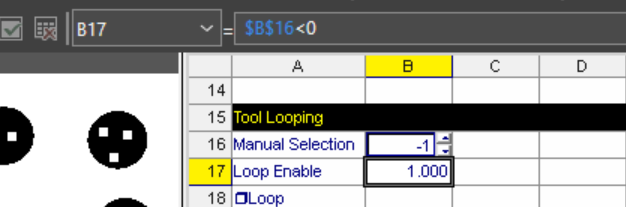
Set up Loop
In this example, you can find in Cell A18 it contains the repeat function. The arguments are Event, number of iterations and cells to repeat. we are wanting to loop when an image is acquired, so we specify A0. The second parameter can link to Number of iterations we setup above , the third parameter is to define cells to repeat, the cells to loop are shown here in yellow.
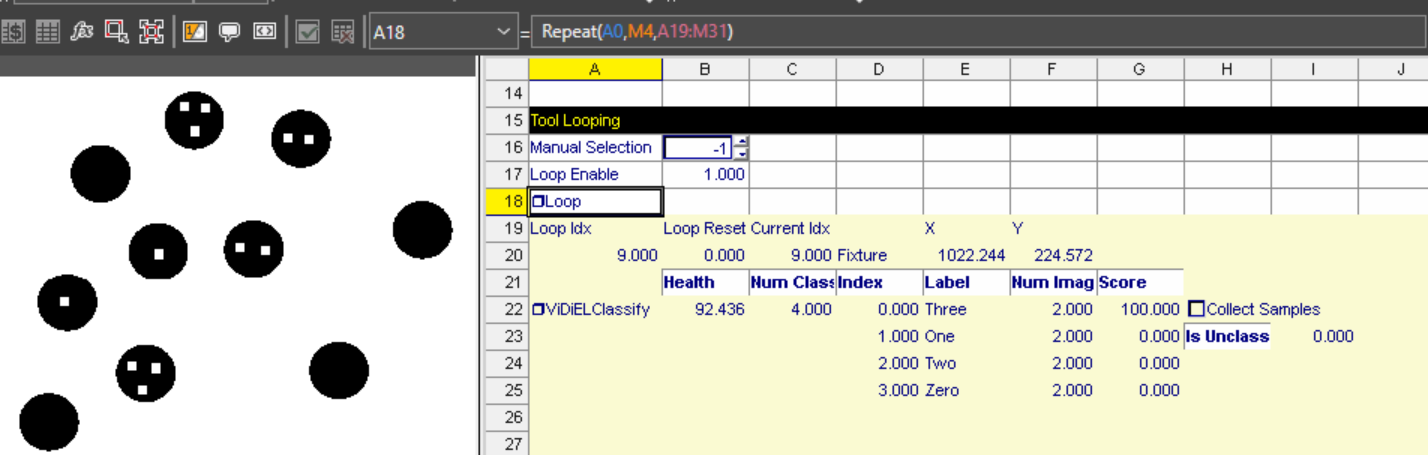
Add loop index, the loop reset and the current index Into looped cells
Loop index: returns the current iteration count of the loop

Loop reset: is used for StoreData reset

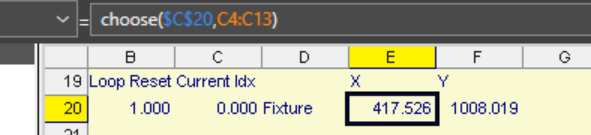
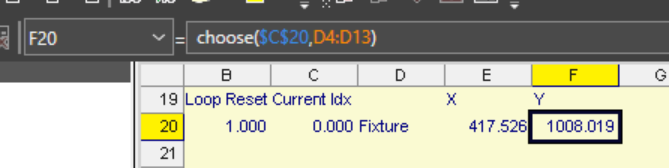
Current Index: is used for manual selection. The value of the Current Index cell is fed to a choose function in order to determine the X/Y reference values for fixturing. These values are then passed to the Classify tool below.

Set Fixture X and Fixture Y
The Fixture X/Y coordinate is used to determine the position of EL Classify detection region
X: return X value based on current index
Y: return Y value based on current index
Add EL Classify in looped cell
- Classify Fixture X/Y reference Fixture X/Y we set above
Set inspection region as you want to fit your part
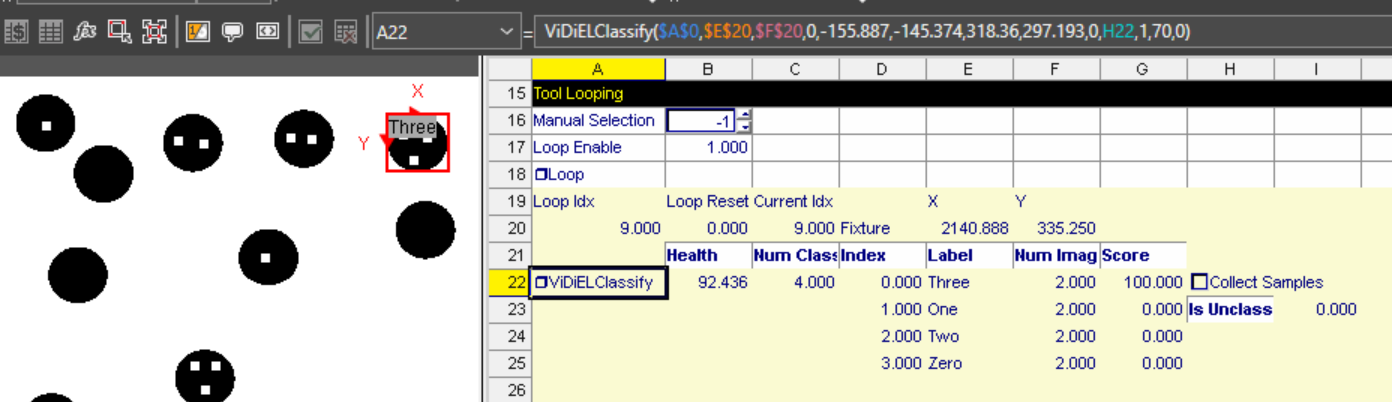
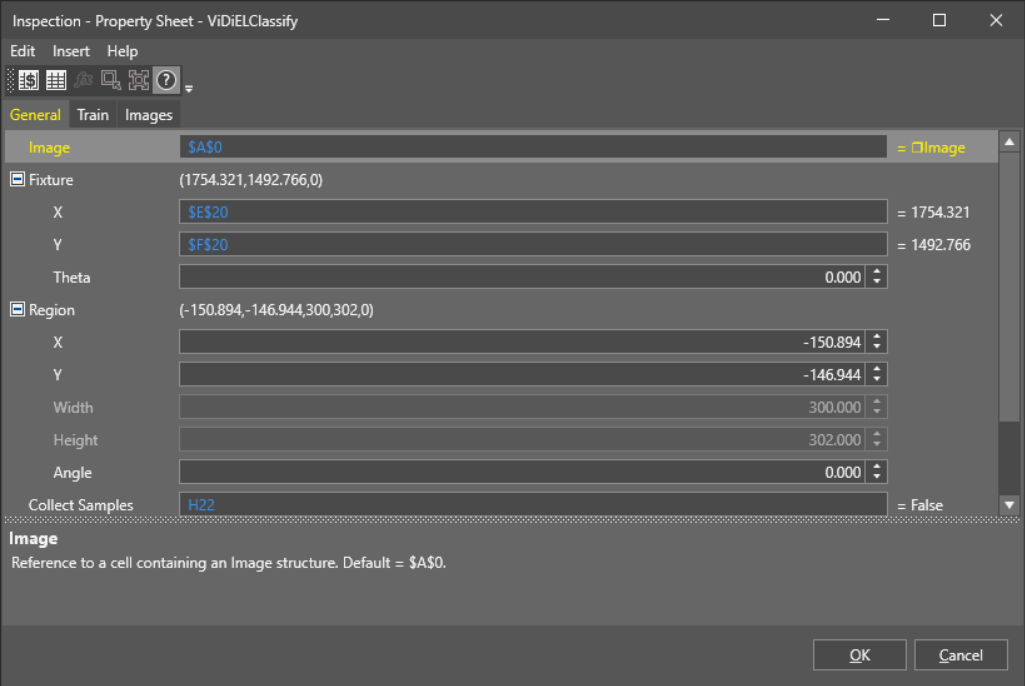
Add class for Classify tool, in this example, we have 4 classes: Zero/One/Two/Three, click OK.
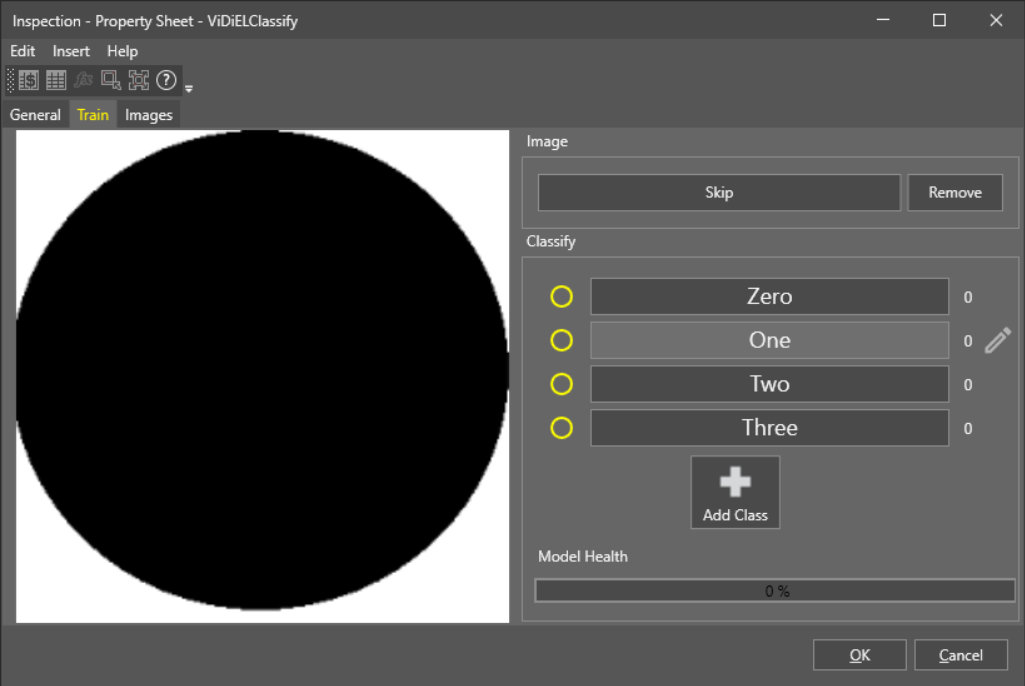
- Changing Manual Selection to a value greater than -1 will modify the fixture and place the Classify tool on that indexed position. If I want to train the tool on a specific index, I can select the index and check the Collect Samples checkbox. I can also set Manual Selection back to -1 and run an image with Collect Samples checked.
- Label and train few sample images
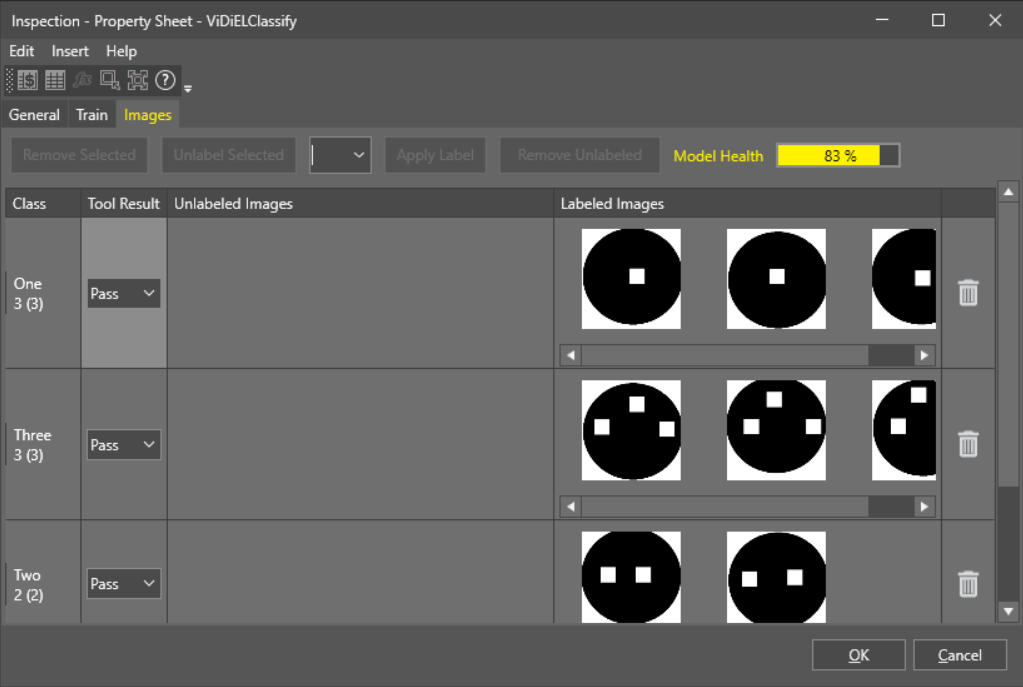
StoreData during loop
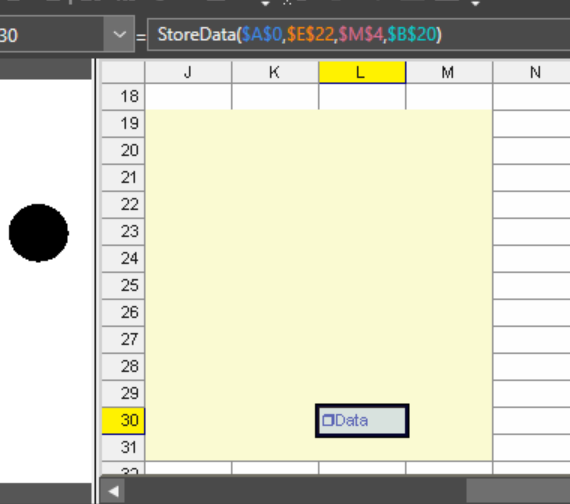
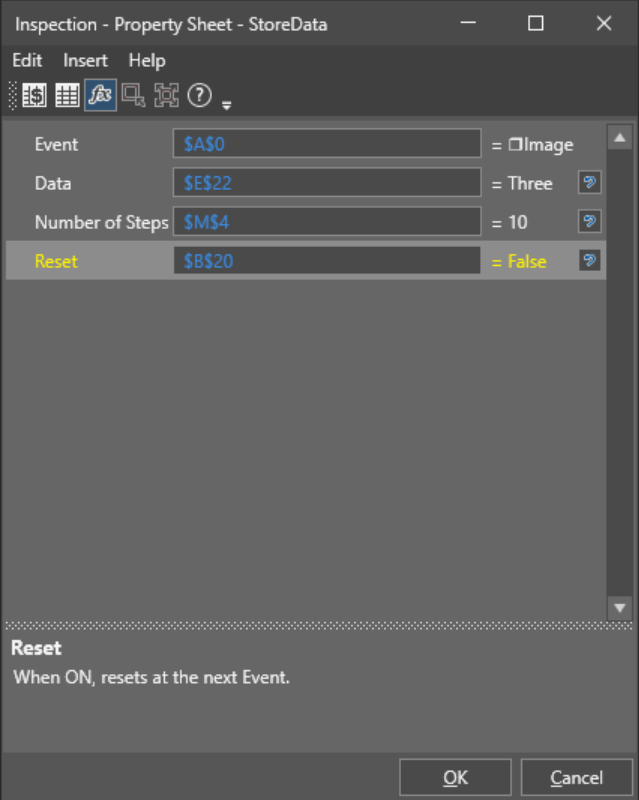
The StoreData cells buffer string data types such as scores, positions or classes. The StoreData can then be recalled at the end of the inspection
In this example, we are capturing the best class. The number of steps is linked to the requested tool iterations and the reset is linked to the loop reset.
Results and Display
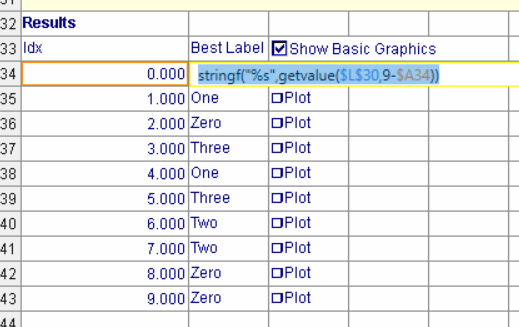
Finally, the best label result are extracted using a getValue function. The most recent value in StoreData is index 0, so in this example I am using logic to reverse the order.
Plot the label result string to the graphic, use fixture position of each index as display point position
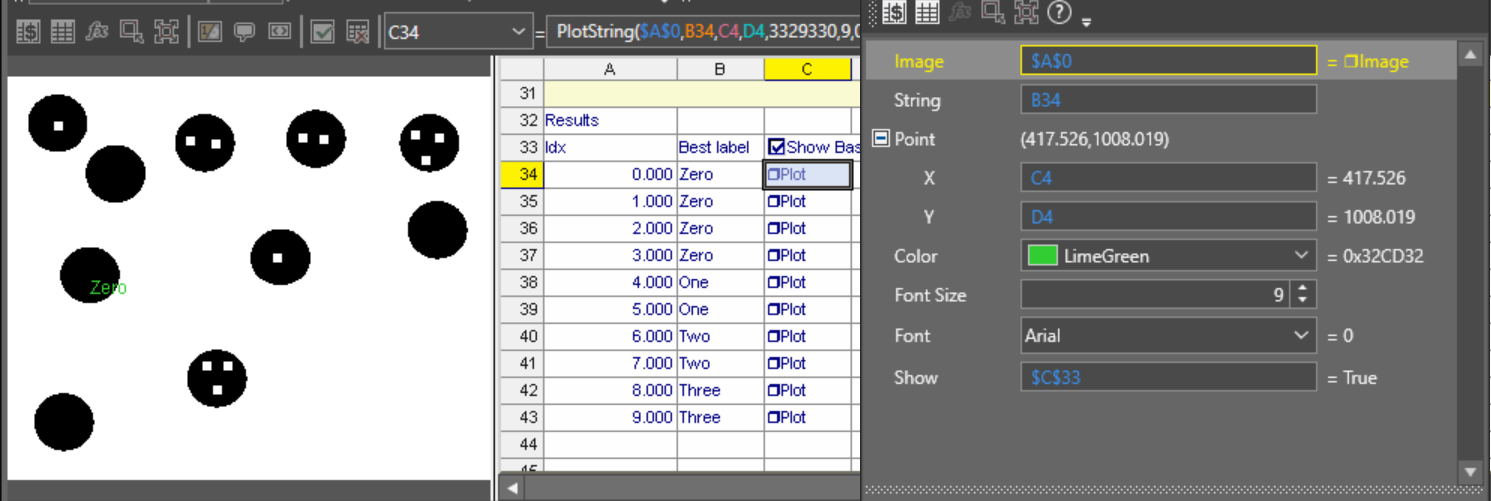
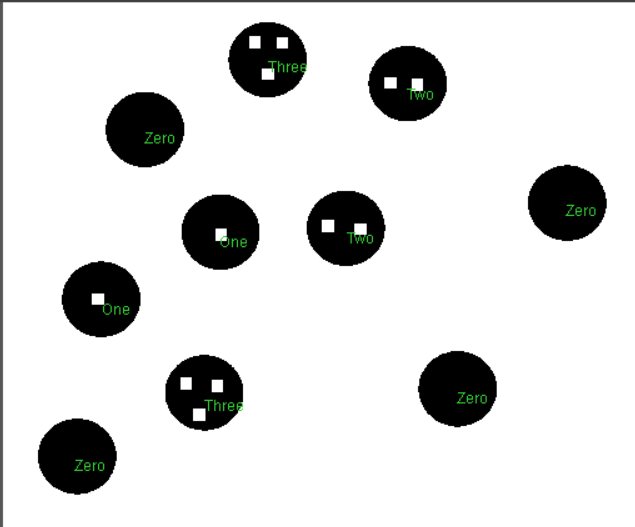
Then you will get the final result as below