Details
There are two methods for configuring the white balance on CIC color cameras. Both methods follow the same overall process, with only minor differences in the placement or configuration of certain attribute nodes.
Setting process:
Add CogAcqFifoTool and then Connect Camera;
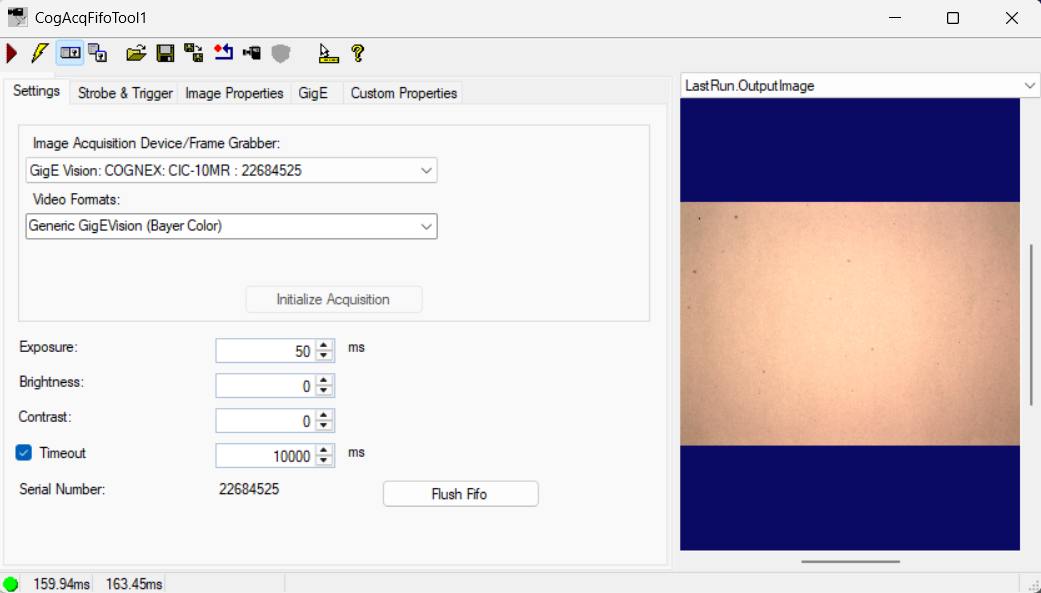
- Place the standard white balance calibration gray card within the camera’s field of view. If a gray card is not available, a sheet of white paper can be used as a temporary substitute; however, note that different types of white paper may lead to variations in calibration accuracy. Adjust the exposure time, aperture, or lighting to ensure the image reaches an appropriate brightness level;
- Close camera live display;
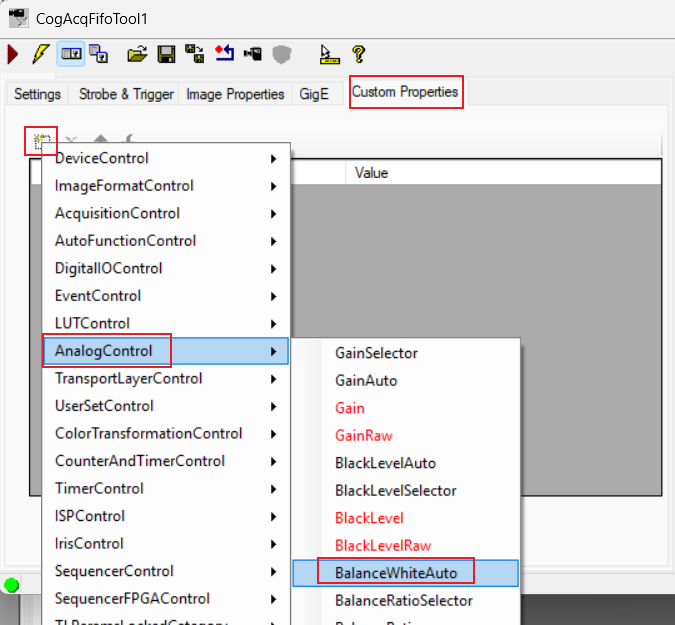
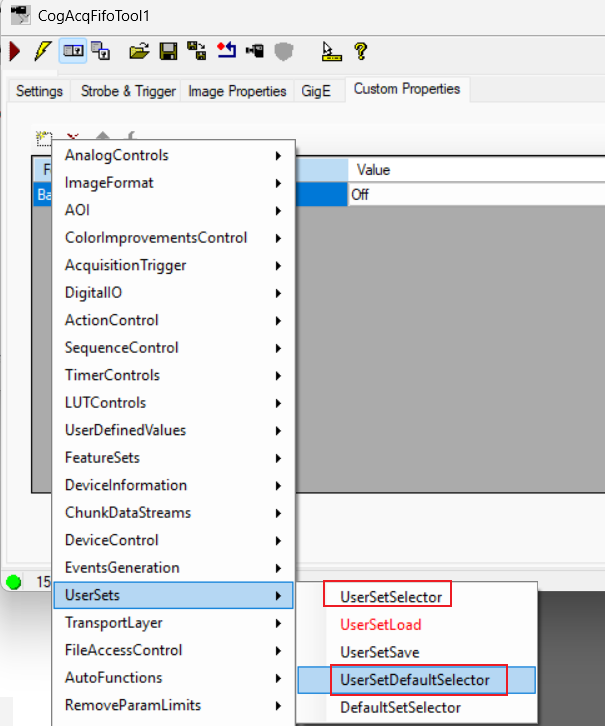
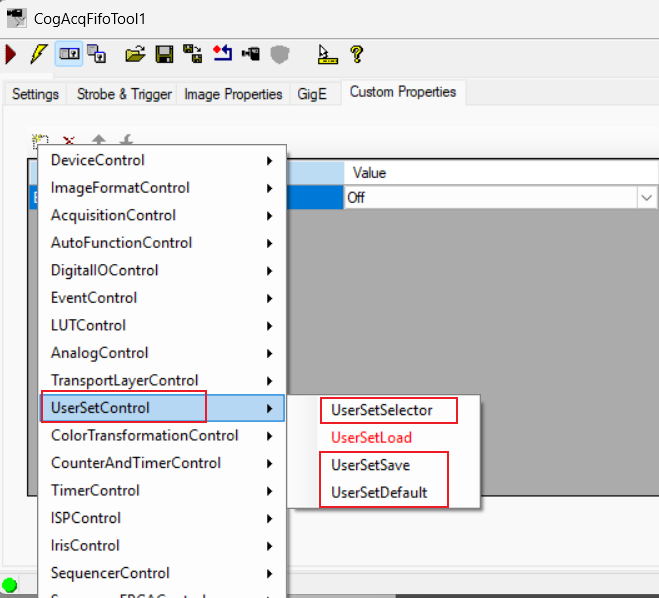
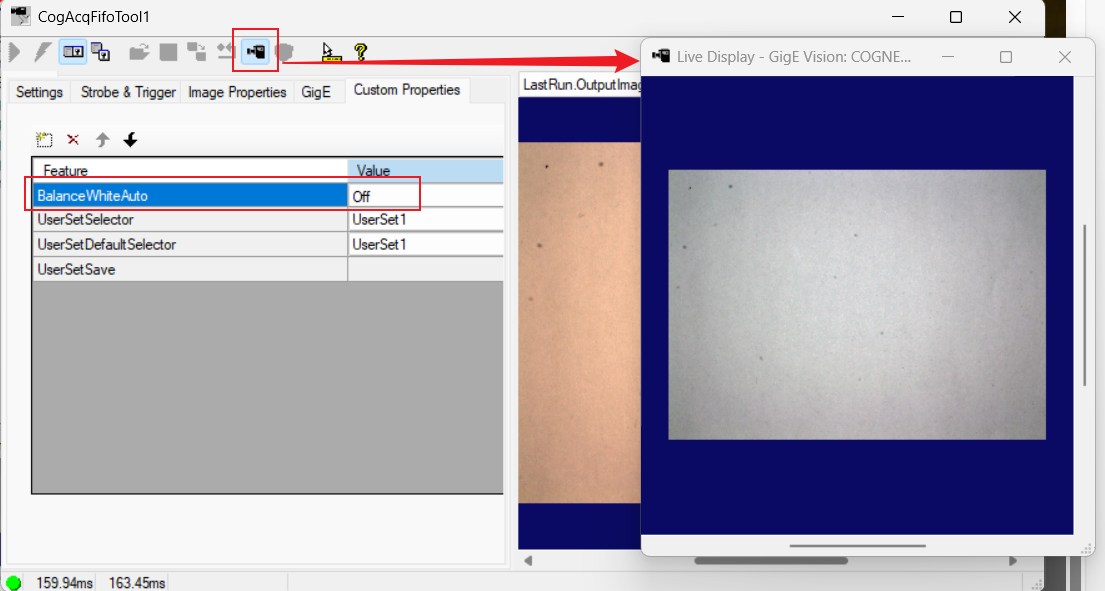
- Add the BalanceWhiteAuto property to the custom attributes tab. By default, this property is set to Off. Note: Attribute nodes path may vary across different camera models:
The first attribute node path
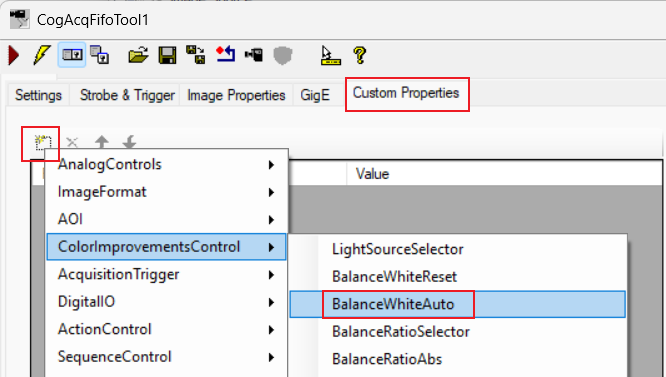
The second attribute node path
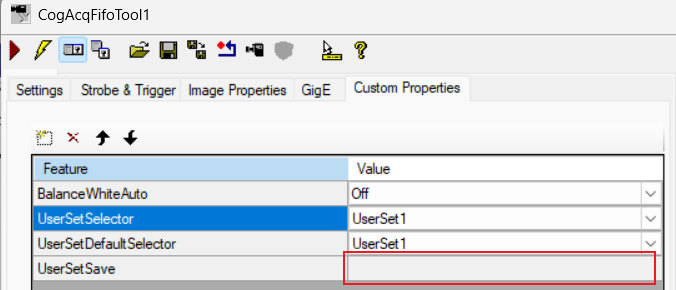
- Additionally, add the properties UserSetSelector, UserSetDefaultSelector (UserSetDefault), and UserSetSave. Note: The names of the attribute node may vary between different camera models;
The first set of attribute node
The second set of attribute node
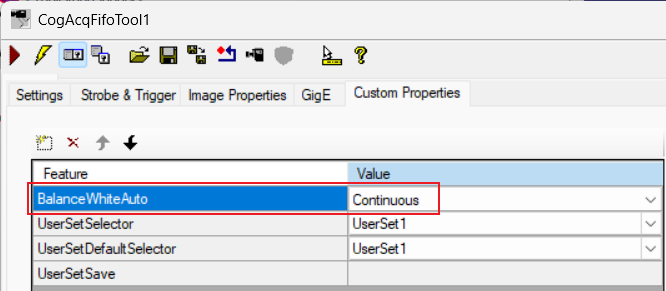
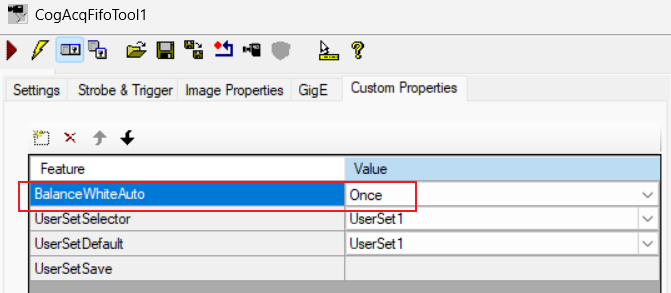
- Set the BalanceWhiteAuto property value, first set it to Continuous. If it does not work, then set it to Once. After setting, press the Enter key;
Set the property value to Continuous
Set the property value to Once
Click the Live Display button to open the live display window. Wait until the automatic white balance adjustment is complete, then set BalanceWhiteAuto to Off and press the Enter key. Finally, close the live display;
In the value lists of UserSetSelector and UserSetDefaultSelector (UserSetDefault), select a user set and ensure that both properties have the same value. UserSetSelector specifies which user set the current configuration will be saved to, while UserSetDefaultSelector (UserSetDefault) specifies which user set will be used by default at startup;
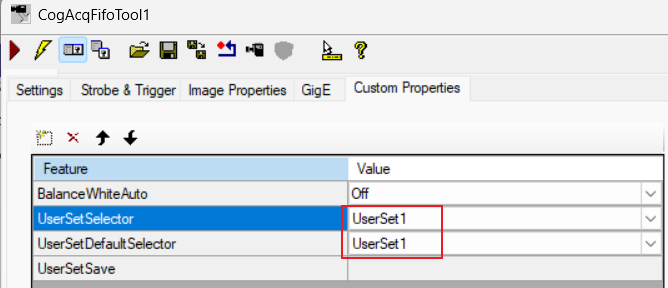
Click the blank area in the value field to the right of the UserSetSave property to save the current configuration;