
Details
When an IP address is set for a PROFINET device within the PLC project, the device gets this address as a temporary IP. The PROFINET Class B specification says that when a PROFINET device with a temporary IP is rebooted, then the device should get the default IP on the PROFINET network, which is address 0.0.0.0.
If the IP address of an In-Sight 2000, In-Sight 7600-In-Sight 7900, In-Sight 8000, or In-Sight 9000 series camera is set within the PLC project, then the camera’s network setting will be changed to DHCP on the next reboot and it will report 0.0.0.0 as the IP address, subnet mask and gateway over PROFINET, complying with the PROFINET Class B specification.
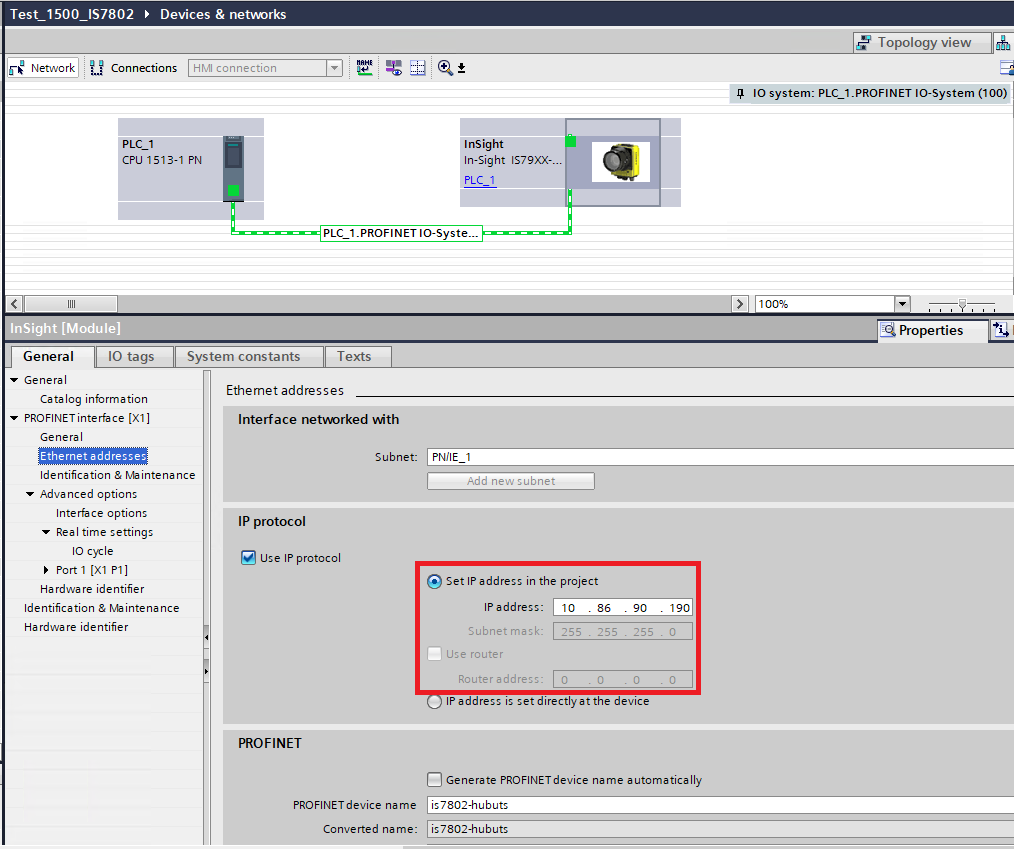
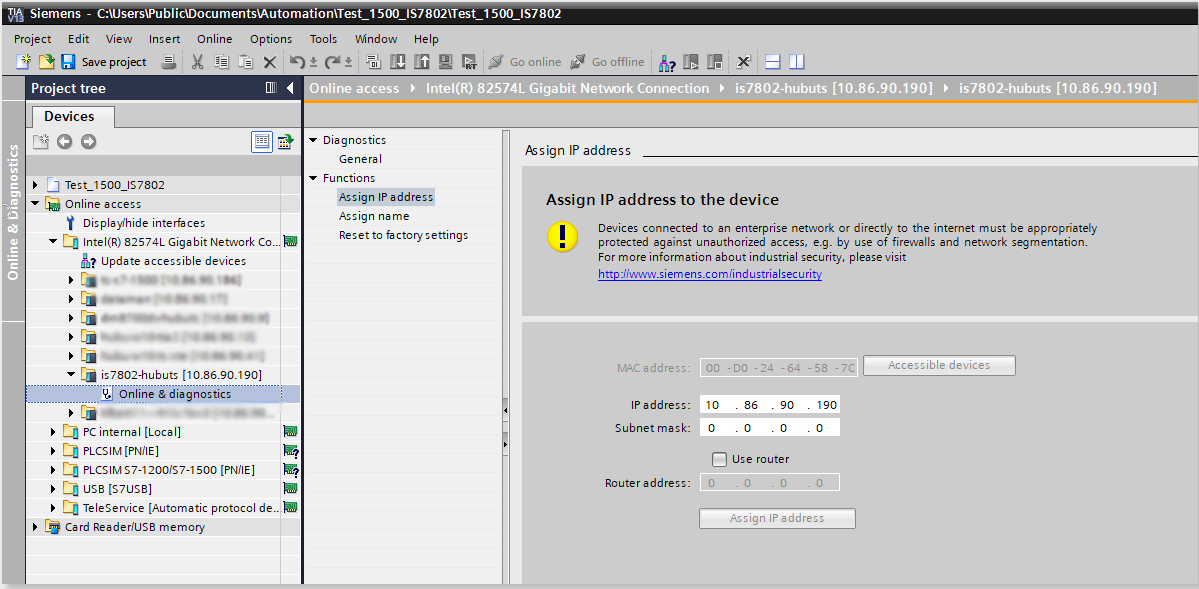
This example shows a Siemens TIA Portal project where the camera's IP address is configured within the PLC project:
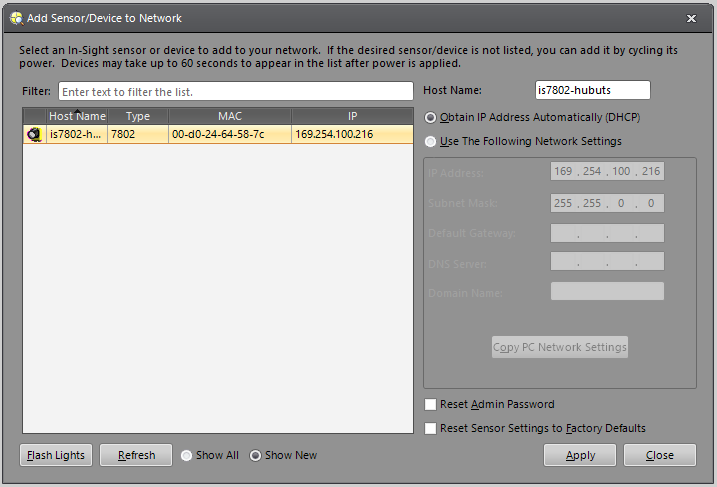
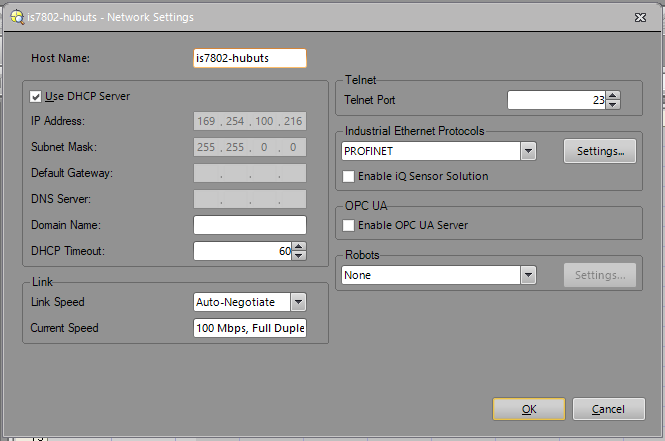
When next time the camera is rebooted but the PLC is not available and the IP address is not assigned to the camera, then the camera will be in the DHCP setting and report a link-local address in In-Sight Explorer:
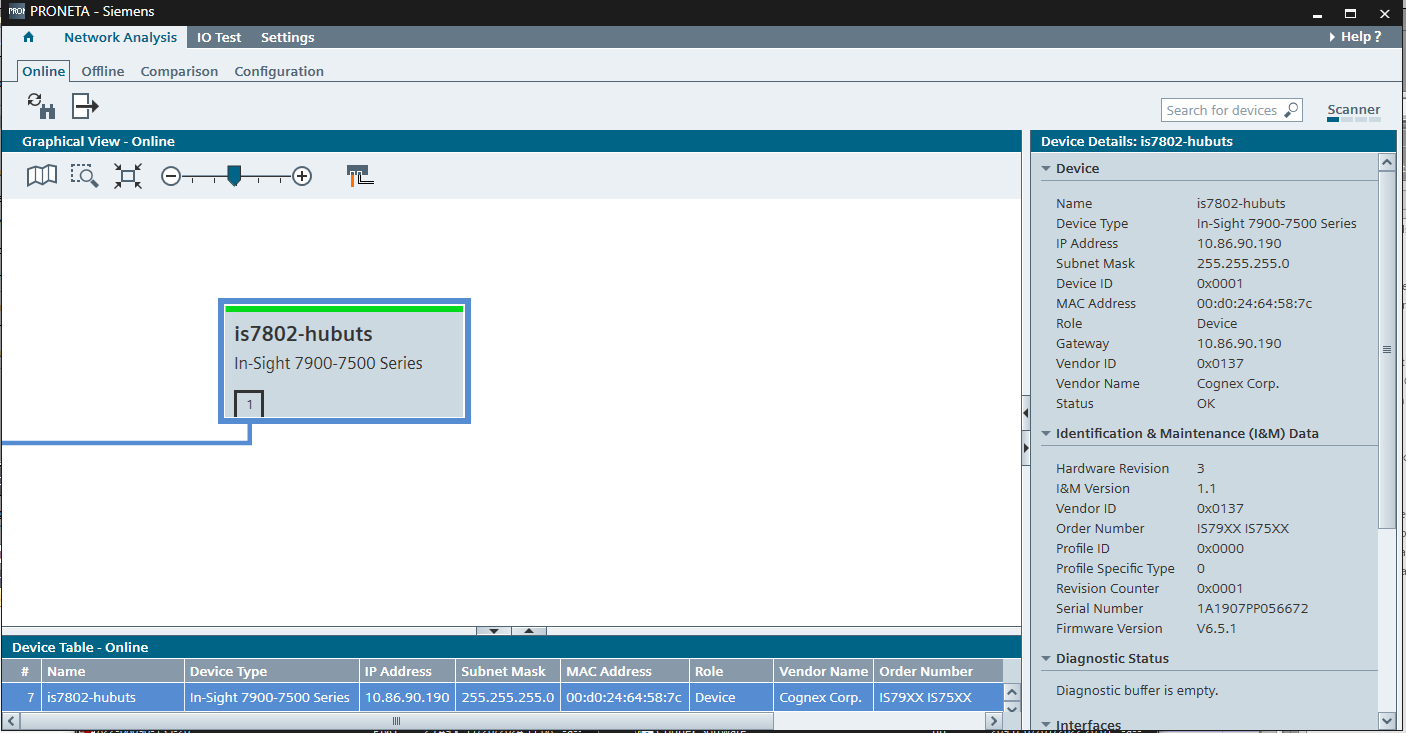
And it reports 0.0.0.0 IP over the PROFINET network:
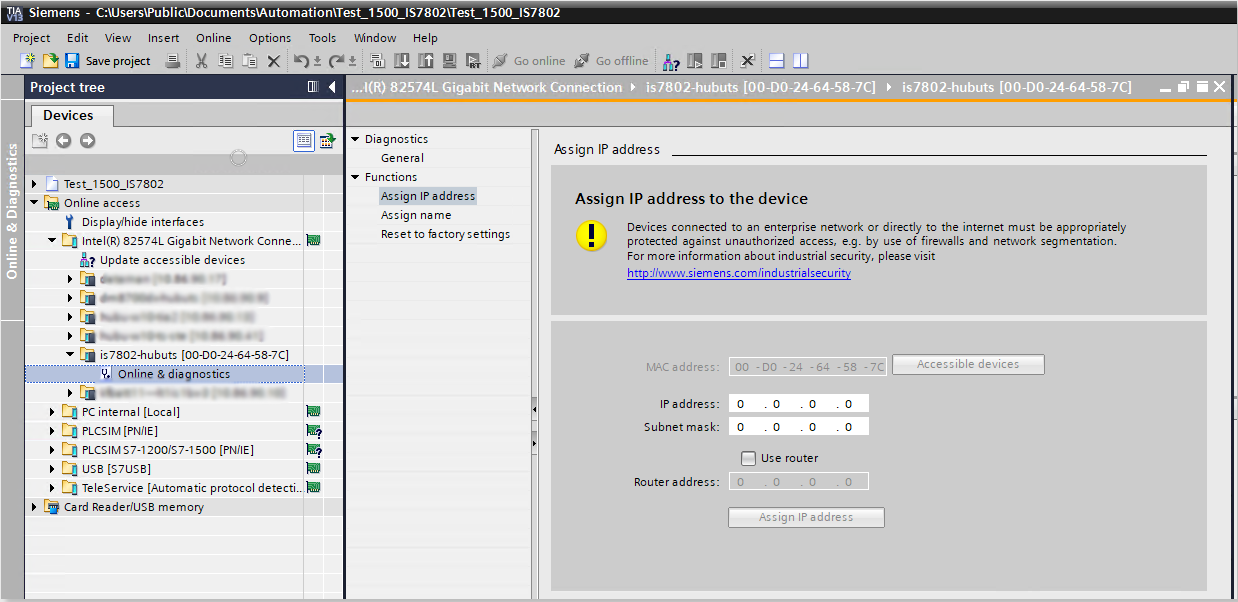
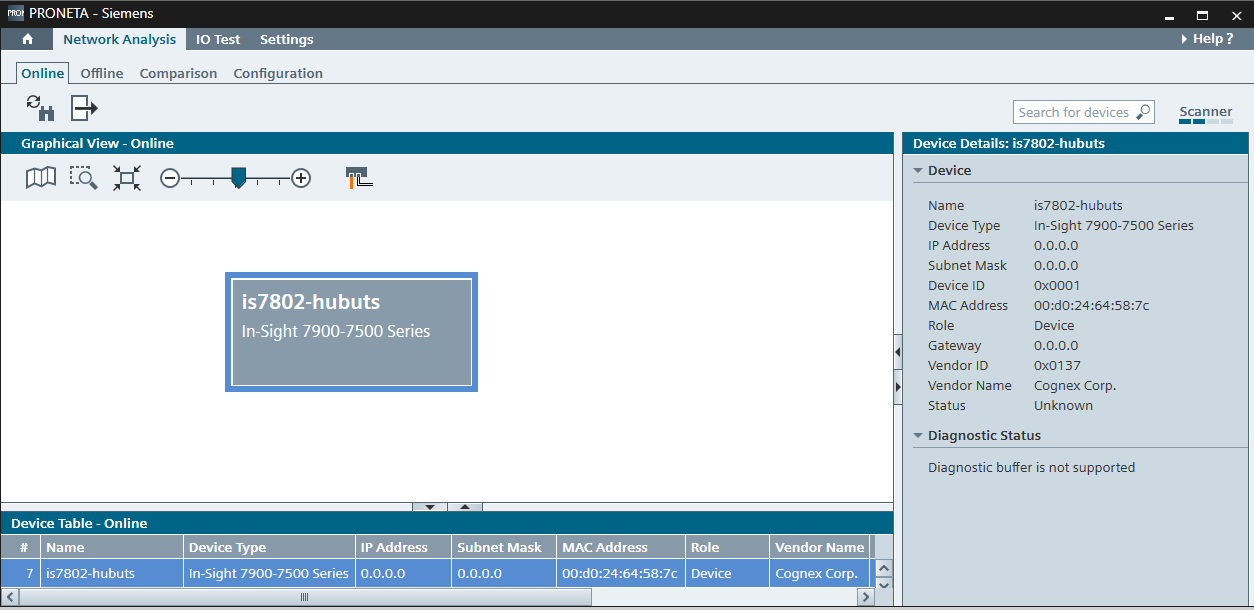
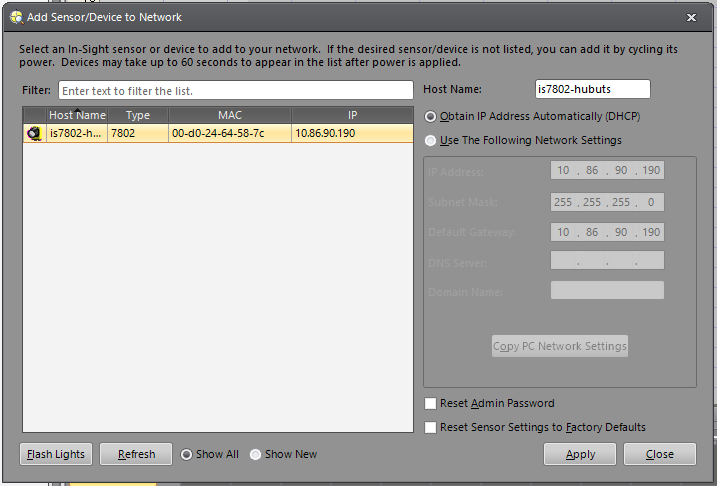
If the PLC is available on the network and assigns the IP to the camera again, then the camera gets the correct IP but stays on the DHCP setting in In-Sight Explorer:
Note #1:
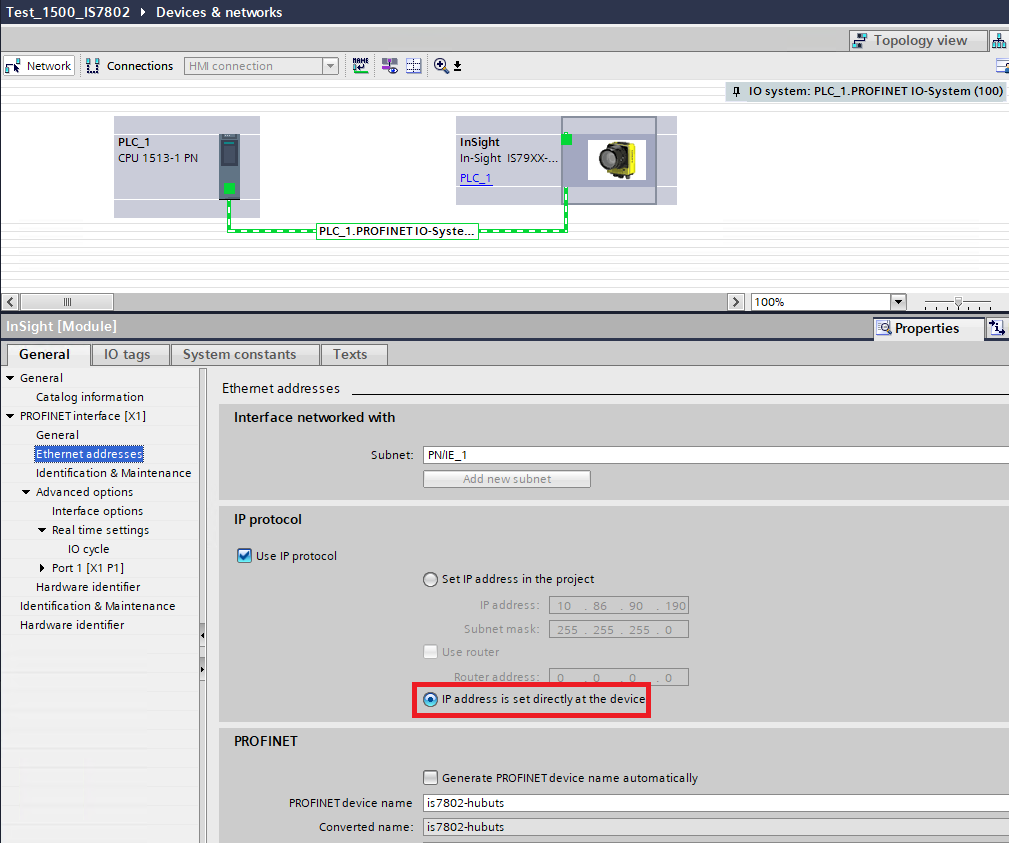
If you would like to avoid the above-described IP behavior on the camera, then you need to select the IP address is set directly at the device option within the PLC project, download this change to the PLC, and then set a static IP on the camera using In-Sight Explorer software.
Note #2:
In-Sight Explorer cameras moved to PROFINET Class B starting in firmware version 5.8.0. We recommend installing firmware 6.1.3 or above on the camera, which contains a fix for IP assignment through PROFINET.