Question
How to use In-Sight Exporer software as FTP server to save images from In-Sight Vision Suite camera (IS2800/IS3800/IS8900/IS900)?
Answer
Note:
As of In-Sight Vision Suite (ISVS) version 25.3, FTP server is included and may be used for image storage and transfer. Alternatively, customers may utilize a third-party FTP server based on their system requirements. The use of the In-Sight Explorer (ISE) emulator as an FTP server remains applicable only in cases where neither the native ISVS FTP server nor a third-party FTP solution is feasible.
Step 1:
Activate the FTP Server:
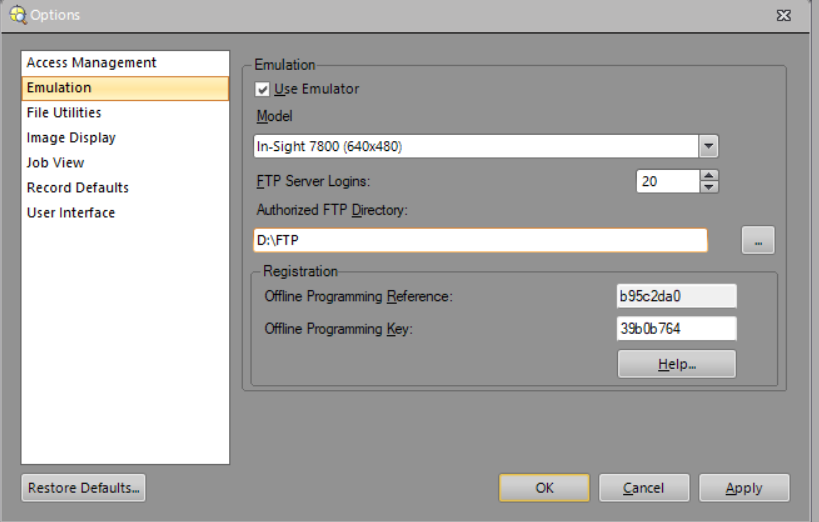
Ensure that the FTP server is activated on the target PC. Use In-Sight Explorer software for this purpose by installing it, activating the emulator, and assigning the authorized FTP directory path in the Emulation tab.
Step 2:
Access Management Setup:
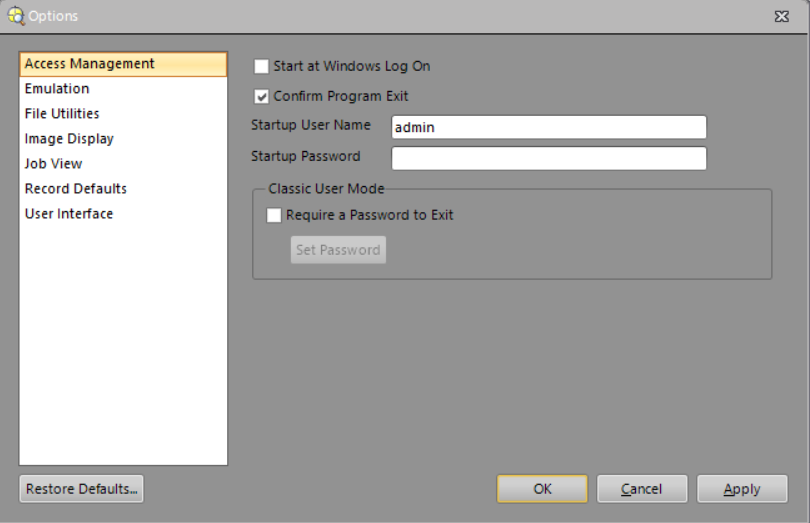
Note the username and password in the Access Management tab (you may leave the password empty).
Step 3:
Note Target PC IP Address:
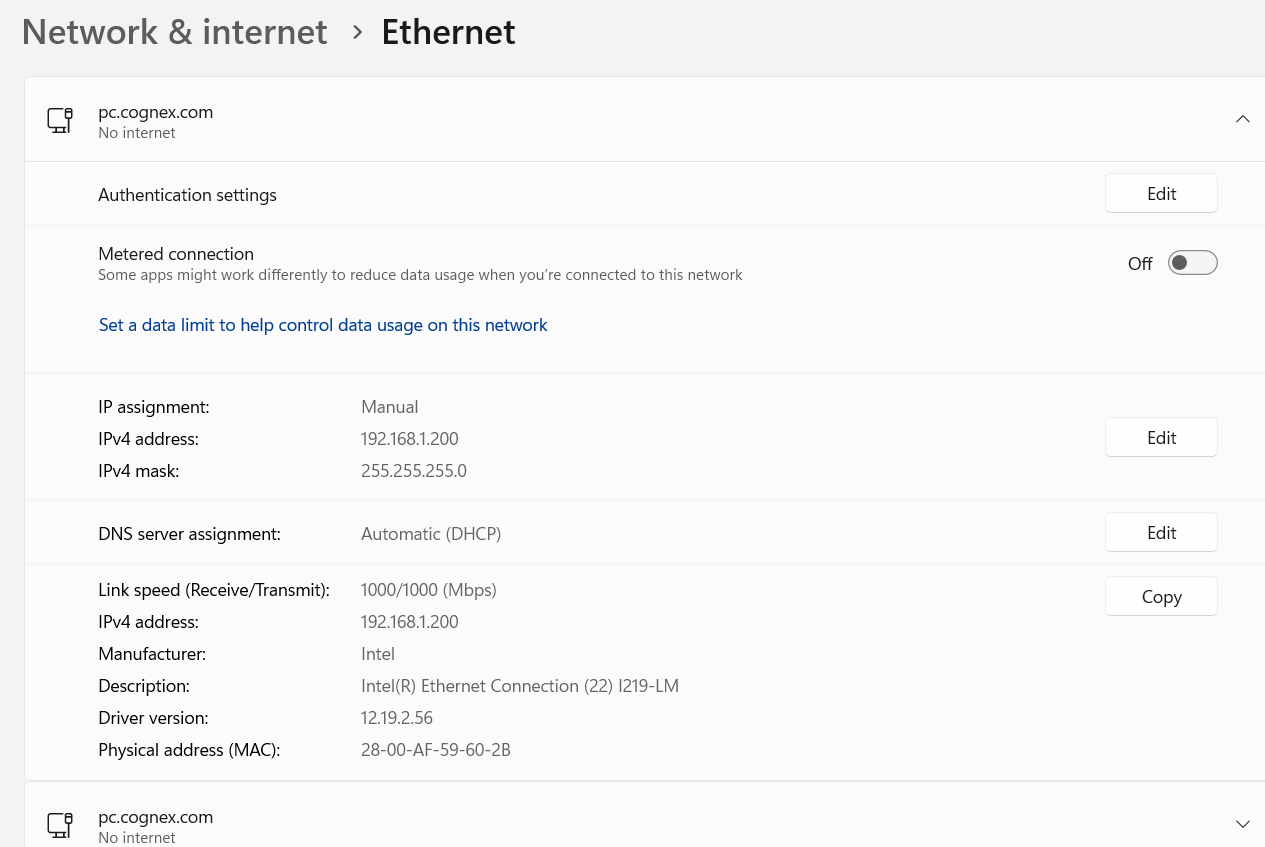
Record the IP address of the target PC .
Step 4:
Configure Cognex Vision Suite:
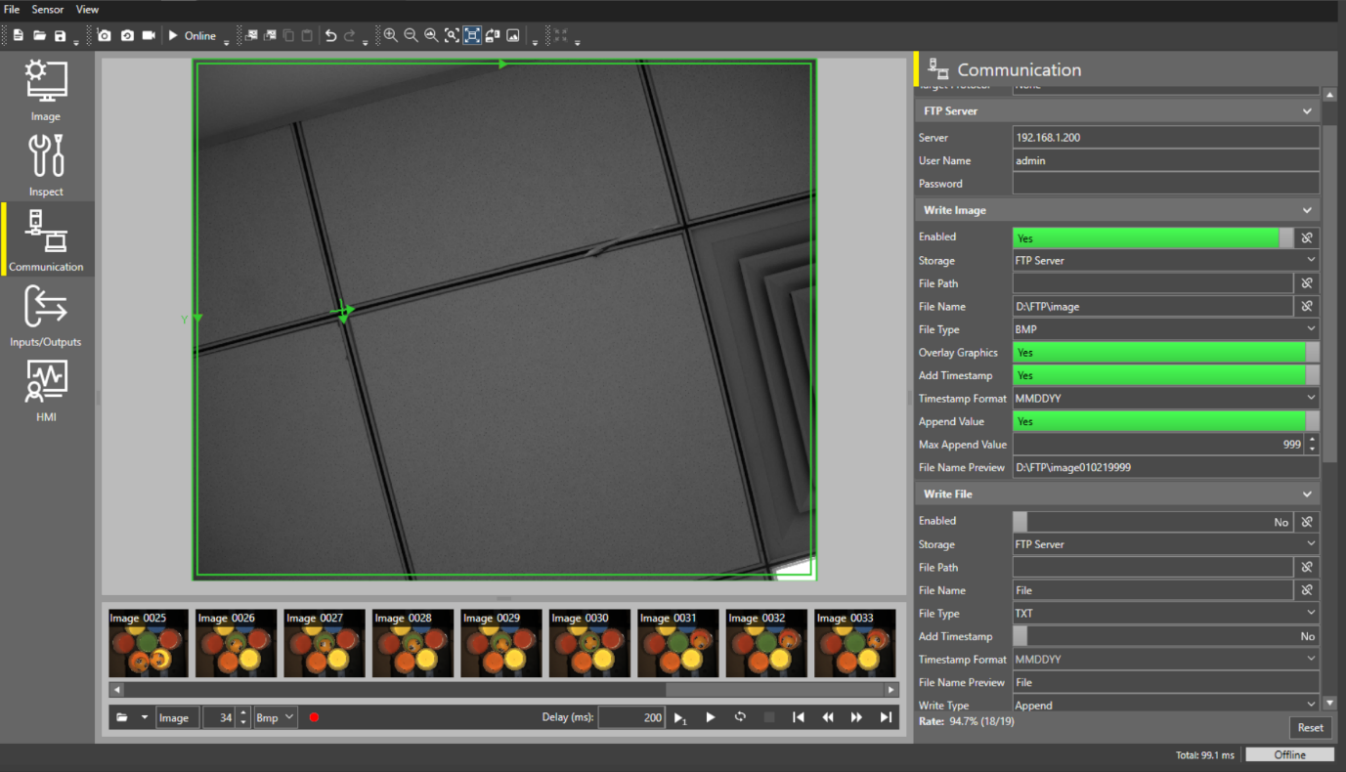
- Open Cognex Vision Suite and navigate to the communication settings.
- Enable the Write Image option.
- Enter the target PC's IP address as the server name.
- Input the username and password (leave the password empty if that’s your choice).
- Specify the file name using the format: <Path that was set up as Authorized FTP Directory path in ISE> + "\" + "Image file name".
- Keep the camera online and trigger it to capture an image.
Step 5:
Verify Image Save:
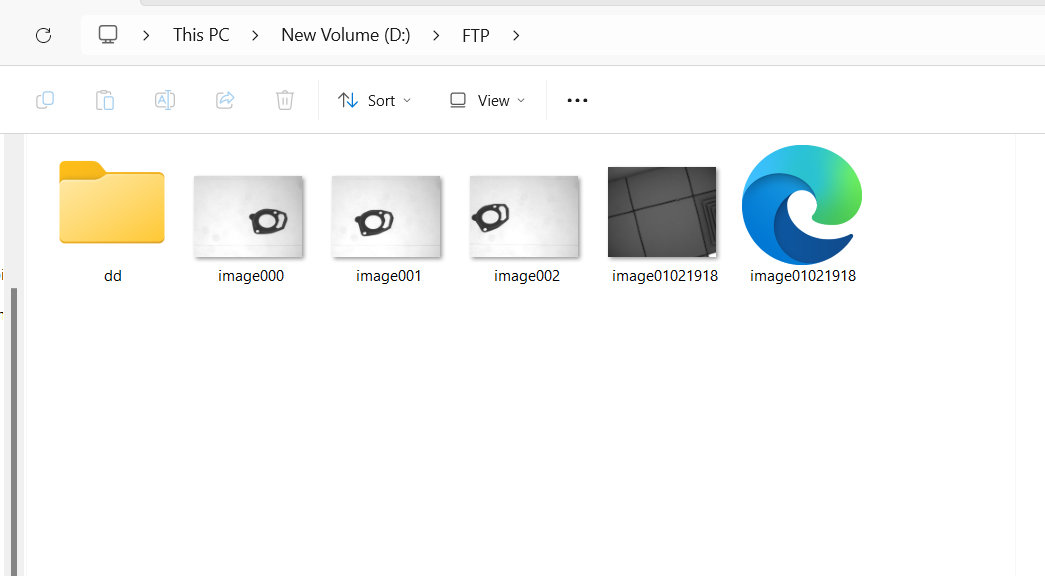
Check the assigned path on the PC to confirm that the image has been saved successfully.