
Question
How to write data from PLC (Ethernet/IP) to compare a string from EL Read tool in EasyBuilder view?
Answer
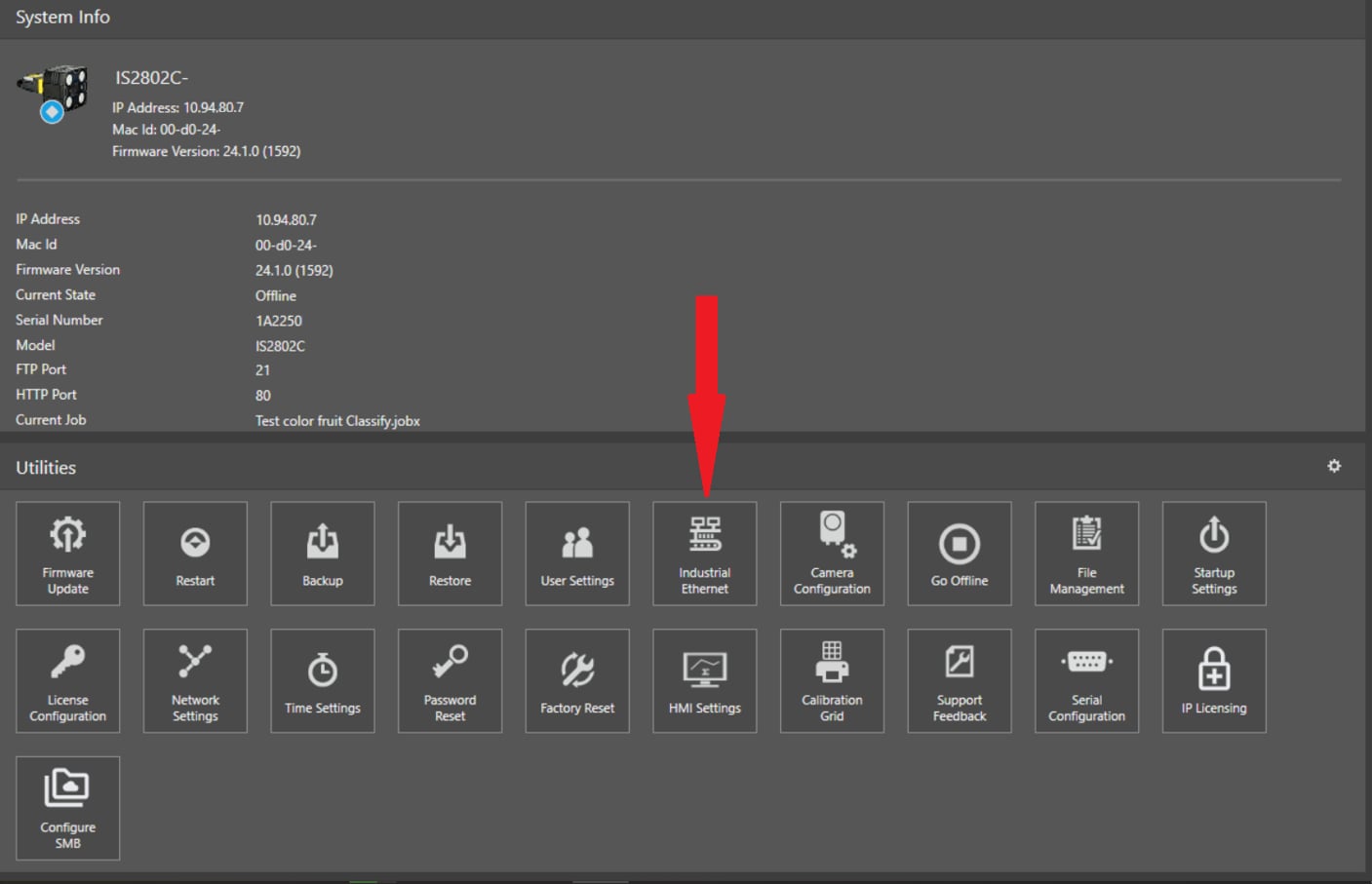
First of all, the camera has to be set to communicate in Ethernet/IP, and you can do this from the IIn-Sight Vision Suite main page, by clicking here:
And then select, in the next window, Ethernet/IP as the preferred communication method:
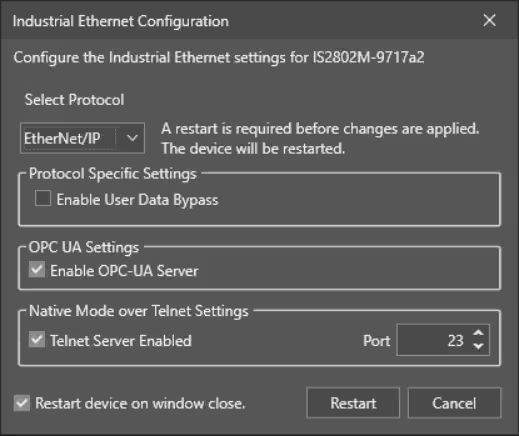
As you can see, a Restart is required once this parameter is set, so press Restart.
Once restarted, the camera will have Communication set for Ethernet/IP.
For this example, we will use a Read EL and a Math Tool. You can configure the Read EL tool as you wish, and then we can set the Math tool.
Done? Ok, let’s go.
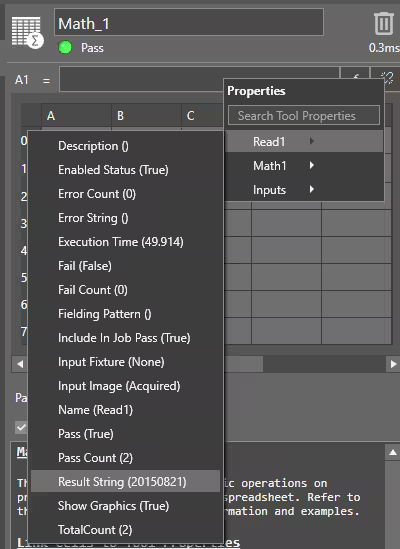
First, you have to import the Result String from the EL Read into the Math tool, we’ll use cell A1:
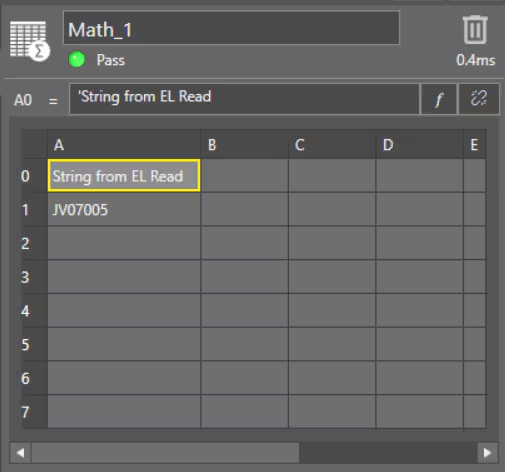
And this is what it will be, with a comment in A0:
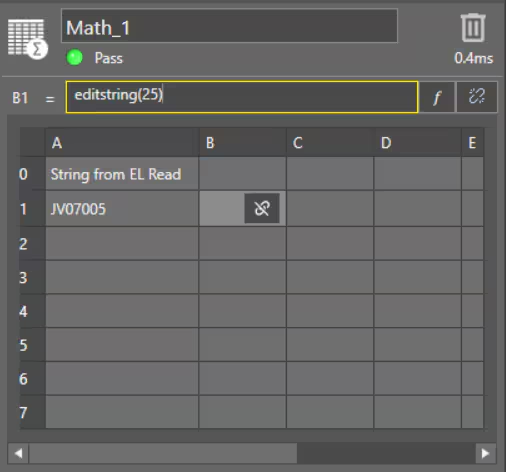
Now we can set an EditString in B1, like this:
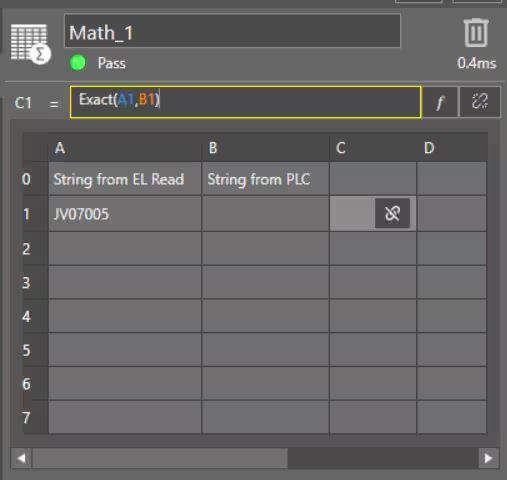
Then, in the end, we can set an Exact function in C1, like this:
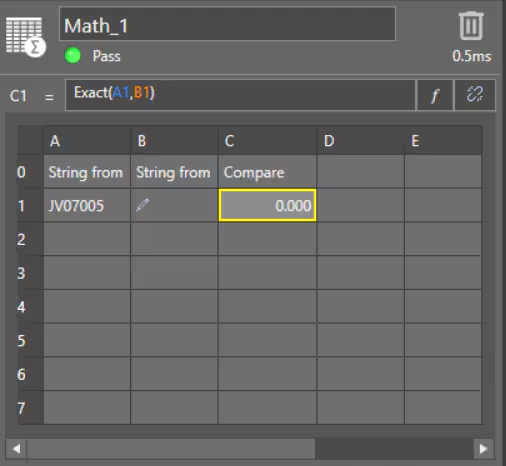
This is what will appear:
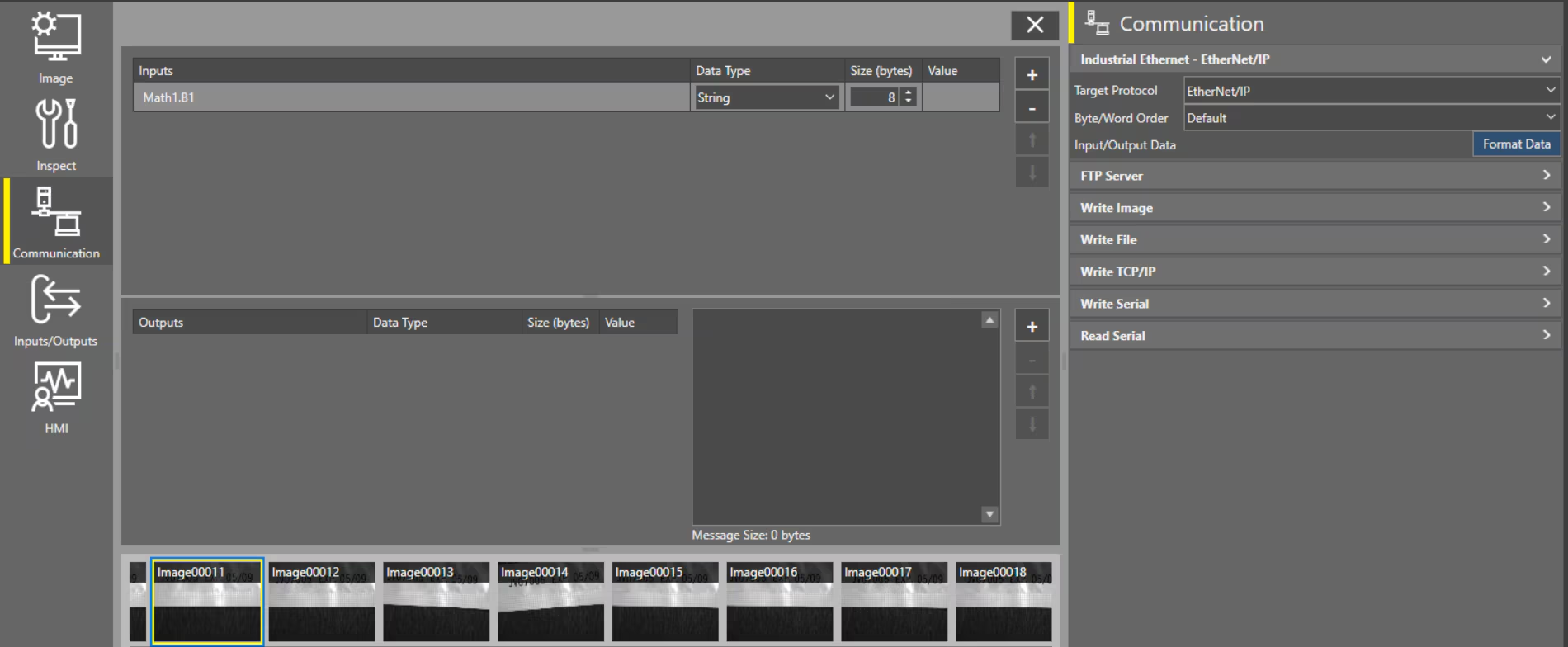
Now, let’s move to Communication (1), then Ethernet/IP (2), then Format Data (3), this will open a nearside window, then go to + (4) and select Math.B1 (5). This will add the Editstring to the Input Buffer from PLC, starting from UserData0 (we will see this in the next part)
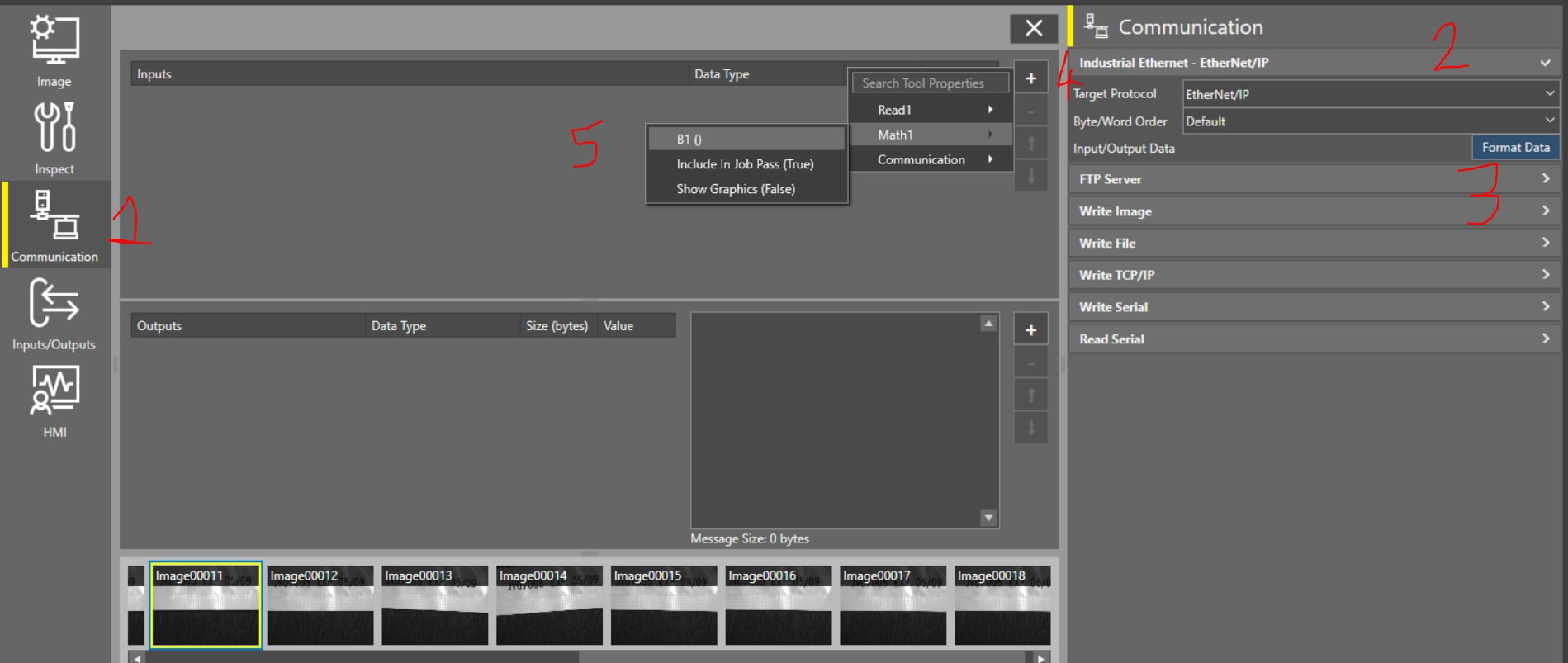
This is how it will appear:
Now, if you go back to the Math tool, you’ll see that the InputString cell has been modified, like this:
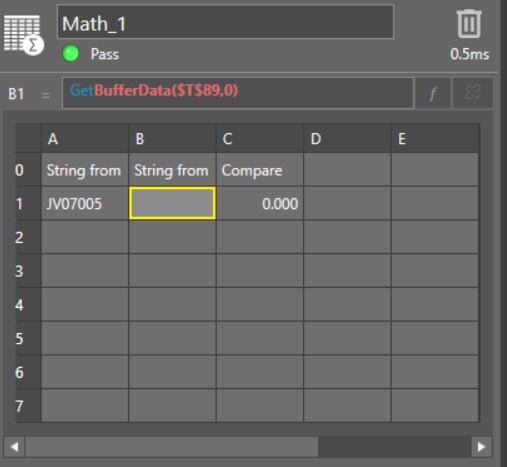
This happens because now the string from PLC will be written into this field.
On the PLC side, what is needed is to set the correct string in the UserData section of Instance 22 starting from bit 0 and then set the SetUserData bit, in the same Instance 22
When the camera will answer with the SetUserAck bit in Instance 13, this means that the data is correctly written into the camera.
ATTENTION: the data will be not visible in the MathTool cell, it will still appear like this:
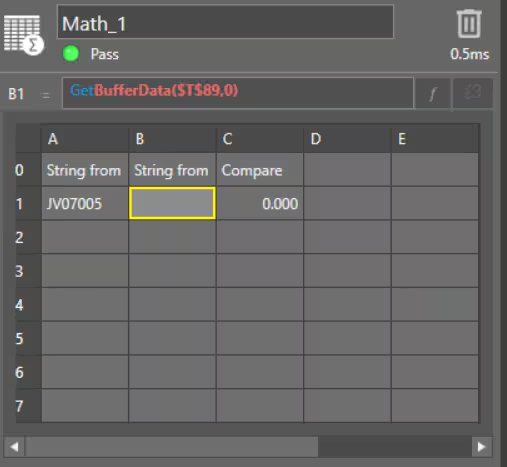
But the data is there and will be used from the Math Tool for the Exact tool, it will become visible after the first trigger.
From now on, on every trigger, cell C1 will compare the data and provide a value, 1 if the data correspond, otherwise 0.
Question
How to write data from PLC (Ethernet/IP) to compare a string from EL Read tool in EasyBuilder view?
Answer
First of all, the camera has to be set to communicate in Ethernet/IP, and you can do this from the IIn-Sight Vision Suite main page, by clicking here:
And then select, in the next window, Ethernet/IP as the preferred communication method:
As you can see, a Restart is required once this parameter is set, so press Restart.
Once restarted, the camera will have Communication set for Ethernet/IP.
For this example, we will use a Read EL and a Math Tool. You can configure the Read EL tool as you wish, and then we can set the Math tool.
Done? Ok, let’s go.
First, you have to import the Result String from the EL Read into the Math tool, we’ll use cell A1:
And this is what it will be, with a comment in A0:
Now we can set an EditString in B1, like this:
Then, in the end, we can set an Exact function in C1, like this:
This is what will appear:
Now, let’s move to Communication (1), then Ethernet/IP (2), then Format Data (3), this will open a nearside window, then go to + (4) and select Math.B1 (5). This will add the Editstring to the Input Buffer from PLC, starting from UserData0 (we will see this in the next part)
This is how it will appear:
Now, if you go back to the Math tool, you’ll see that the InputString cell has been modified, like this:
This happens because now the string from PLC will be written into this field.
On the PLC side, what is needed is to set the correct string in the UserData section of Instance 22 starting from bit 0 and then set the SetUserData bit, in the same Instance 22
When the camera will answer with the SetUserAck bit in Instance 13, this means that the data is correctly written into the camera.
ATTENTION: the data will be not visible in the MathTool cell, it will still appear like this:
But the data is there and will be used from the Math Tool for the Exact tool, it will become visible after the first trigger.
From now on, on every trigger, cell C1 will compare the data and provide a value, 1 if the data correspond, otherwise 0.