Skip to Main Content
コグネックスサポートハブ
Logo

How to Save Pictures with VisionView Web and In-Sight Cameras

How do I save pictures with VisionView Web and In-Sight cameras?

2025/03/25

Question

How do I save pictures with VisionView Web and In-Sight cameras?

Answer
For the In-Sight 2800 and 3800 series:

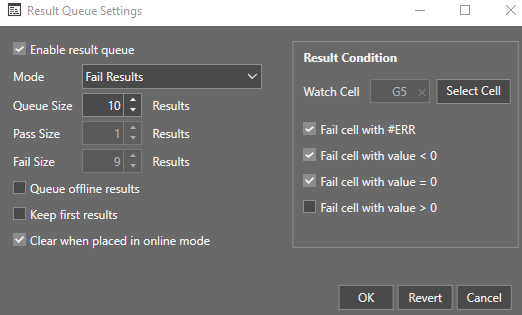
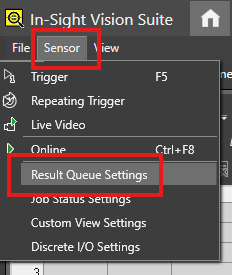
  1. Enable Result Queue Settings from In-Sight Vision Suite.
  2. Select a Watch Cell as a Result Condition:  
    how-to-save-pictures-with-visionview-web-and-in-sight-cameras
    how-to-save-pictures-with-visionview-web-and-in-sight-cameras


For the In-Sight D900 series:

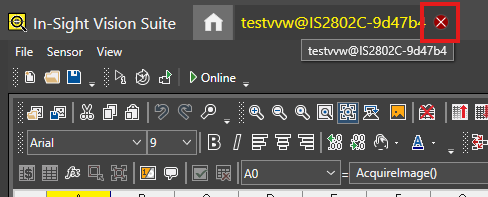
  1. Close the camera tab on In-Sight Vision Suite.
    how-to-save-pictures-with-visionview-web-and-in-sight-cameras
  2. On the VisionView Web Panel, plug in a USB stick (FAT32 formatted), connect the camera to the panel, and finally turn on the panel.
  3. Set the camera to OFFLINE mode.
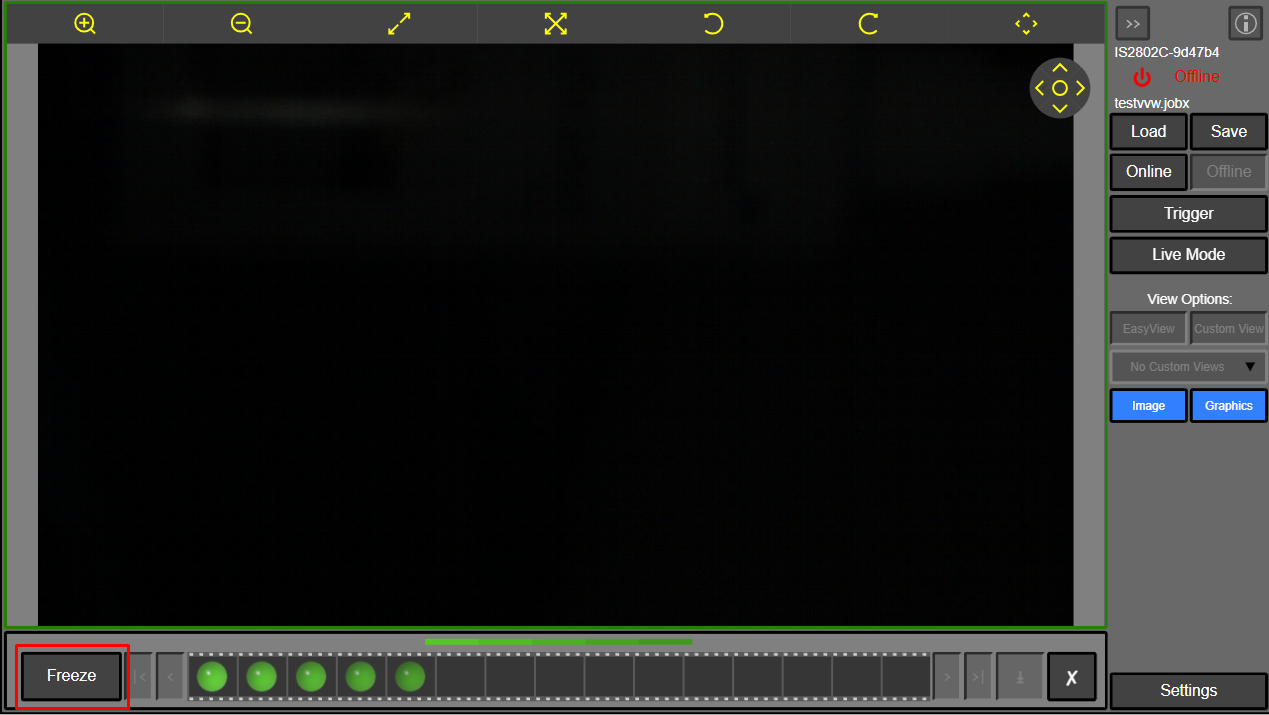
  4. Click Freeze.

    how-to-save-pictures-with-visionview-web-and-in-sight-cameras
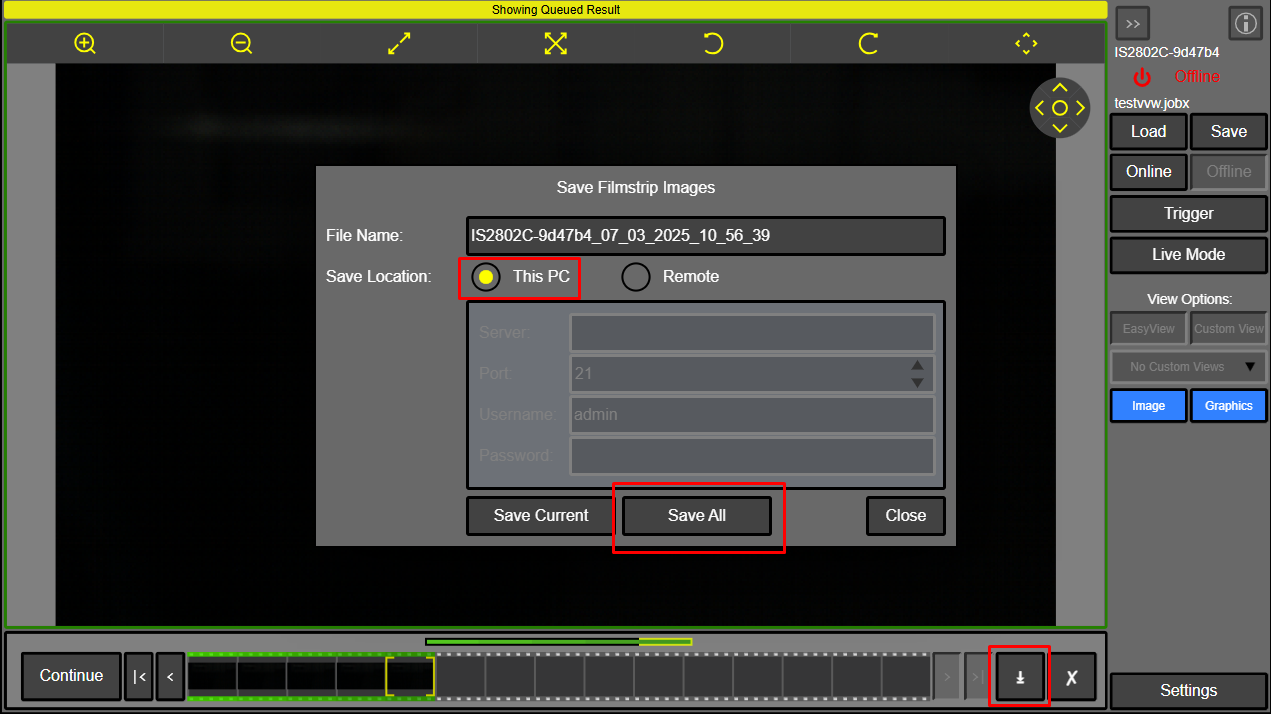
  5. Click Download.
  6. Select This PC.
  7. Click Save All.

    how-to-save-pictures-with-visionview-web-and-in-sight-cameras
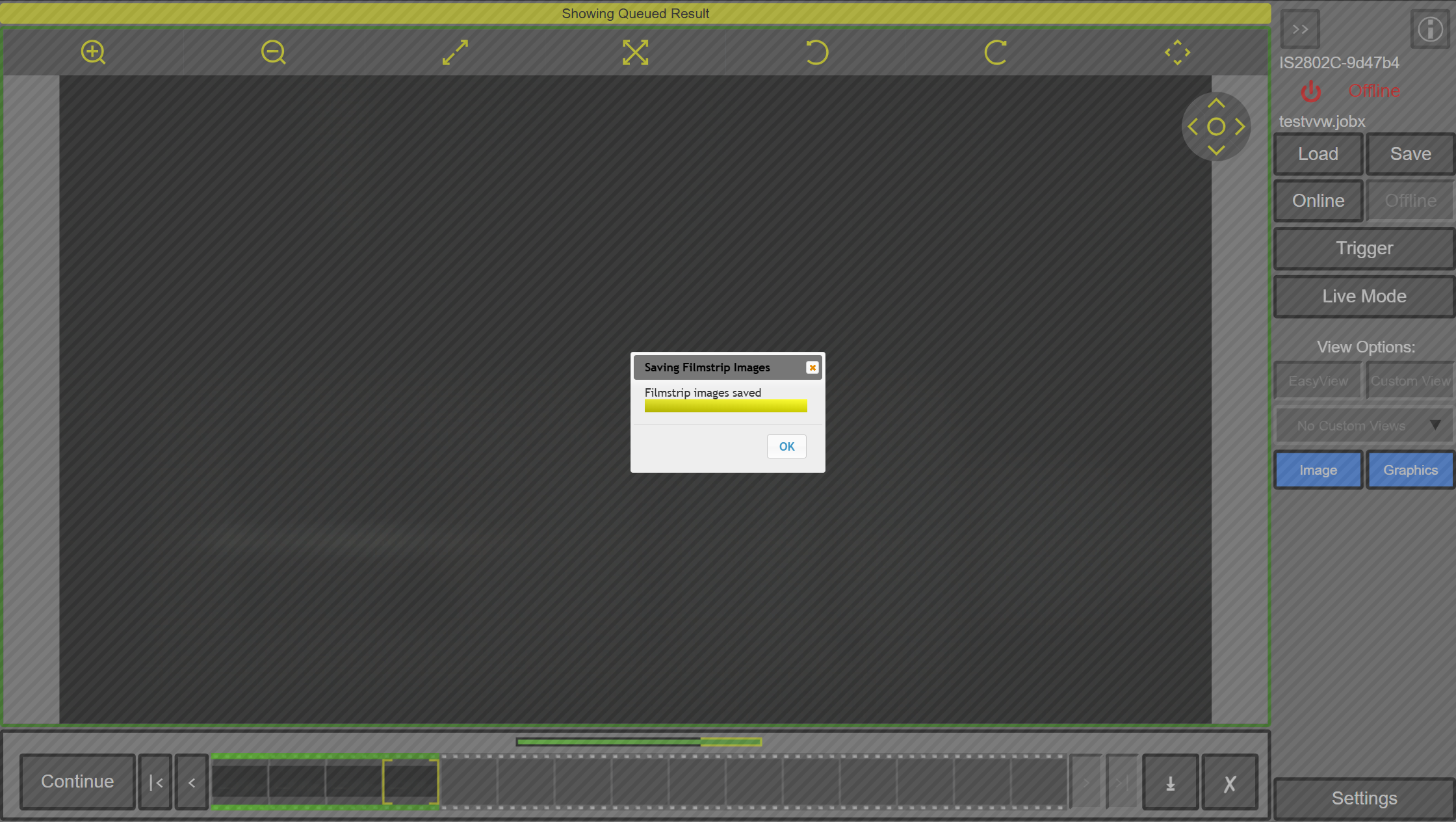
  8. The filmstrip images will be saved onto the USB stick. 
    how-to-save-pictures-with-visionview-web-and-in-sight-cameras
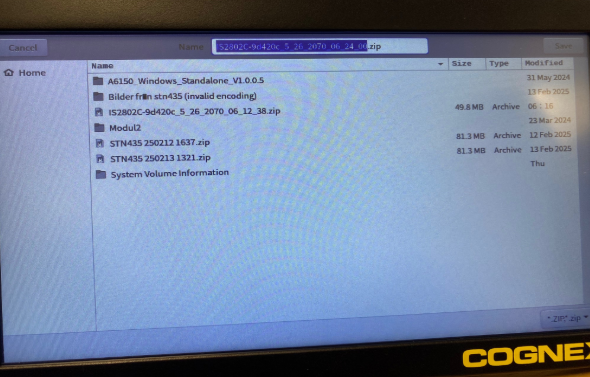
  9. On the VisionView Web panel, you can save a .zip folder. 
    how-to-save-pictures-with-visionview-web-and-in-sight-cameras
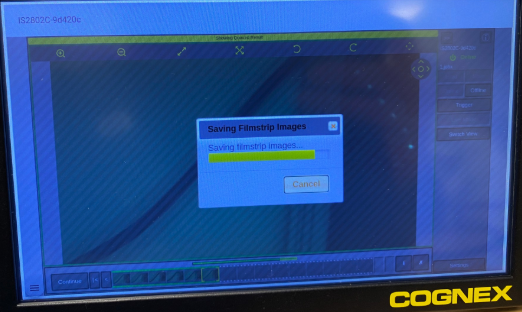
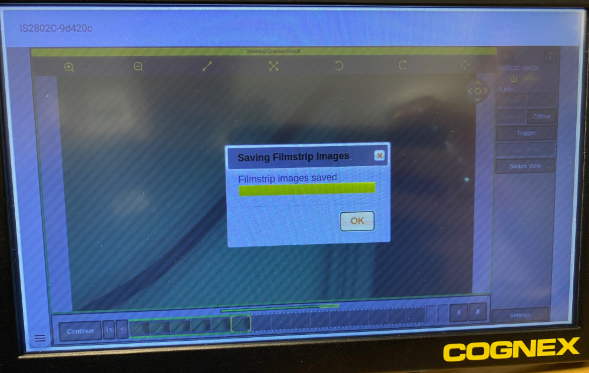
  10. Wait during saving filmstrip images. 
    how-to-save-pictures-with-visionview-web-and-in-sight-cameras
  11. Click OK and wait to get all the images on the USB stick. 
    how-to-save-pictures-with-visionview-web-and-in-sight-cameras

関連リソース