Details
In the EasyBuilder toolbox for Presence/Absence there is a Brightness tool and a Contrast tool that measures the overall Brightness or Contrast in a user specified ROI. These tools can be useful to detect the presence of holes etcetera, and also for detecting scratches, dirt and debris. This article shows the relationship between the Brightness and Contrast tools in EasyBuilder and the underlying tool ExtractHistogram in the Spreadsheet.
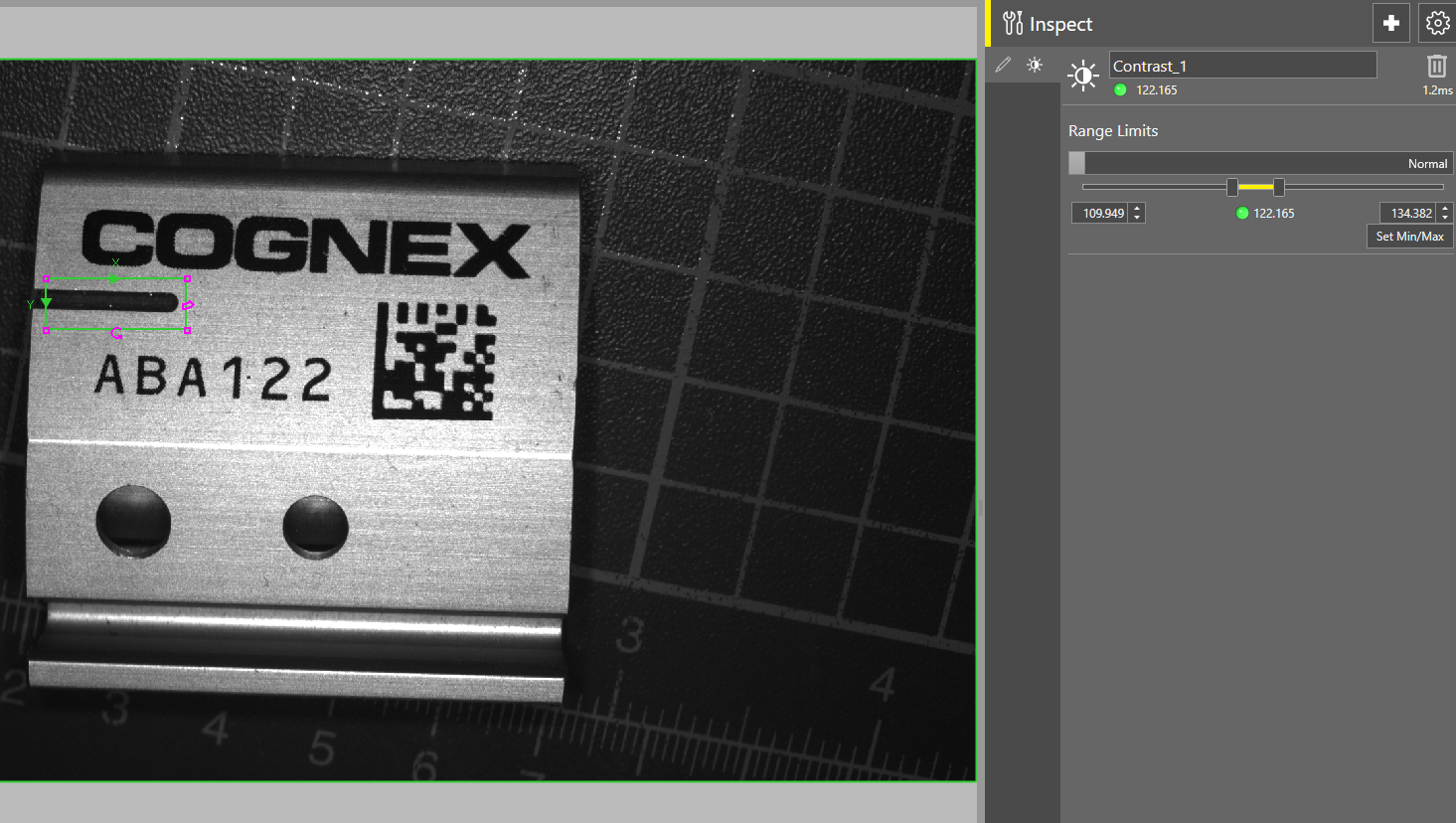
Example of a Contrast tool in EasyBuilder used for detecting the presence of a milled groove.
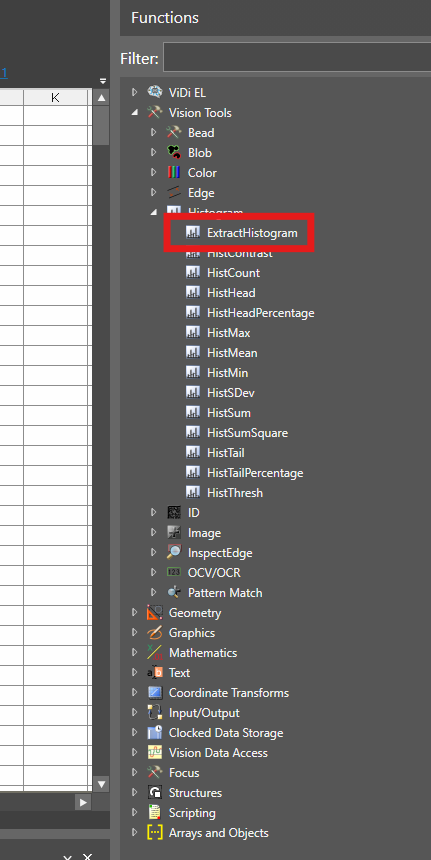
The Brightness and Contrast tools do not exist in the Spreadsheet environment. However the underlying tool ExtractHistogram does.
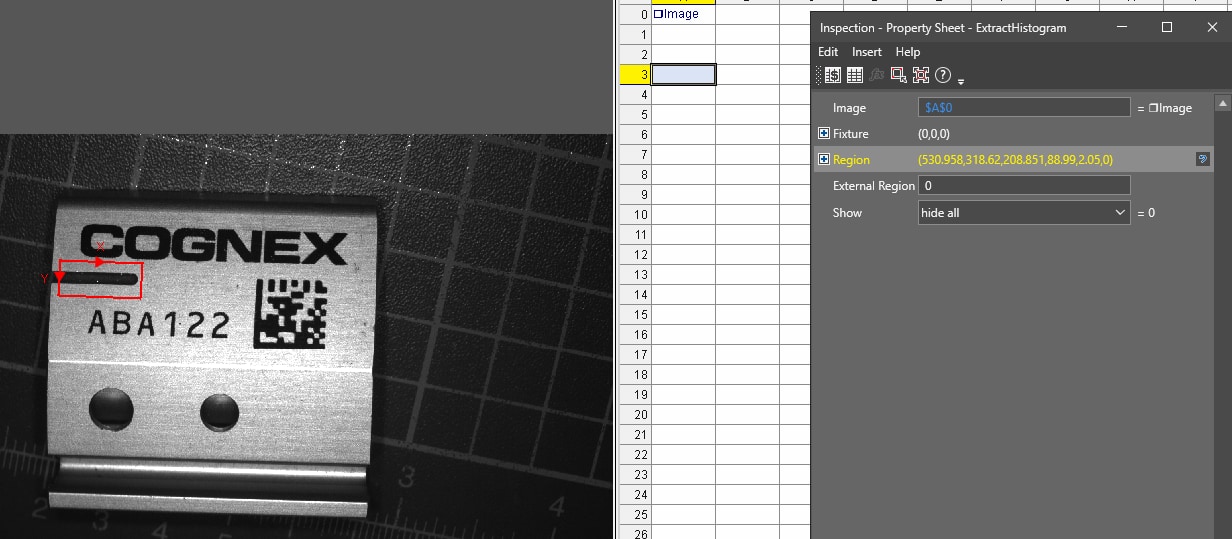
Insert this tool into the Spreadsheet and set the ROI to check for the groove.
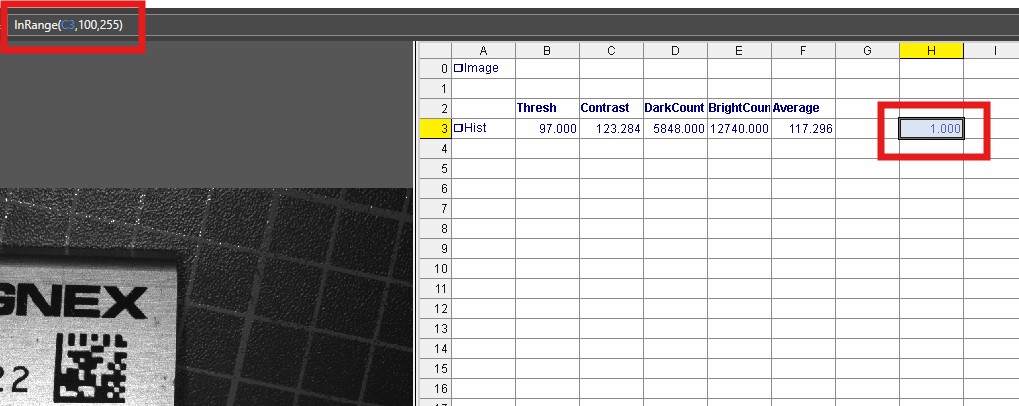
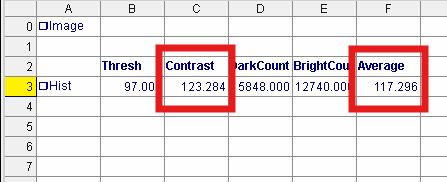
The Automatically inserted results in the Spreadsheet will include Contrast and Average which correspond to the EasyBuilder tools Contrast and Brightness.
You can then use logical functions such as InRange() or If() to evaluate the results and create PASS/FAIL signals in the same manner that is done in EasyBuilder.