Details
PART ONE - Configuring a USB Scanner to be used as a keyboard wedge.
NOTE: Either the scanner’s base or the scanner itself will need to be connected by USB for the scanner to be used as a keyboard wedge. Cognex devices connected by Ethernet cannot be used as a keyboard wedge.
For a handheld or fixed mount camera connected by a USB cable, open the DataMan Setup Tool (DMST) application and connect to the scanner.
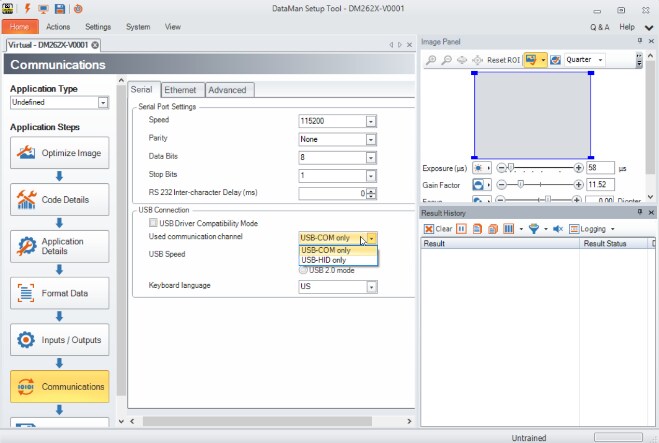
- In the Communications section go to the Serial tab and use the pull-down menu for the Used communications channel and if available select USB-HID & USB-USB – otherwise choose USB-HID.
- Jump down to the next page if you want to configure a single carriage return for the output data BEFORE doing the next step.
A notice will display that the scanner will need to power-cycled for changes to take place. Click on the triangular notice to reboot the scanner.

- For a wireless handheld scanner paired to a BASE connected by a USB cable – open the DataMan Setup Tool application and connect to the BASE (not the scanner). In the Communications section go to the Serial tab and use the pull-down menu for the Used communications channel and select USB-HID & USB-USB if available – otherwise choose USB-HID. A notice will display that the BASE will need to power-cycled for changes to take place. Click on the triangular notice to reboot the BASE.
- After rebooting the device, now in HID mode, it will now be able to scan directly into applications.
- If the only option for the Used communications channel was USB-HID to place it into keyboard mode, the scanner/BASE will need to be converted back to USB-COM mode before you are able to connect to the device to edit the configuration.
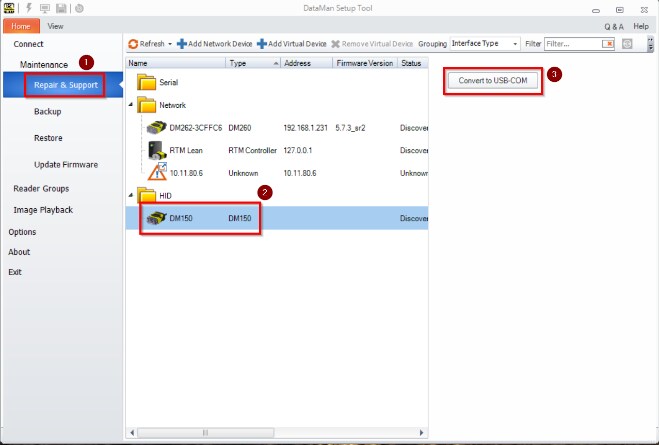
To change the device back to USB-COM mode open the DataMan Setup Tool application and go to the Repair & Support section on the left-hand side. Highlight the device in HID mode and click the Convert to USB-COM button.
PART TWO - Settings to format the output data to applications such as Excel.
NOTE: If you just completed the instructions above you may need to take the scanner out of HID mode in order to apply these settings (previous page).
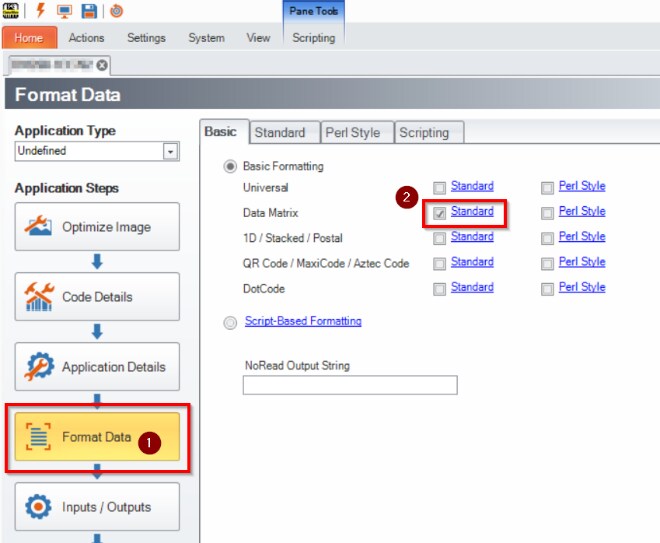
- Go to the Format Data section on the left hand side of the DMST.
- Place a check beside the Standard that corresponds with the symbology that you are trying to configure.
Then click the blue Standard link to enter that section.
NOTE: If you place a check next to Universal this will apply the settings to all symbologies.
Next, highlight the <Full string> in the Data section and click the Add button. Doing so should add the <Full string> in the text box below the Add button.
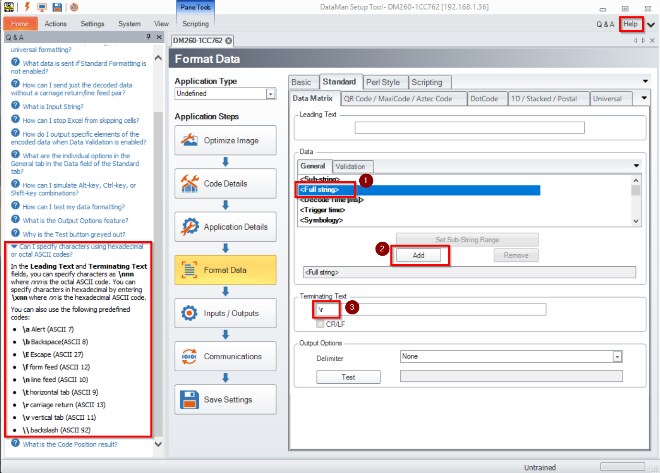
- Now click the triangle indicator to power cycle the unit.
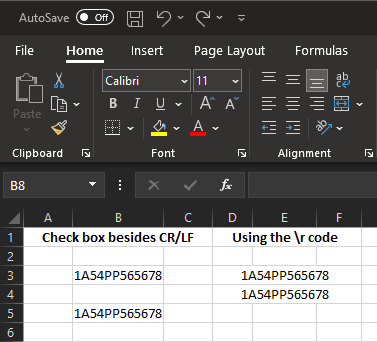
- In the Terminating Text section you could put a check besides CR/LF. But this would place a carriage return after the results. Instead, use a \r to indicate a single carriage return.
The overall intention of this section was to answer the question, “How do I configure my scanner to be used as a keyboard wedge so I can output data to Excel with a single carriage return.” These are very basic instructions. From the format data section access the Help section for additional formatting options.