Details
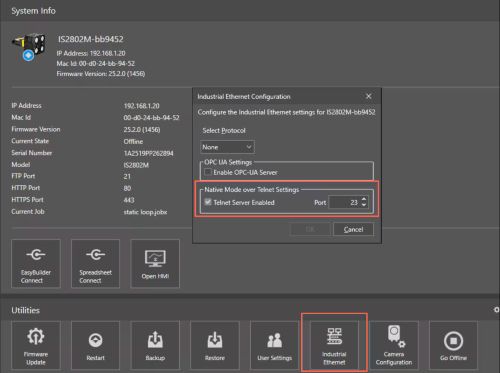
After connecting the camera, before using Telnet, you need to confirm that the Telnet service is enabled in the ISVS software under Utilities → Industrial Ethernet → Industrial Ethernet Configuration. The default port number is 23. If this port is already occupied, you can modify it to another port in the same interface.
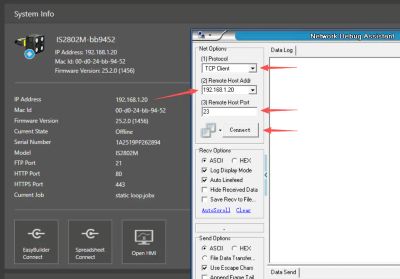
In this example, I will use a network debugging tool and create a TCP Client. Set the remote host IP address to the camera IP and the port number to 23. In the real project, the machine will be TCP Client to connect to the Telnet Server.
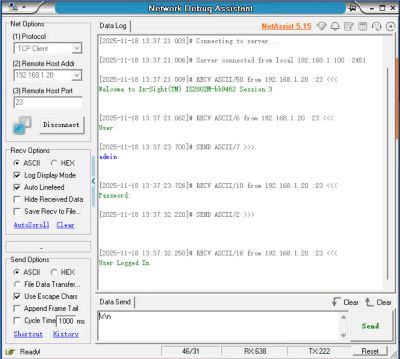
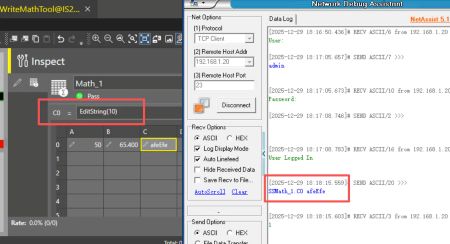
Click the “Connect” button on the TCP client to connect to the IS2800 camera. Once connected successfully, the TCP client will receive a welcome message and prompt for a username. Follow the prompts to enter the username and password in sequence. After successful login, the client will receive a message indicating that the user has logged in, as shown in the image below. The default username is admin, and password is empty.
Note:
All sent messages must include carriage return and line feed. Some debugging tools add this automatically by default. In this case, I directly append \r\n to the end of the string.
The 30-second timeout countdown starts from the welcome message prompt, and once login is successful, the timeout no longer applies.

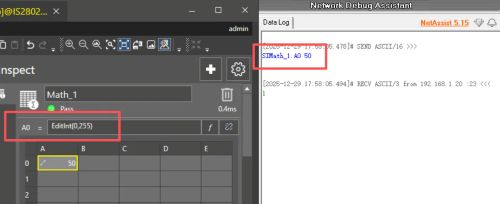
- Math Tool Cell Setting for Int Type Value
Function:SI[TagName][Space][Value]
Example: SIMath_1.A0 50- Add the EditInt function to cell A0 in the Math_1 tool.
- Client sends: SIMath_1.A0 50
Cell A0 in Math_1 receives the value 50.
Note: The function help documentation is incorrect. When accessing cells in the Math tool, use a "." instead of the "_" shown in the documentation.
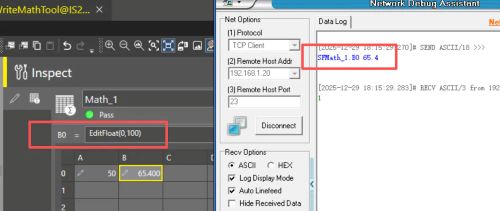
Math Tool Cell Setting for Float Type Value
Function:SF[TagName][Space][Value]
Example: SFMath_1.B0 65.4
- Add the EditFloat function to cell B0 in the Math_1 tool.
- Client sends: SFMath_1.B0 65.4
Cell B0 in Math_1 receives the value 65.4.
Note: The function help documentation is incorrect. When accessing cells in the Math tool, use a "." instead of the "_" shown in the documentation.
Math Tool Cell Setting for String Type Value
Function:SS[TagName][Space][Value]
Example: SSMath_1.C0 afeEfe
- Add the EditString function to cell C0 in the Math_1 tool.
- Client sends: SSMath_1.C0 afeEfe
Cell C0 in Math_1 receives the string afeEfe.
Note: The function help documentation is incorrect. When accessing cells in the Math tool, use a "." instead of the "_" shown in the documentation.
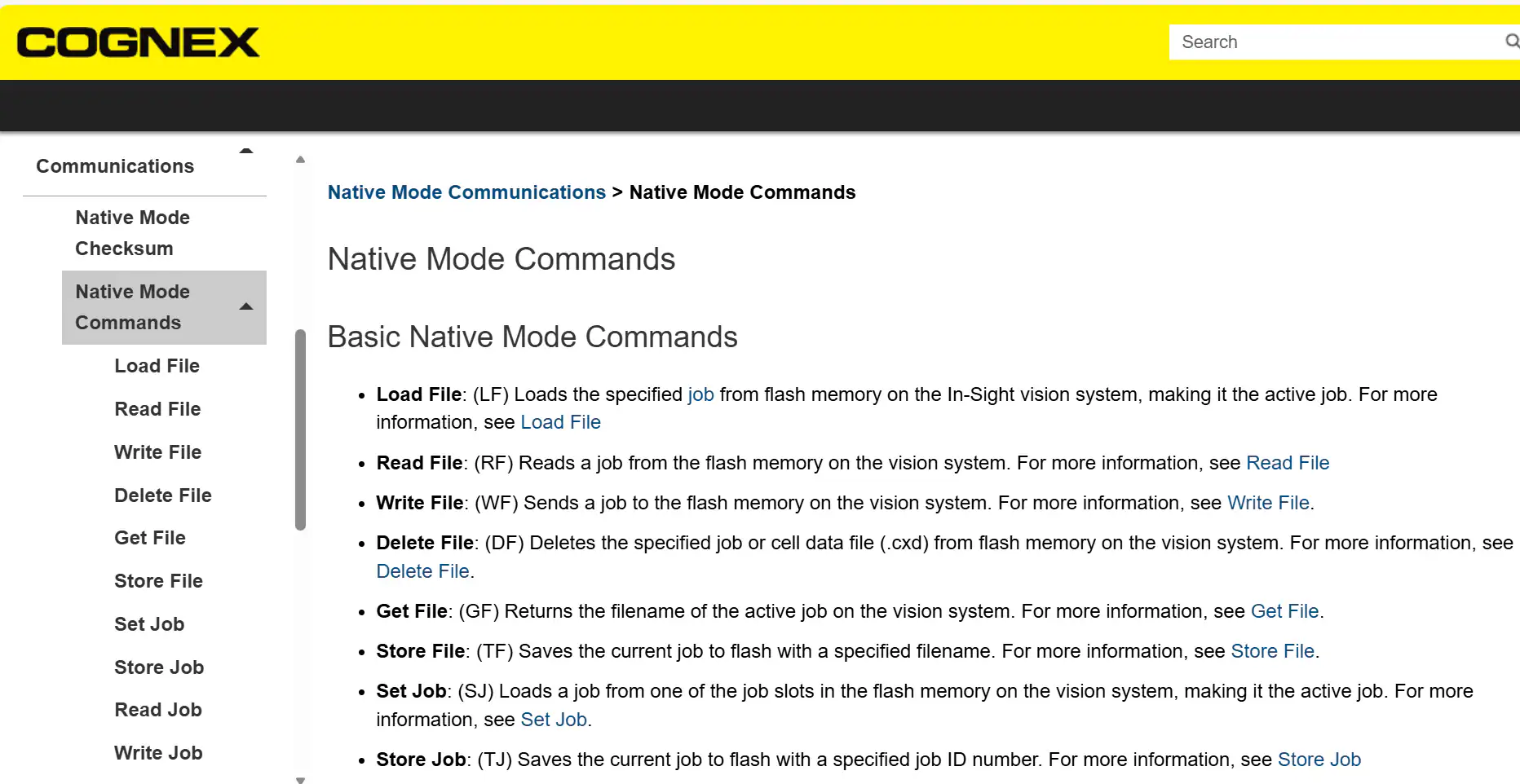
You can find more Native Mode Commands in ISVS Help document