
This page contains detailed instructions for how to generate Upgrade Request Files and upload Upgrade Files to apply Feature Keys to your Dataman devices. These upgrades are applied to the device directly.
An overview of the process is here: What is the Field Service Update Process (FSU)
A Cognex support case will have been created when you placed your order. You can open the case in MyCognex by navigating to “My Support Cases” and selecting the case containing the order number in the title. You will use this case to upload your Upgrade Request File and download your Upgrade File (Feature Key). The steps below outline the process:
- The Upgrade Request file will have the extension .pem. Generate the .pem file by following these steps:
- Open the Dataman Setup Tool
Select the System tab at the top and click “System Info”
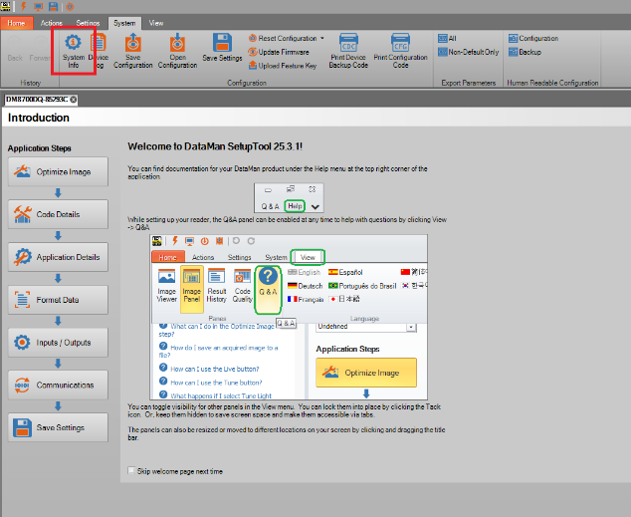
Click “Save Certificate to File”
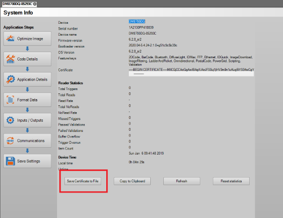
- This will generate a file ending with _cert.pem file. Files ending in _csr.pem cannot be used- you must use the _cert.pem file.
Navigate to your case in MyCognex. Click the paper clip icon and select your .pem file, then click Send to attach it to the case.
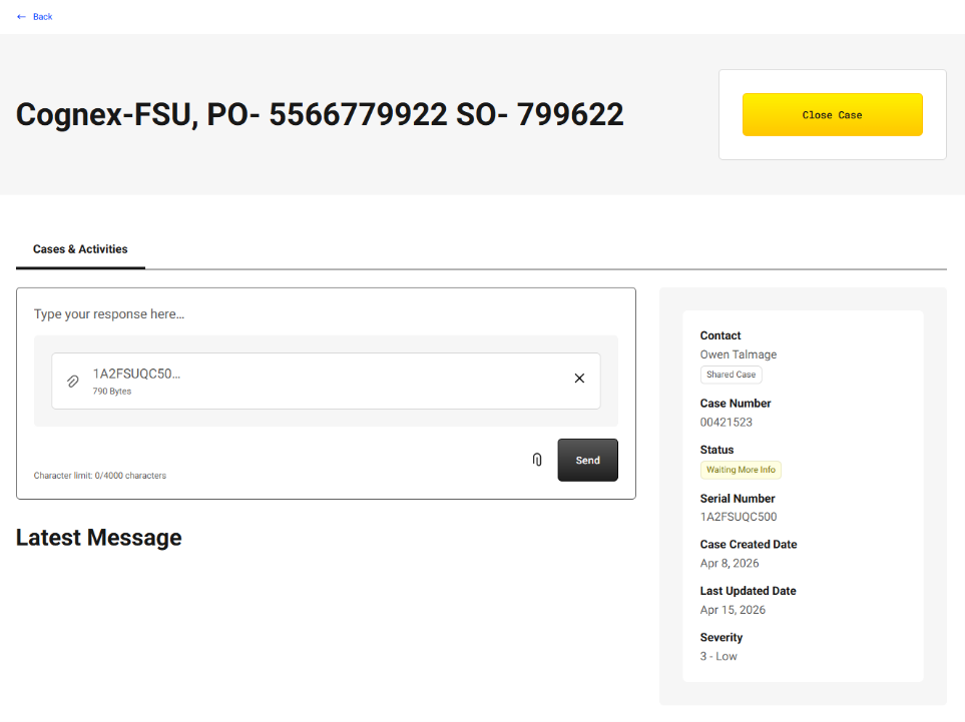
- Once processing is complete, Cognex Support will notify you via email that your upgrade file is ready for download. This will be a .json file. This is an automated process and will typically take under an hour. Please navigate to your case and download that file.
- Complete the license upgrade by applying the json file to the camera. You can do that by following these instructions:
- Open the Dataman Setup Tool
Select the System tab at the top and click “System Info”
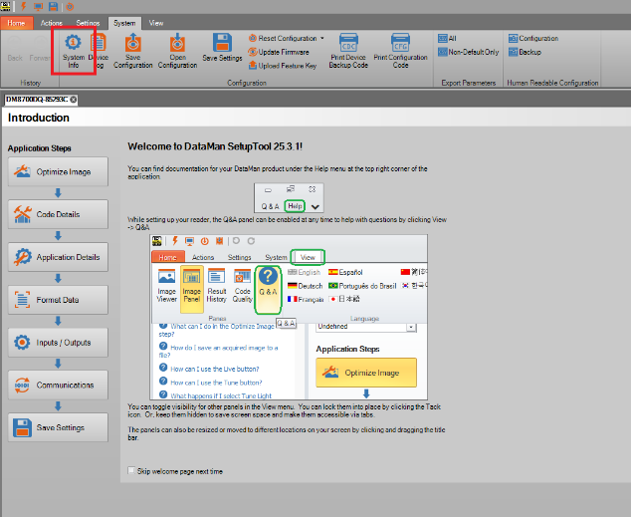
Click “Upload Feature Key”
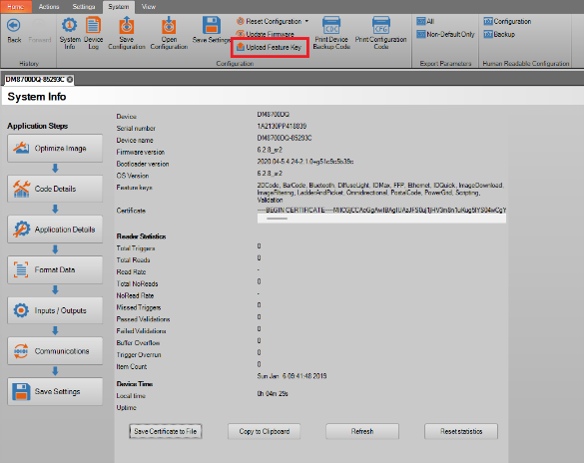
- Once this process is complete, please restart the device. After the restart, the upgrade will have been applied.
If you don’t receive an upgrade file, or receive an error when applying the file, please create an additional case on MyCognex referencing the case number of the problematic upgrade.