Question
Having multiple read setups can be especially helpful when having to scan code of differing sizes and contrast as well as codes from different working distances. These are codes that cannot be read by a single tune optimization.
Answer
To create a new read setup:
 
Connect to the DataMan using the DataMan Setup Tool application.
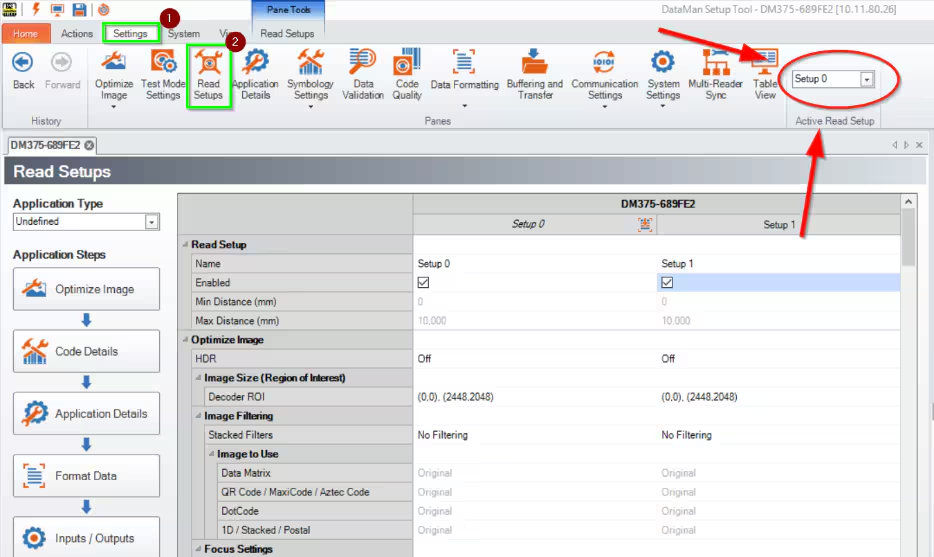
Go to the Settings tab and click Read Setups. 
Click the Add Read Setup button to add a read setup. You may want to give each read setup a unique name - i.e. instead of Setup 0 and Setup 1, perhaps Grape Boxes and Apple Boxes.
VERY IMPORTANT STEP – From the Settings tab change the Active Read Setup pull down menu to the newly created read setup. Now a TUNE can be performed for a different barcode, and settings will be applied to active read setup. Below is a screenshot. Be careful to make sure that the active read setup selected is the one you intend to be editing (tuning).
 
It is highly recommended to save multiple configurations so you do not accidentally edit the wrong read setup - this can be very frustrating. 
Read Setups can only be used in Single, Self, Burst, and Continuous trigger modes. The next Read Setup becomes active after the specified Interval time (specified on the Optimize Image pane). For all other trigger modes, if multiple setups have been configured, only the currently selected active setup (indicated in status bar) gets used. Because there is no interval for Single trigger mode, one read setup will go to the next one as soon as the previous acquisition finishes.
 
With multiple read setups in place the camera will cycle through the read setup attempting to read and decode with each trigger. Once a setup produces a valid image, the reader will no longer try additional setups during that trigger cycle and decoding commences. The reader will try each enabled setup in a priority order, starting at the specified highest priority setup, and move on until a valid reading is taken.
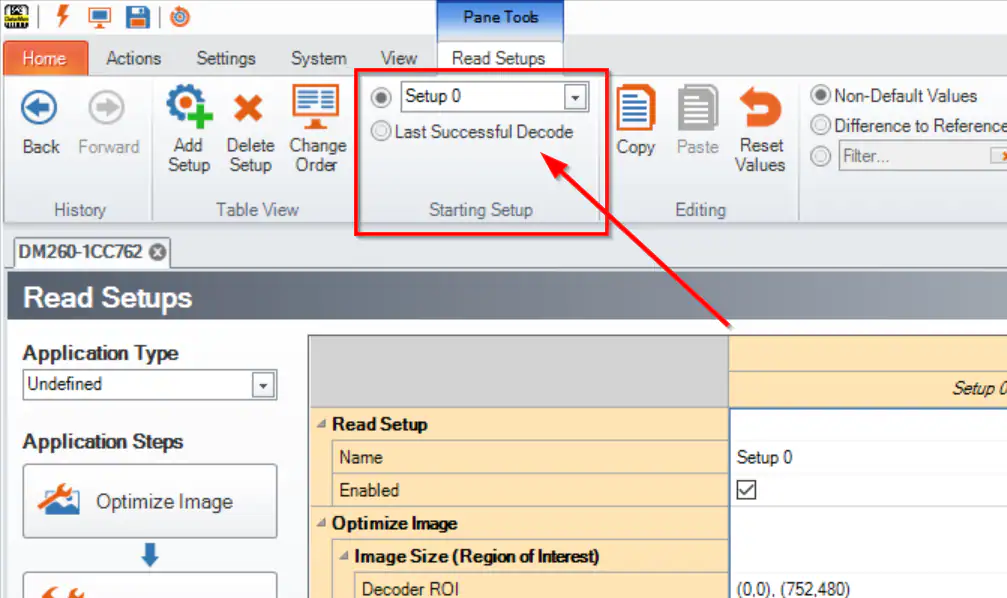
If multiple setups are enabled, the reader goes through all of them and stops acquiring images after it has read a code. To read the next code, you can decide if the reader will start going through the setups starting from a selected one or from the last successful decode.
When Multiple read setups are enabled, the timeout affects each setup individually, and not all the setups as a whole. The result is that the total time spent on reading in one trigger cycle is the product of the number of enabled setups and the timeout.
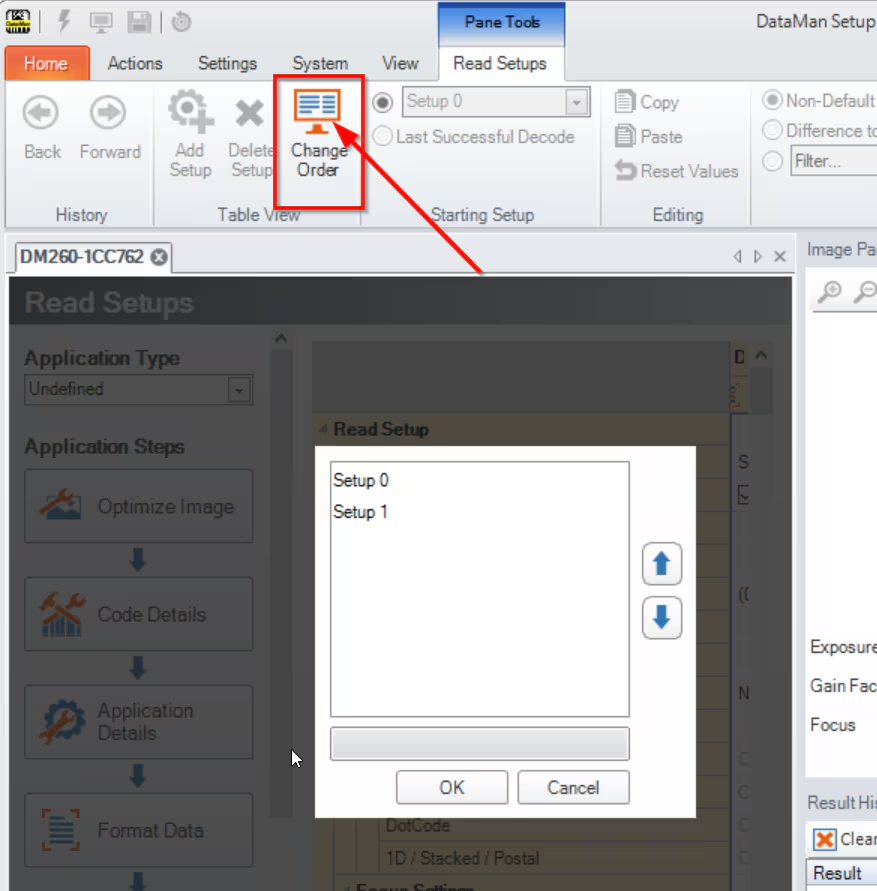
You can click the Change Order button and rearrange the order of read setups in the pop-up window. The setups will be renumbered consecutively.