
What is the Field Service Upgrade Process (FSU)?
This process describes the steps to add new features to your Cognex device through a Field Service Upgrade (FSU).
Cognex offers field upgrades for a variety of products, ensuring they remain up to date with the latest firmware and software enhancements. Here are the key product lines that can be field upgraded:
- In-Sight Vision Systems: These include models like the In-Sight 2800, In-Sight 3800, and In-Sight L38 series, which can be upgraded to improve performance and add new features. The legacy models can be upgraded as well.
- VisionPro and ViDi Software: Cognex's VisionPro and ViDi software platforms can be upgraded to include new tools and algorithms for advanced machine vision applications.
- DataMan Barcode Readers: Both handheld and fixed-mount DataMan readers can receive feature key upgrades to enhance their capabilities and maintain compatibility with new standards.
The part number of the FSU indicates the product line that the upgrade is for. The FSU naming convention is defined below- You will find that your FSU will start with one of the following prefixes.
- VisionPro and ViDi Upgrades
- FSU-VP... for VisionPro
- FSU-DL... for VisionPro Deep Learning
- In-Sight Upgrades
- FSU-IS28…, FSU-IS38… for In-Sight 2800 and In-Sight 3800
- FSU-L38… for In-Sight L38
- FSU-SP28… for In-Sight SnAPP
- FSU-D9… for In-Sight D900
- FSU-IS… for legacy In-Sight products
- Dataman Feature Key Upgrades:
- DM…
Upgrading your Device
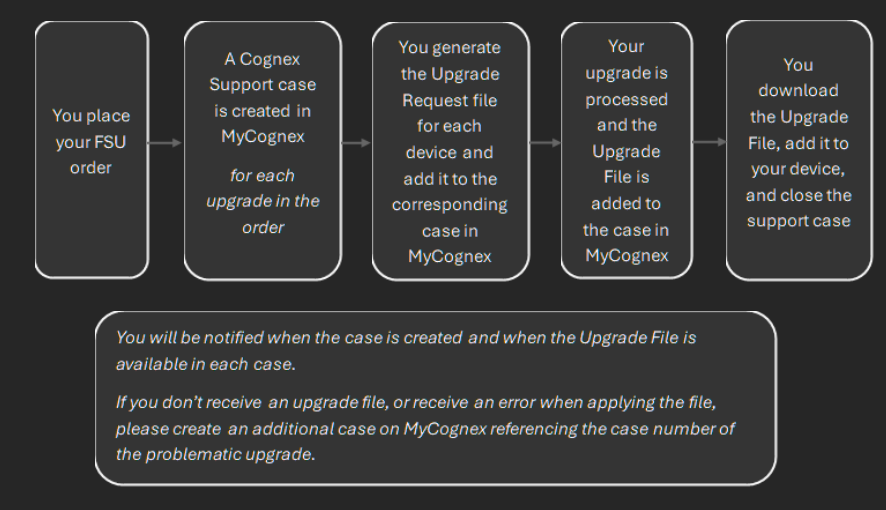
For each of these upgrades, the general process is the same. The steps in this process are outlined below:
- When an order containing an FSU is placed, a support case in MyCognex is created for each device to be upgraded. Each case will have the order number and the serial number of the device displayed.
- You generate an upgrade request file for each device and upload it to the corresponding case in your MyCognex account.
- The upgrade is processed automatically.
- You are notified that the upgrade file is available in your MyCognex case.
- You download the Upgrade file and apply it to your device, completing the upgrade.
Specific Instructions can be found for the following product types below:
- VisionPro, VisionPro Deep Learning, and ViDi Upgrades (Dongle Upgrades)
- In-Sight Vision Suite, In-Sight Explorer, In-Sight D900, and In-Sight SnAPP Upgrades
- Dataman Feature Key Upgrades
Upgrading your VisionPro/VPDL/ViDi system via FSU
A Cognex support case will have been created when you placed your order. You can open the case in MyCognex by navigating to “My Support Cases” and selecting the case containing the order number in the title. You will use this case to upload your Upgrade Request File and download your Upgrade File. The steps below outline the process:
- The Upgrade Request file will have the extension .WibuCmRaC (RaC). You can generate the RaC file for your dongle by following the steps below:
- Open CodeMeter Control Center.
- Click to check for Firmware Update.
- If prompted, update Firmware.
- After the firmware update is complete, click on “License Update”.
- Click “Next”.
- Select “Create license request” and click Next.
- Select “Extend existing license” and click Next.
- Select “Cognex Corporation (6000417)” and click Next.
- Click “Commit”.
- This will generate the RaC file.
- Navigate to your case in MyCognex. Click the paper clip icon and select your RaC file, then click Send to attach it to the case.
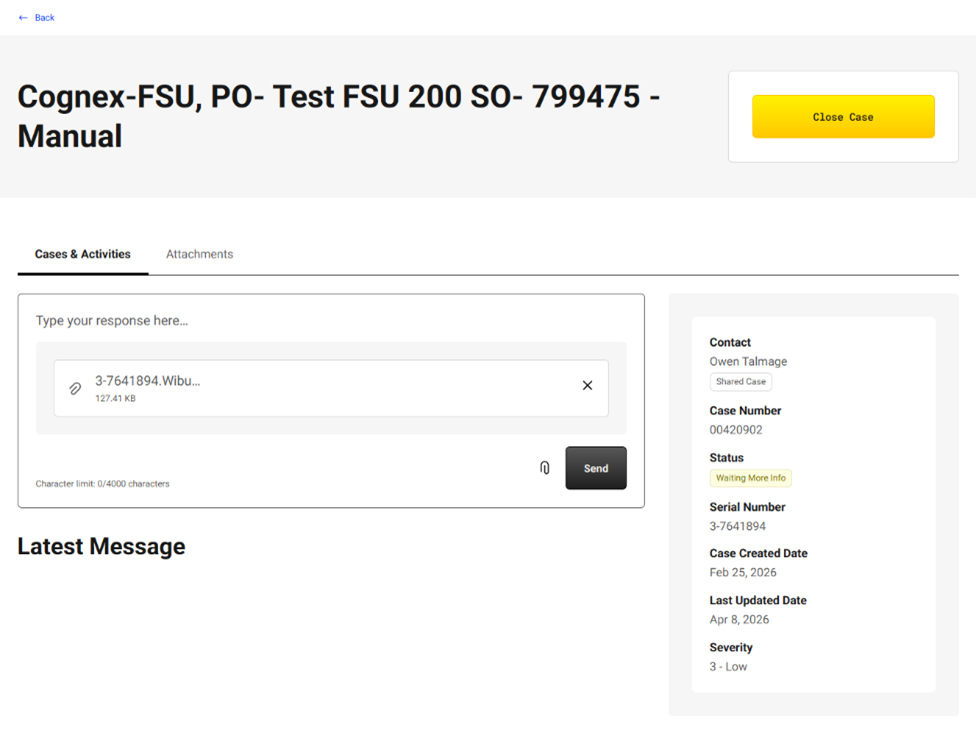
- Once processing is complete, Cognex Support will notify you via email or case comment that your Upgrade File is ready for download. This file will have the extension .WibuCmRaU (RaU). Please navigate to your case and download that file.
- Follow these instructions to apply the RaU file to the dongle and complete the upgrade:
- Open CodeMeter Control Center.
- Click the “License Update” button.
- A dialog called “CmFAS Assistant” will pop up. Click the “Next” button.
- On the next dialog, select “Import license update” and click “Next”.
- On the next dialog, type in the filename of the license update file from step (1). Click “Commit”.
- The RaU file has now been applied to the dongle.
If you don’t receive an upgrade file, or receive an error when applying the file, please create an additional case on MyCognex referencing the case number of the problematic upgrade.
Upgrading your In-Sight Device via FSU
A Cognex support case will have been created when you placed your order. You can open the case in MyCognex by navigating to “My Support Cases” and selecting the case containing the order number in the title. You will use this case to upload your Upgrade Request File and download your Upgrade File. The steps below outline the process:
- The Upgrade Request file will have the extension .pem. Generate the .pem file by following these steps:
- Start the In-Sight Vision Suite software
- Select the In-Sight device you would like to upgrade
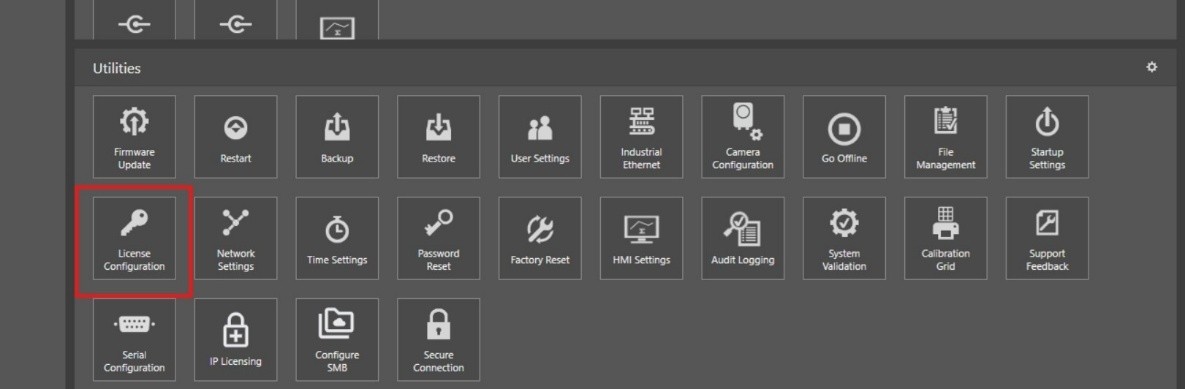
- Open the License Configuration under Utilities menu
- Click on the Create License Request button
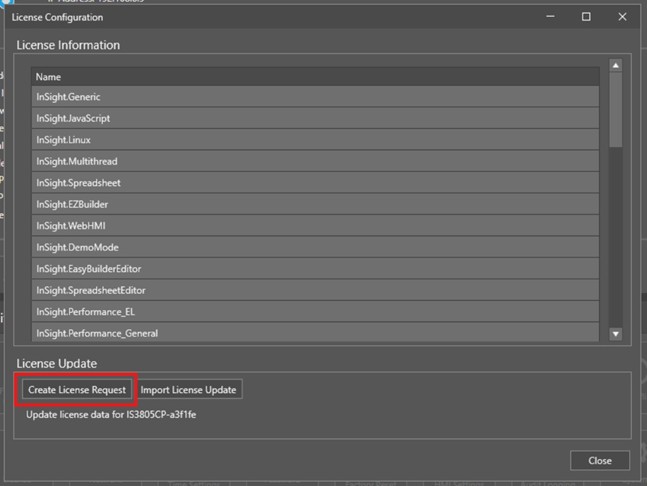
- This will generate the .pem file.
- Navigate to your case in MyCognex. Click the paper clip icon and select your .pem file, then click Send to attach it to the case.
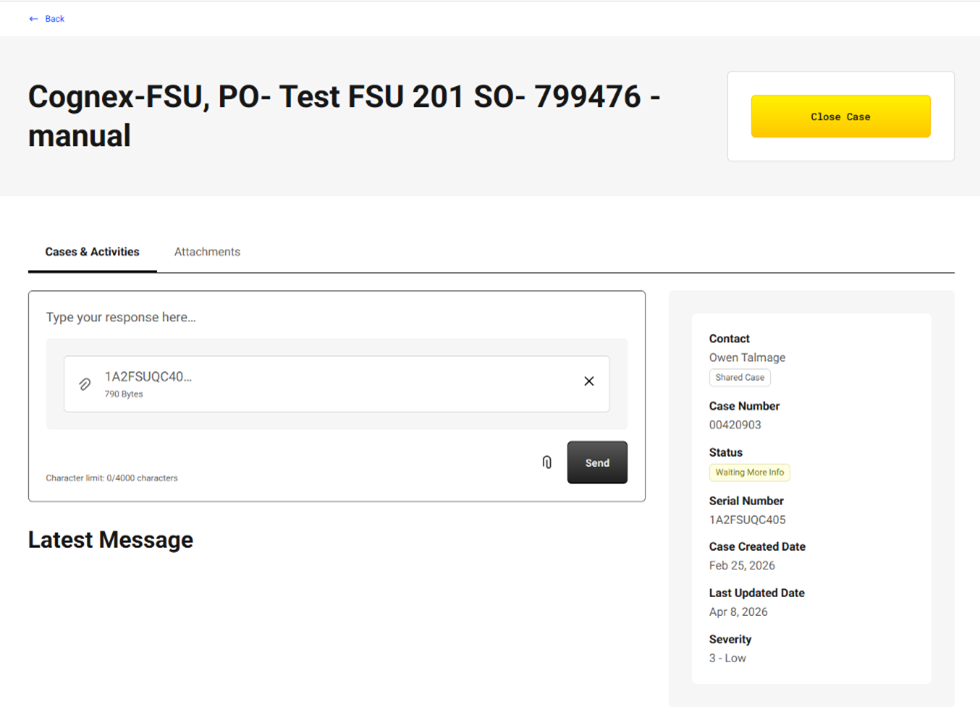
- Once processing is complete, Cognex Support will notify you via email or case comment that your Upgrade File is ready for download. This will be a .json file. This is an automated process and will typically take under an hour. Please navigate to your case and download that file.
- Complete the Upgrade by applying the .json file to the camera. You can do that by following these instructions:
- Start the In-Sight Vision Suite software
- Select the In-Sight device you would like to upgrade
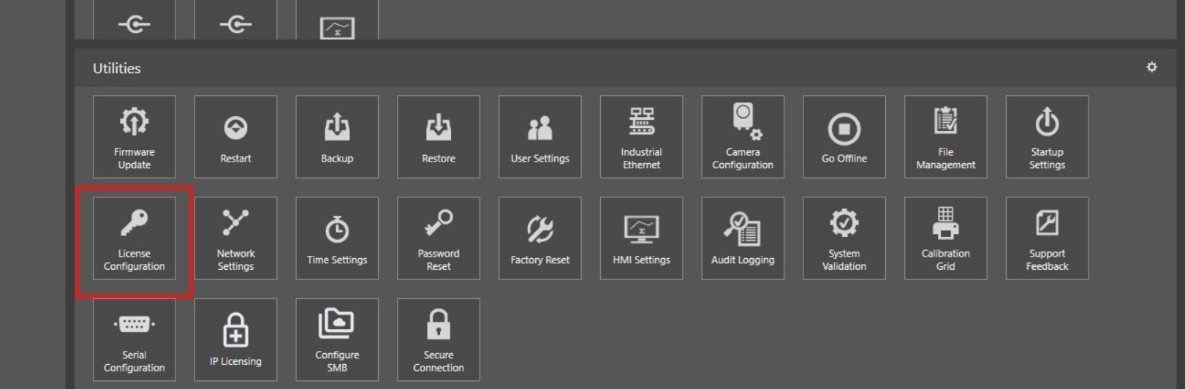
- Open the License Configuration under Utilities menu
- Click on the Import License Request button
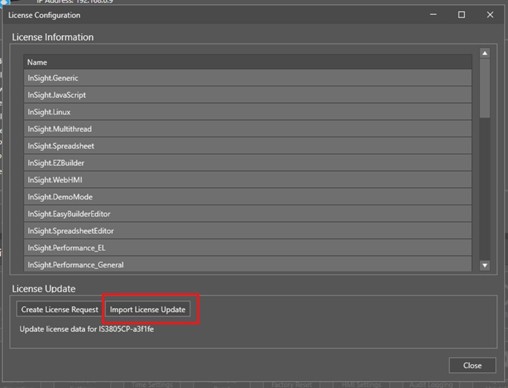
- Once this process is complete, please restart the camera. After the restart, the upgrade will have been applied.
If you don’t receive an upgrade file, or receive an error when applying the file, please create an additional case on MyCognex referencing the case number of the problematic upgrade.
Upgrading your Dataman Device via FSU
This page contains detailed instructions for how to generate Upgrade Request Files and upload Upgrade Files to apply Feature Keys to your Dataman devices. These upgrades are applied to the device directly.
A Cognex support case will have been created when you placed your order. You can open the case in MyCognex by navigating to “My Support Cases” and selecting the case containing the order number in the title. You will use this case to upload your Upgrade Request File and download your Upgrade File (Feature Key). The steps below outline the process:
- The Upgrade Request file will have the extension .pem. Generate the .pem file by following these steps:
- Open the Dataman Setup Tool
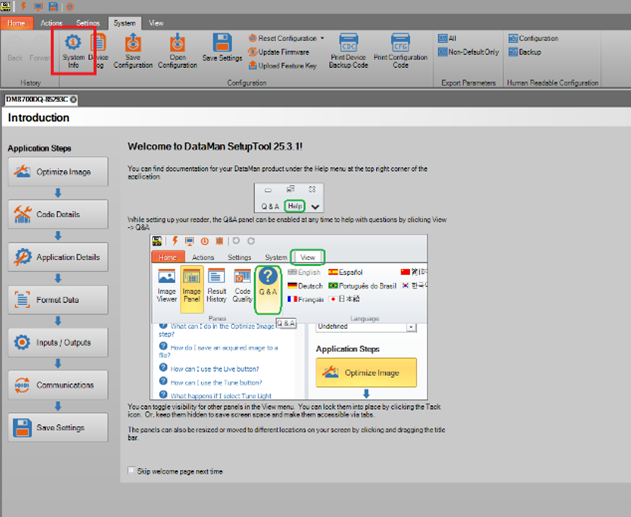
- Select the System tab at the top and click “System Info”
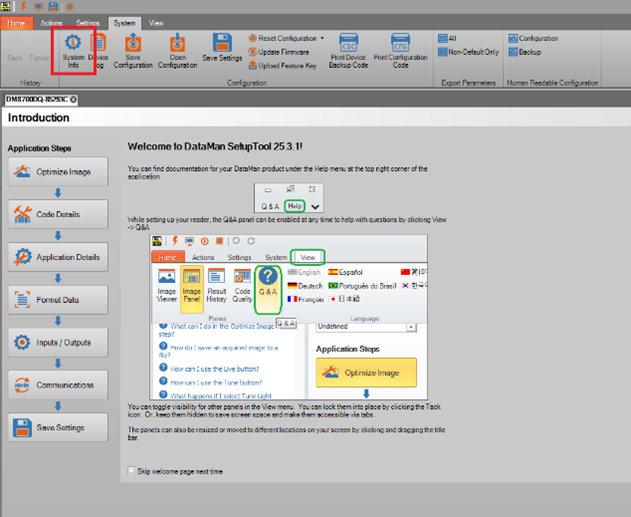
- Click “Save Certificate to File”
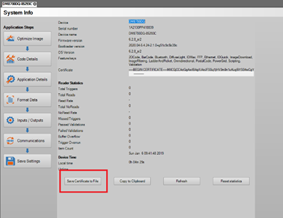
- This will generate a file ending with _cert.pem file. Files ending in _csr.pem cannot be used- you must use the _cert.pem file.
- Navigate to your case in MyCognex. Click the paper clip icon and select your .pem file, then click Send to attach it to the case.
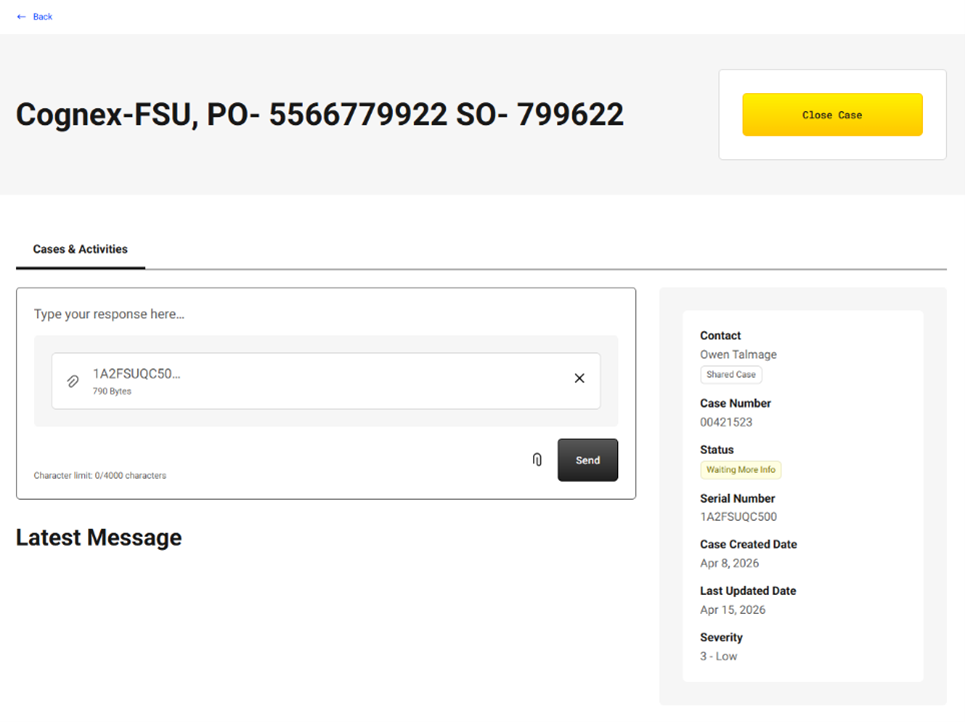
- Once processing is complete, Cognex Support will notify you via email that your upgrade file is ready for download. This will be a .json file. This is an automated process and will typically take under an hour. Please navigate to your case and download that file.
- Complete the license upgrade by applying the json file to the camera. You can do that by following these instructions:
- Open the Dataman Setup Tool
- Select the System tab at the top and click “System Info”
- Click “Upload Feature Key”
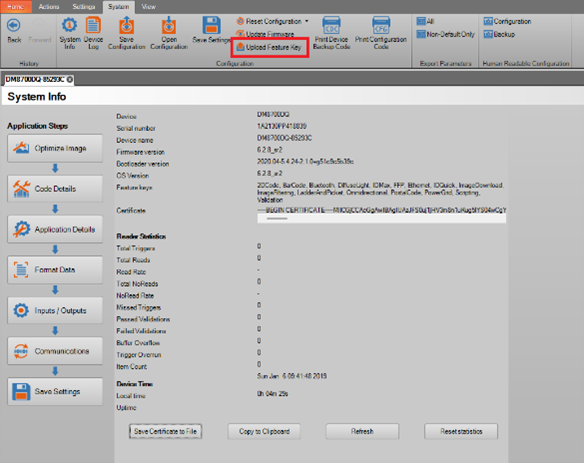
- Once this process is complete, please restart the device. After the restart, the upgrade will have been applied.
If you don’t receive an upgrade file, or receive an error when applying the file, please create an additional case on MyCognex referencing the case number of the problematic upgrade.